Adjust the viewportThe user’s visible area of an app on their screen.
See in Glossary in the Game view after you add a pixel perfect camera to your sceneA Scene contains the environments and menus of your game. Think of each unique Scene file as a unique level. In each Scene, you place your environments, obstacles, and decorations, essentially designing and building your game in pieces. More info
See in Glossary.
Use the Crop Frame property of the PixelThe smallest unit in a computer image. Pixel size depends on your screen resolution. Pixel lighting is calculated at every screen pixel. More info
See in Glossary Perfect CameraA component which creates an image of a particular viewpoint in your scene. The output is either drawn to the screen or captured as a texture. More info
See in Glossary component to crop the viewport in the Game view. Use this property if the aspect ratioThe relationship of an image’s proportional dimensions, such as its width and height.
See in Glossary of the Game view makes it wider or taller than the Reference Resolution you set in the Pixel Perfect Camera component.
For more information, refer to Pixel Perfect Camera component reference.

By default, the Filter Mode of a Pixel Perfect Camera component is set to Retro AA, which prevents spritesA 2D graphic objects. If you are used to working in 3D, Sprites are essentially just standard textures but there are special techniques for combining and managing sprite textures for efficiency and convenience during development. More info
See in Glossary shimmering when they move, but can make pixels look blurry.
To make pixels sharper but increase shimmering, set the Filter Mode to Point.
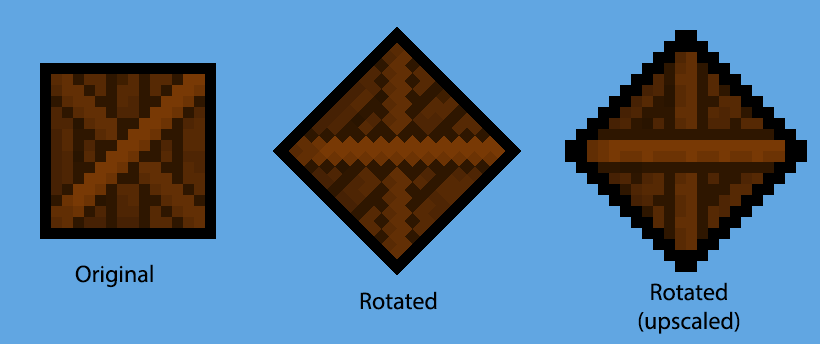
By default, Unity renders at the full resolution of the viewport in the Game view. As a result, when you rotate sprites, the sprite pixels rotate at high resolution and create smooth diagonal lines. To keep pixels upright instead, set the Grid Snapping property of the Pixel Perfect Camera component to Upscale Render TextureA special type of Texture that is created and updated at runtime. To use them, first create a new Render Texture and designate one of your Cameras to render into it. Then you can use the Render Texture in a Material just like a regular Texture. More info
See in Glossary.