Load UI assets with Addressables
Load UI assets dynamically at runtime with Unity’s Addressable Asset System for efficient memory management and flexible asset organization.
This example shows how to load UI assets with the Addressables package. Addressables are the recommended way to reference UI assets at runtime for larger projects or when you need to manage your assets more efficiently.
Example overview
In this example, you create a simple UXML file with a button, and a simple USS file that styles the button. You make both files addressable, and then load them at runtime in a MonoBehaviour script.
You can find the completed files that this example creates in this GitHub repository.
Prerequisites
This guide is for developers familiar with the Unity Editor, UI Toolkit, and C# scripting. Before you start, get familiar with the following:
Create the UXML and USS files
Create a UXML file with a button element and a USS file that styles the button with a green background.
Create a Unity project with any template.
Install the Addressables package if you haven’t already.
In the Project window, create a UXML file named
UXMLExample.uxmland a USS file namedUSSExample.uss.Open the
UXMLExample.uxmlfile in the UI Builder and add a Button to the Hierarchy panel.Save your changes.
-
Open the
USSExample.ussfile in a text editor and add the following content to style the button:Button { background-color: green; }
Make the UXML and USS files addressable
Make the UXML and USS files addressable so that you can load them at runtime. When you make an asset addressable, Unity generates a default address key for the asset based on its name. This example sets a custom address key for the UXML file so that you can reference it in the C# scripts.
In the Project window, select the
USSExample.ussfile.In the Inspector window, select Addressable.
Select the
UXMLExample.uxmlfile.-
In the Inspector window, select Addressable and enter
uxmlexampleas the address key for the UXML file.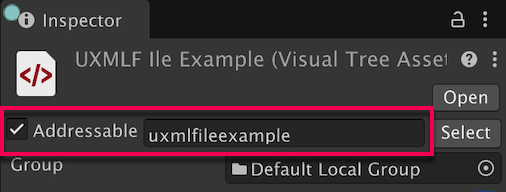
The Inspector window shows the Addressable checkbox selected and the address key field filled
Create the C# script
Create a C# script to load the UXML by its address key and load the USS through its addressable asset reference.
-
In the Project window, create a C# script named
AddressableExample.cswith the following content:using UnityEngine; using UnityEngine.AddressableAssets; using UnityEngine.ResourceManagement.AsyncOperations; using UnityEngine.UIElements; // Manages dynamic loading and unloading of UI assets using Unity's Addressable Asset System. // This script loads both VisualTreeAsset and StyleSheet assets at runtime and applies them to a PanelRenderer component, // providing efficient memory management and asynchronous loading capabilities. public class AddressableExample : MonoBehaviour { [SerializeField] private string uxmlAssetKey; // Addressable key for the UXML asset to load. [SerializeField] private AssetReference ussAsset; // AssetReference for the USS asset to load. private PanelRenderer panelRenderer; private AsyncOperationHandle<VisualTreeAsset> uxmlLoadHandle; private AsyncOperationHandle<StyleSheet> ussLoadHandle; private VisualTreeAsset loadedAsset; private StyleSheet loadedStyleSheet; private void OnEnable() { panelRenderer = GetComponent<PanelRenderer>(); if (panelRenderer != null) { panelRenderer.RegisterUIReloadCallback(OnUIReload); } } private void OnDisable() { if (panelRenderer != null) { panelRenderer.UnregisterUIReloadCallback(OnUIReload); } UnloadUIDocument(); } // Callback method invoked when the PanelRenderer reloads the UI. private void OnUIReload(PanelRenderer renderer, VisualElement rootElement) { // Load assets when UI is ready to receive them. if (!uxmlLoadHandle.IsValid()) { LoadUIDocument(); } if (!ussLoadHandle.IsValid()) { LoadStyleSheet(); } // Apply stylesheet if already loaded; guard against adding the same sheet on every reload. if (loadedStyleSheet != null && !rootElement.styleSheets.Contains(loadedStyleSheet)) { rootElement.styleSheets.Add(loadedStyleSheet); } } private void LoadUIDocument() { Debug.Log($"Loading {uxmlAssetKey}"); uxmlLoadHandle = Addressables.LoadAssetAsync<VisualTreeAsset>(uxmlAssetKey); uxmlLoadHandle.Completed += UxmlHandle_Completed; } private void LoadStyleSheet() { if (ussAsset != null) { Debug.Log($"Loading {ussAsset.RuntimeKey}"); ussLoadHandle = Addressables.LoadAssetAsync<StyleSheet>(ussAsset); ussLoadHandle.Completed += UssHandle_Completed; } else { Debug.LogWarning("USS AssetReference is null, skipping style sheet loading."); } } private void UxmlHandle_Completed(AsyncOperationHandle<VisualTreeAsset> obj) { if (!isActiveAndEnabled || panelRenderer == null) return; if (obj.Status == AsyncOperationStatus.Succeeded) { loadedAsset = obj.Result; panelRenderer.visualTreeAsset = loadedAsset; } else { Debug.LogError($"AssetKey {uxmlAssetKey} failed to load."); } } private void UssHandle_Completed(AsyncOperationHandle<StyleSheet> obj) { if (!isActiveAndEnabled || panelRenderer == null) return; if (obj.Status == AsyncOperationStatus.Succeeded) { loadedStyleSheet = obj.Result; } else { Debug.LogError($"AssetReference {(ussAsset != null ? ussAsset.RuntimeKey : "(null)")} failed to load."); } } private void UnloadUIDocument() { if (uxmlLoadHandle.IsValid()) { Debug.Log($"Unloading {uxmlAssetKey}"); uxmlLoadHandle.Completed -= UxmlHandle_Completed; loadedAsset = null; Addressables.Release(uxmlLoadHandle); uxmlLoadHandle = default; } if (ussLoadHandle.IsValid()) { Debug.Log($"Unloading {(ussAsset != null ? ussAsset.RuntimeKey : "(null)")}"); ussLoadHandle.Completed -= UssHandle_Completed; loadedStyleSheet = null; Addressables.Release(ussLoadHandle); ussLoadHandle = default; } } private void OnDestroy() { // Clean up any remaining handles that weren't released in UnloadUIDocument. if (uxmlLoadHandle.IsValid()) { uxmlLoadHandle.Completed -= UxmlHandle_Completed; Addressables.Release(uxmlLoadHandle); uxmlLoadHandle = default; } if (ussLoadHandle.IsValid()) { ussLoadHandle.Completed -= UssHandle_Completed; Addressables.Release(ussLoadHandle); ussLoadHandle = default; } } }
Test the example
To test the example, create a new scene and attach the script to a Panel Renderer GameObject.
- Create a new scene in your project.
- In the Hierarchy window, select + > UI Toolkit > Panel Renderer to create a new Panel Renderer GameObject.
- Select the Panel Renderer GameObject and select Add Component in the Inspector window.
- Add the
AddressableExamplescript to the GameObject. - In the Addressable Example component, enter
uxmlexamplein the Uxml Asset Key field and assignUSSExampleto the Uss Asset Reference field. - Save the scene and enter Play mode to view the results.
After you enter Play mode, the Game view shows a button with a green background. This confirms that the script successfully loaded the UXML file and applied the styles from the USS file. The console also shows log messages to confirm that both assets were loaded successfully.