Troubleshooting direct, indirect, and environment noise
Fix issues causing speckled noise in lit scenes.
Cause
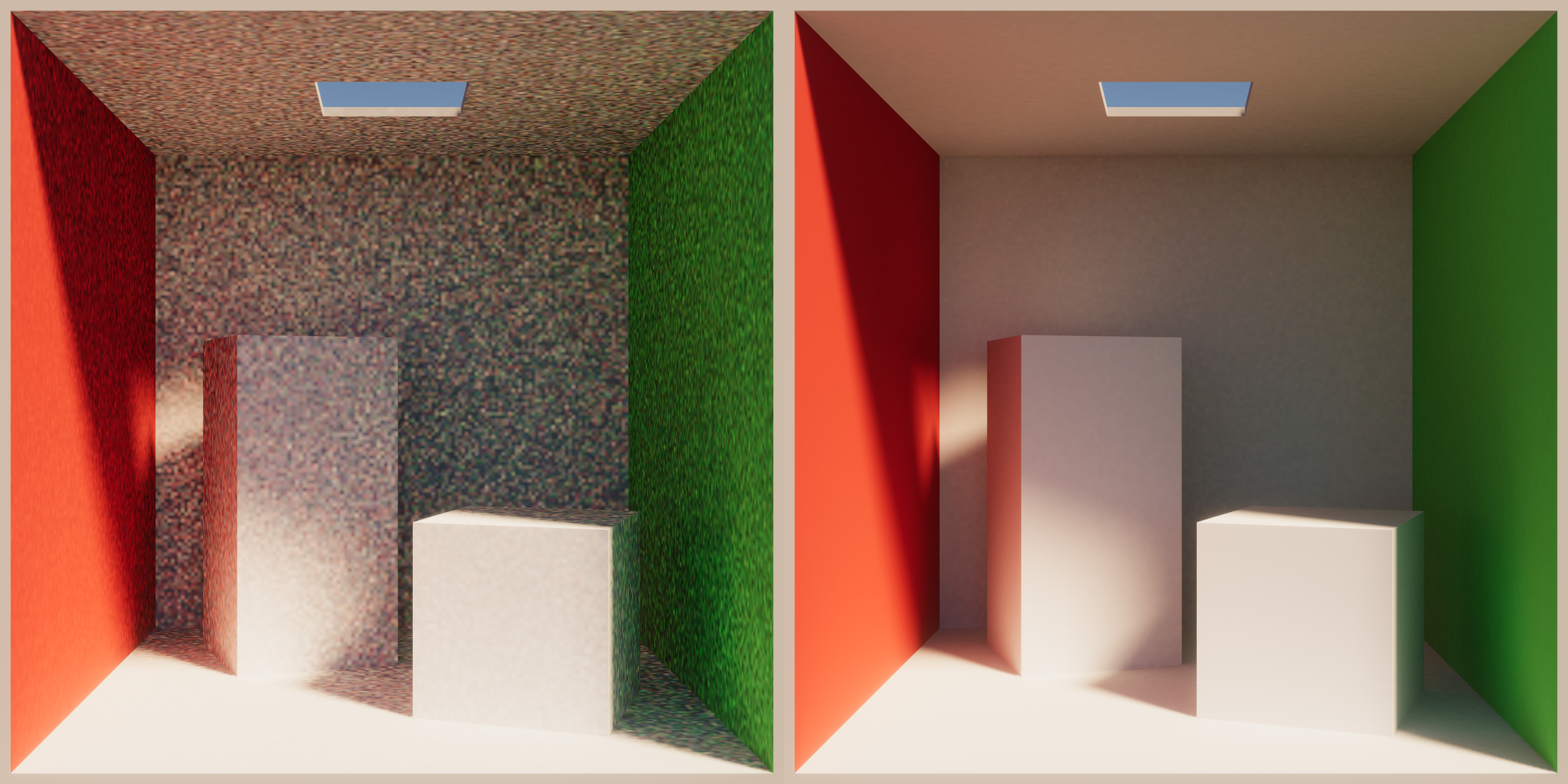 Example: All sample counts are set to 8 (left). All sample counts are set to 2048 (right).
Unity’s light bakers are Monte Carlo path tracers. Insufficient ray counts lead to noisy lightmaps, and increasing the number of rays the light baker spawns from each lightmap texel helps to reduce the noise in the lightmaps.
Resolution
To fix the issue of too much noise, you can increase the sample size from direct, indirect, and environment sources to reduce lightmap noise, and use denoiser and filters. Note that when increasing samples, this will increase bake times in a linear fashion.
Note: To make easier to debug issues, got to the Lighting window, and set the Filtering property to None.
Increase direct samples
Direct samples control the number of rays, which the lightmapper shoots towards light sources.
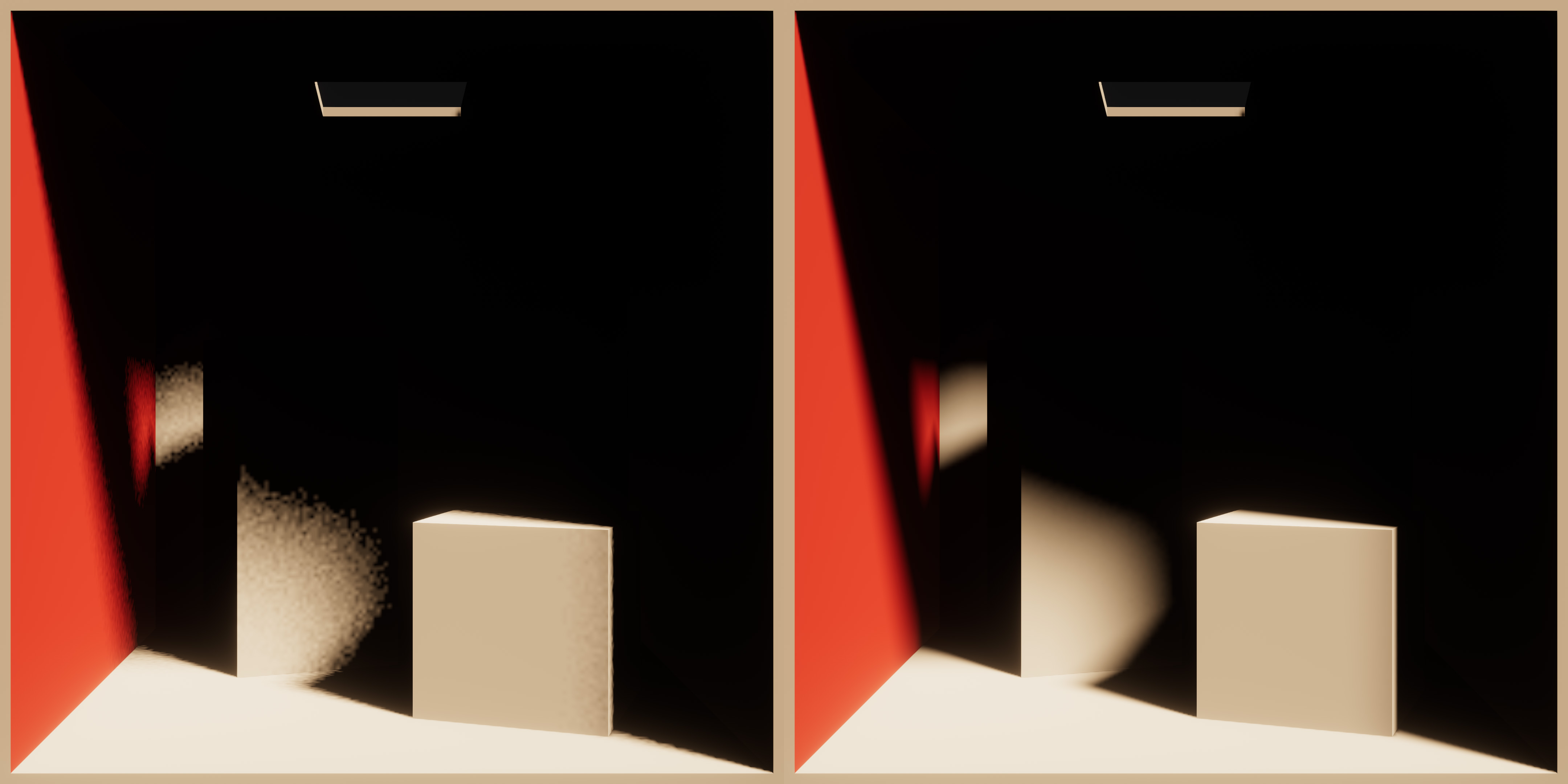 Example: Scene lit only by direct light. Direct samples are set to 8 (left). Direct samples are set to 2048 (right).
Use this method of increasing direct samples if:
- Objects lit by area lights produce noisy soft shadows.
- Baked lights with a modified Baked Shadow Angle value are producing noisy results.
Increase indirect samples
Indirect samples control the number of paths, which the lightmapper shoots towards the GI contributors in the scene.
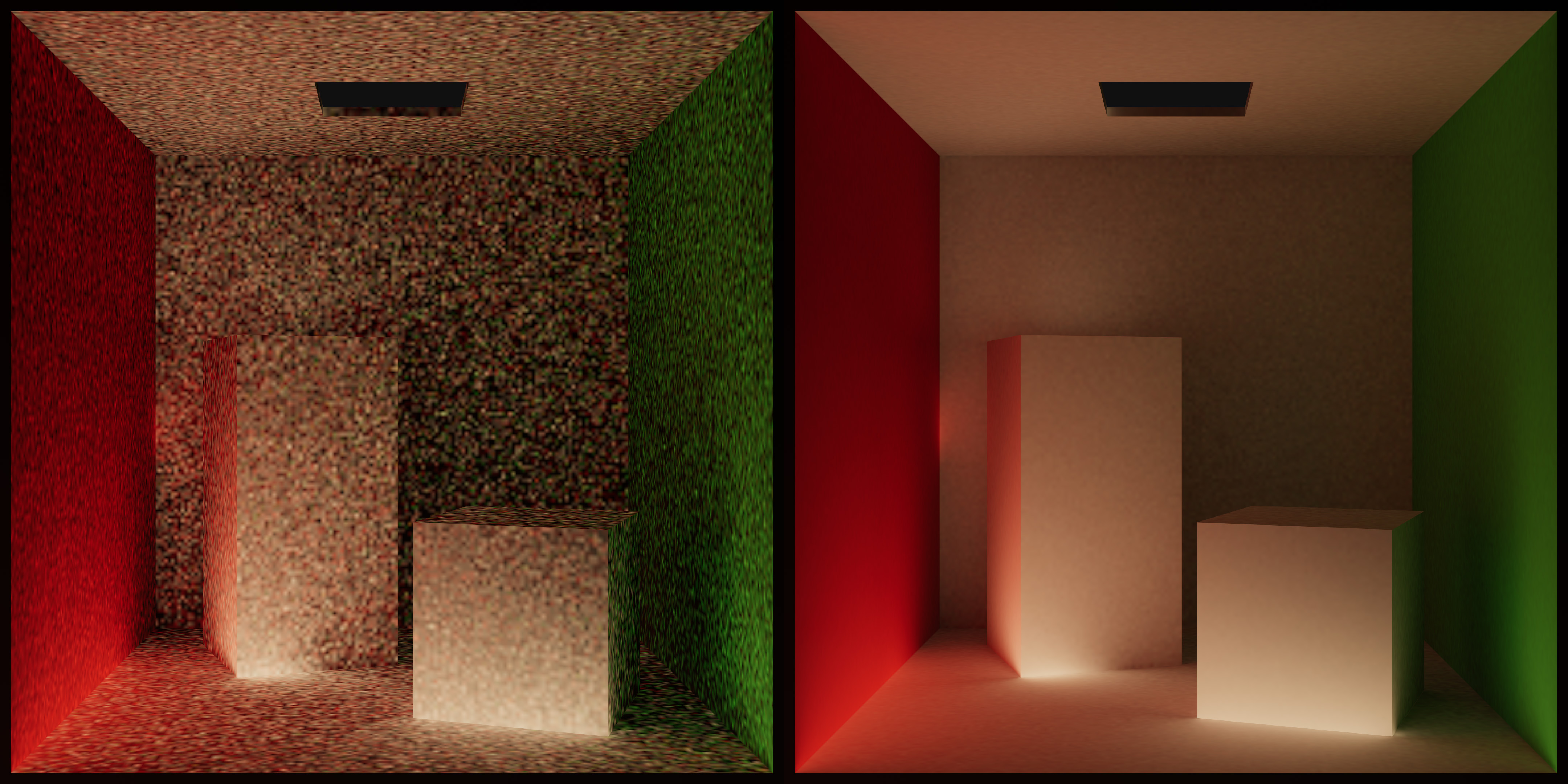 Example: Scene lit only by the indirect bounce light. Indirect samples are set to 8 (left). Indirect samples are set to 2048 (right).
Once these paths intersect geometry, texels spawn rays towards:
- Environment, which makes it an indirect environment sample.
- A light source, which makes it an indirect lighting sample.
Paths can bounce off surfaces. Some ways Unity can end a path are:
- Once it reaches the Max Bounces value.
- If it doesn’t intersect any geometry.
- By the Russian roulette algorithm.
Use this method of increasing indirect Samples if:
- Indirectly lit areas are noisy.
- Objects using emissive materials produce a lot of noise.
Increase environment samples
This section applies to the Progressive Light Baker. If your project uses the Unity Compute Light Baker, refer to Reduce environment and emissive noise with the Unity Compute Light Baker instead.
Environment samples control the number of rays, which the lightmapper shoots towards the sky/environment.
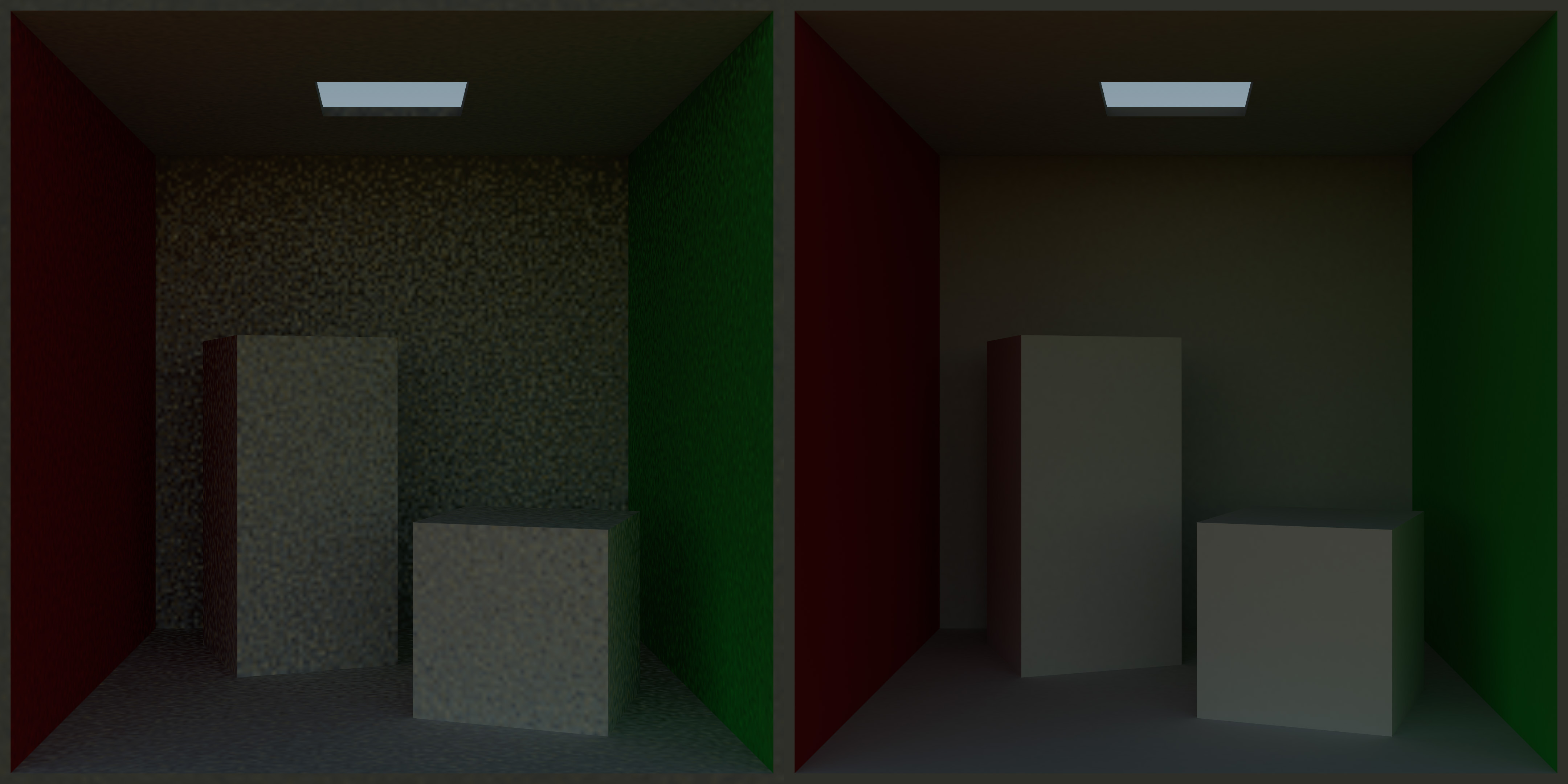 Example: Scene lit only by environment lighting. Environment samples are set to 8 (left). Environment samples are set to 2048 (right).
Use this method of increasing environment samples if:
- Baked environment/HDRI produces noisy results.
Note: that you would need to disable all lights in the scene to verify this.
Reduce environment and emissive noise with the Unity Compute Light Baker
The Environment Samples setting isn’t available with the Unity Compute Light Baker, so the method above doesn’t apply. Instead, increase Direct Samples, which controls direct environment sampling and direct emissive sampling as well as the number of samples used to sample each light.
Use this method if:
- Baked environment/HDRI produces noisy results.
- Emissive geometry produces noisy results.
Environment lighting and emissive geometry with high variation in emission need more direct samples to produce a noise-free result. Unity importance samples both emissive and environment lights, which gives good quality with fewer samples than an equivalent bake with the Progressive Light Baker.
Indirect environment and emissive contributions use Indirect Samples, in the same way as other lights.
Use denoising and filtering
Unity can apply a post-processing step to remove noise by using filtering or machine learning denoisers.
To enable filtering, navigate to the Lighting window (menu: Window > Rendering > Lighting) and select the Filtering property, and select from three options:
- None - Disables filtering and denoising.
- Auto - Attempts to select the best filtering and denoising option based on current system configuration.
- Advanced - Allows users to fine-tune filtering and denoising properties.
Available filters:
- Gaussian - Applies a bilateral filter (blur) to the lightmap. This smoothens noise at the expense of visual fidelity. Increase radius parameters to increase filtering strength. High values can lead to leaking artifacts.
- A-Trous - Edge-aware filter which attempts to remove noise, while maintaining edge definition. Works well with high sample counts and in conjunction with denoising. Doesn’t work well with noisy HDR lightmaps.
Available machine learning denoisers:
- Open Image Denoise (OIDN) - Machine learning denoiser from Intel. Vendor agnostic. Works on Windows, macOS, and Linux platforms.
- Optix - Machine learning denoiser from Nvidia. Works only with Nvidia GPUs. Supports Windows only.
- RadeonPro - Machine learning denoiser from AMD. Vendor agnostic. Works on Windows and Linux.
Experiment with different denoiser and filtering combinations to achieve the best results for your project.