Use Classic Search
Use Classic Search to filter items in:
- The Hierarchy window and Scene view, which run their search together.
- The Project window.
For more complex searches, and to search other parts of the Unity Editor, use Unity Search.
Choose a search option
There are two ways to search the Hierarchy and Project windows and the Scene view:
-
Use the search bar for simple textual queries that filter the assets in these windows.
Tip: In the Project window, you can select additional filters next to the search bar.
Select Open in Search (
 ) to open the Unity Search window. Unity Search allows more complex queries and includes a visual query builder to make searching easier.
Filter GameObjects in the Hierarchy window and Scene view
The Hierarchy window and Scene view use the same search string. What you type in one search bar appears in the other.
To filter GameObjects in the Hierarchy window or Scene view:
-
In the search box in either the Hierarchy window or Scene view, enter a search query.
Unity filters both the Scene view and the Hierarchy window as you type.
Optional: To limit the filter to name or type, select the magnifying glass on the bar to open a menu.
The Hierarchy window lists matching GameObjects in alphabetical order. In the Scene view, GameObjects that match the search appear in full color; everything else is grayed out.
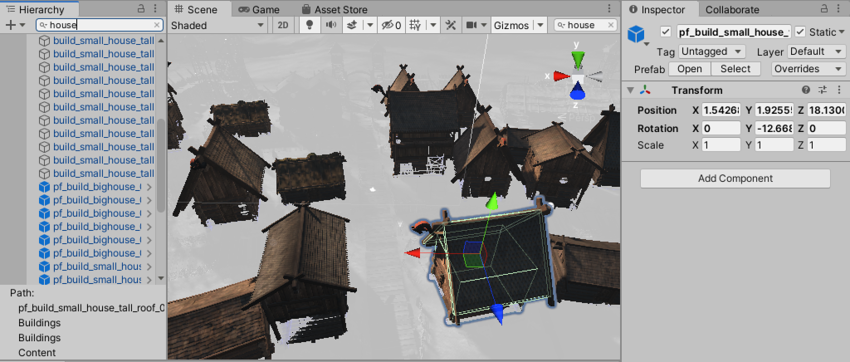
To keep non-matching GameObjects in the Scene view in color, go to Edit > Preferences > Scene View (macOS: Unity > Settings > Scene View) and disable Enable filtering while searching.
To clear the filter, delete the text or select x in the search box.
Search for assets in the Project window
To search assets by name, type, or label in the Project window:
- In the Project window’s search box, enter a search query.
- Optional: Select a type or label filter from the options near the search bar.
The Project window lists matching assets in tabs: All, In Packages, In Assets, and the current folder.
To clear the filter, delete the text or select x in the search box.