Lightmap packing
Lightmaps are pre-calculated lighting textures that store illumination for static geometry. Unity generates them via a multi-step process that transforms 3D mesh data into optimized 2D textures. Both the Realtime Global Illumination system and the Baked Global Illumination system use lightmaps, and therefore need lightmap UVs.
Lightmap texture packing in Unity
Unity stores baked lighting in lightmap textures that the renderer can sample efficiently. To improve lighting quality and performance, Unity packs each mesh’s lightmap UV charts into a small set of lightmap textures.
Unity provides the following lightmap packing algorithms:
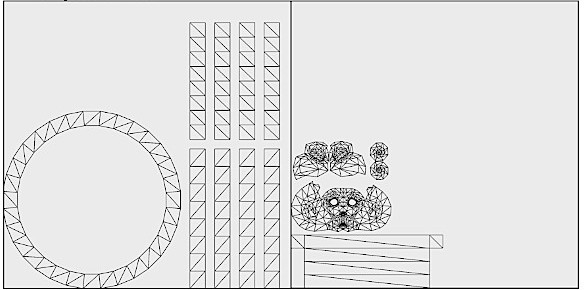
- xAtlas: The default packing algorithm. xAtlas automatically packs UV charts according to their shape and orientation rather than their bounding boxes.
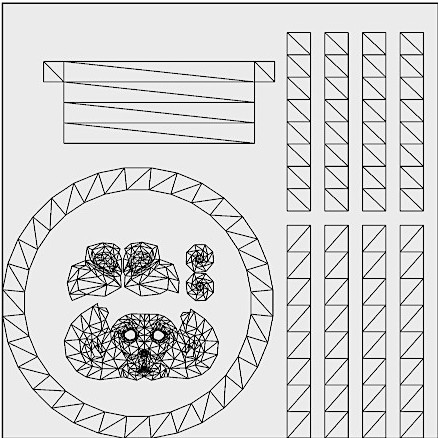
- Unity lightmap packer: The optional Unity packing algorithm.
Packing
Unity repacks real-time lightmap UVs so each chart’s boundary falls on a texel center in all directions, then adds a half-texel margin around each chart’s boundary. This ensures a full texel of margin between charts.
Because the resolution of real-time lightmaps is intentionally low to allow updates at runtime, charts that share texels can bleed. Repacking ensures charts never share texels, avoids bleeding, and allows Unity to efficiently pack charts next to each other.
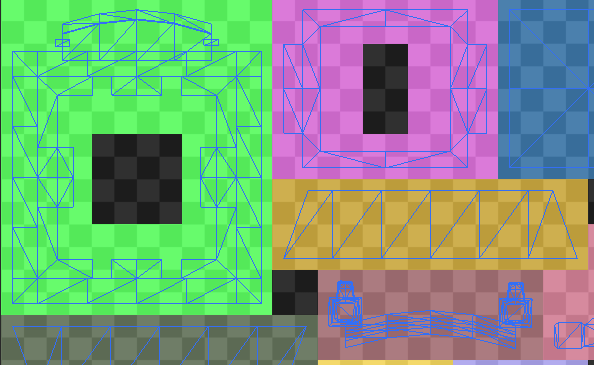
Note: This packing technique means the UVs Unity calculates depend on the instance’s scale and lightmap resolution, which is why real-time lightmap UVs are per-Mesh Renderer. Unity optimizes this where possible: Mesh Renderers that use the same mesh with the same scale and lightmap resolution share the same UVs.
Example
The following UV atlases demonstrates the difference between xAtlas and the Unity built-in packer.
Select the Unity lightmap packer
For speed, compatibility, or quality reasons, you can select the traditional Unity packing method based on bounding boxes.
To select the Unity lightmap packer:
- Select Window > Rendering > Lighting.
- In the Scene tab, expand the Lightmapping Settings section.
- Select Custom from the Lightmap Packing dropdown.
- Set Packing Method to Unity.
Unity applies your packing configuration to subsequent bakes.