Configuring how Unity enters Play mode
The ability to test your application by switching from Edit mode to Play mode is one of Unity’s core features. You can use Play mode to run your project directly inside the Editor, through the Play button in the ToolbarEditor: A row of buttons and basic controls at the top of the Unity Editor that allows you to interact with the Editor in various ways (e.g. scaling, translation). More info. Graph Toolkit: A customizable panel that provides direct access to common actions in the graph window through button controls.
See in Glossary.
Play mode is intended to provide a realistic preview of how your application is likely to behave for users. By default Unity reloads the scene on entering Play mode. For more information on the implications of turning scene reload off and how to compensate for it in your code, refer to Enter Play mode without scene reload.
By default Unity doesn’t reload the scripting domain to reset the application state on entering Play mode, but you can configure it to do so. For more information on the implications of leaving domain reload off and how to compensate for it in your code, refer to Enter Play mode without domain reload.
Note: It’s recommended to leave domain reload off to improve development iteration speed and prepare for Unity’s adoption of the CoreCLR runtime, which doesn’t have the domain reload concept.
Scene and domain reload take time to perform, and the amount of time increases as your scripts and scenes become more complex. When you frequently make and preview changes, the cumulative time spent waiting to enter Play mode can significantly slow down your development process.
To prioritize faster development iteration times over accuracy of the Play mode simulation, Unity offers the ability to turn off domain reload and scene reload on entering Play mode.
The following diagram provides a high-level overview of the effects of turning off domain reload and scene reload:
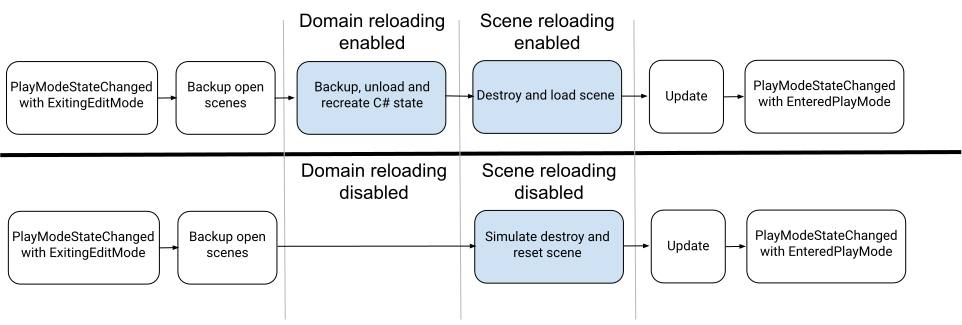
For more detailed information on the effects of turning off domain and scene reload, refer to Domain and scene reload execution order reference.
Configure Play mode settings
To configure how the Editor enters Play mode:
- Open the Project Settings window (Edit > Project Settings).
- Click on the Editor tab.
- In the Enter Play Mode Settings section, in the When entering Play Mode dropdown menu, select one of the following options:
- Reload Domain and Scene.
- Reload Scene only. This is the default option.
- Reload Domain only.
- Do not reload Domain or Scene.