Use ambisonic audio in your project
Set up and use ambisonic audio in your Unity projects.
Select an ambisonic audio decoder
To use ambisonic audio in your projects, you need to use an ambisonic audio decoder and assign it in your project’s Audio settings. For instructions on how to create an ambisonic audio decoder, refer to Develop an ambisonic audio decoder.
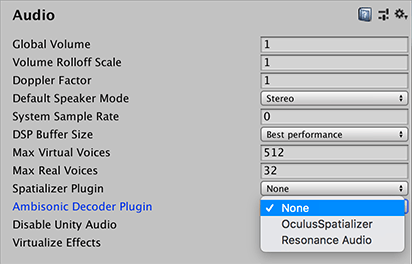
To select an ambisonic audio decoder in your project:
- Go to Edit > Project Settings > Audio.
- Select an Ambisonic Decoder Plugin from the list of available decoders in the project.
Warning: Some ambisonic decoder plug-ins don’t support all speaker modes available in Unity. If you use an unsupported speaker mode with such a plug-in, it can cause errors or crashes. Verify your decoder plug-in’s documentation for supported speaker modes.
To create a custom ambisonic audio decoder, refer to Develop an ambisonic audio decoder.
Import an ambisonic audio clip
To import an ambisonic audio clip:
- Import a multi-channel B-format WAV file with ACN component ordering, and SN3D normalization.
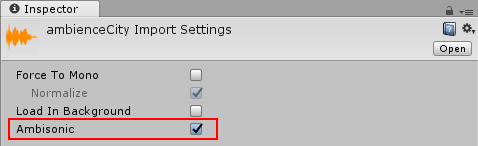
- In the Project window in the Unity Editor, select the imported audio clip. The Inspector window for that audio clip shows.
- In the Inspector window, enable Ambisonic.
Load ambisonic audio at runtime
To load an ambisonic audio clip at runtime, use UnityWebRequestMultimedia.GetAudioClip with the ambisonic parameter. This is especially useful for loading audio files from the StreamingAssets folder.
The following script is an example of how to load an ambisonic audio clip:
using UnityEngine;
using UnityEngine.Networking;
using System.Collections;

public class LoadAmbisonicClip : MonoBehaviour
{
    public AudioSource audioSource;

    IEnumerator Start()
    {
        string path = System.IO.Path.Combine(Application.streamingAssetsPath, "MyAmbisonicClip.wav");
        string url = path.Contains("://") ? path : "file://" + path;
        using (UnityWebRequest request = UnityWebRequestMultimedia.GetAudioClip(url, AudioType.WAV, ambisonic: true))
        {
            yield return request.SendWebRequest();

            if (request.result == UnityWebRequest.Result.Success)
            {
                AudioClip clip = DownloadHandlerAudioClip.GetContent(request);
                audioSource.clip = clip;
                audioSource.Play();
            }
        }
    }
}
Play the ambisonic audio clip through an Audio Source
To play an ambisonic audio clip through an Audio Source:
- Assign the WAV file as an Audio Clip on an Audio Source.
- Disable the Spatialize option.