Color emojis
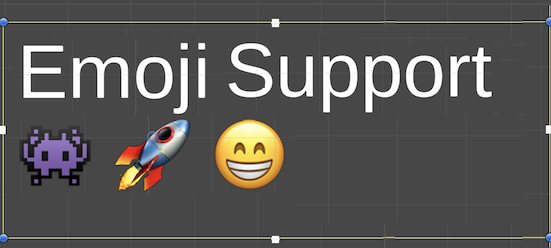
You can include color emojis and glyphs in text.
For Editor UI, you can include emojis directly, and it works because the Editor UI uses the default editor font fallbacks.
For runtime UI, you must import a font file with color emojis and set it as the fallback emoji text asset.
Set up color emojis
Create a color emojis font asset and add it to the UITK Text Settings Fallback.
- In your project, import a font file that has color emojis in it.
- Right-click the font file, and then select Create > UI Toolkit > Text > Font Asset > Color. This ensures that you create the font asset with the correct shader (Sprite) and the correct atlas render mode (Color).
- In the Inspector window of the UITK Text Settings, in the Fallback Emoji Text Assets section, from the Text Asset List, select the color emojis font asset.
Include emojis in text
To include emojis in text, do any of the following:
- Include emojis in text through their Unicode value. For example, enter
\U0001F601to represent a smile. - Use your operating system virtual keyboard.
- Copy the emojis from an external text editing tool and paste them in your text field.
Control emoji fallback search
You can prioritize searching the Fallback Emoji Text Assets for emojis. For example, if a font includes black and white emojis, you can choose whether to use emojis from the primary font or the Fallback Emoji Text Assets list.
In UI Builder, select the text element in the Hierarchy panel.
-
In the Inspector panel, in the Attributes section, enable or disable the Emoji Fallback Support option:
- Enabled: The system searches the Fallback Emoji Text Assets list first for any emoji characters.
- Disabled: The system searches the primary font asset assigned to the text element first.
Limitations
Color emoji support has the following limits:
- Some OpenType layout features (for example, chained contextual substitution or single substitution) might not apply as expected.
- Apple Advanced Typography (AAT) fonts aren’t supported; use OpenType-based fonts.
- SVG color glyphs aren’t supported.
- COLR table version 1 (COLRv1) isn’t supported. Many newer Noto Color Emoji builds use COLRv1. Use a COLRv0 color font instead; verify the format with a font inspector if emoji don’t render.
On some iOS devices, system emoji fonts behave differently. The Apple Color Emoji font shipped with macOS and many iOS devices generally works. Apple Color Emoji–160px on newer iOS devices isn’t supported: those glyphs use JPEG encoding, which the text stack doesn’t handle through FreeType.