Make LOD transitions smooth in LOD Group
To make LOD transitions smooth, enable LOD cross-fading. For more information, refer to Introduction to level of detail.
Follow these steps:
In the Universal Render Pipeline (URP) Asset, enable LOD Cross Fade.
-
In the LOD Group component, set Fade Mode to Cross Fade.
For SpeedTree assets, select Speed Tree. Unity selects this automatically when you import a SpeedTree model with an .spm or .st extension. For more information, refer to the Transition SpeedTree model vertices section.
Customize cross-fade transitions
To customize cross-fade transitions, do either of the following:
- Set a transition width for each LOD, which occurs before the next LOD threshold is reached.
- Set a single transition time for all LODs, which occurs after the LOD threshold is reached.
Depending on your project, setting a single transition time can reduce the number of transitioning LODs, but make transitions more noticeable when the camera and GameObject are not moving.
Set a transition width for each LOD
To set a transition width for each LOD in a LOD Group, follow these steps:
Make sure Animate Cross-fading is disabled.
Select a LOD box, for example the green LOD 0 box.
-
In the LOD panel, set a Fade Transition Width value. A smaller value delays the beginning of the transition and makes the transition shorter.
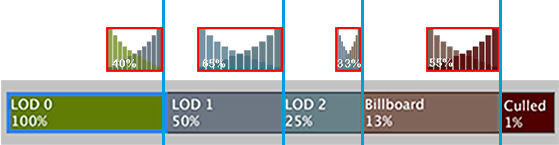
The LOD Group selection bar with Animate Cross-fading disabled, and a visualization of Fade Transition Width properties. LOD0 is set to a Fade Transition Width of 40%, which means the transition to LOD1 occurs over 40% of the LOD0 range.
Set a single transition time for all LODs
To set a single transition time for all LODs in a LOD Group, follow these steps:
- Enable Animate Cross-fading. The transition between LODs begins as soon as the model’s screen size ratio reaches the next LOD threshold.
- To customize the transition time, use the LODGroup.crossFadeAnimationDuration API.
Customize blending
To provide your own blending technique, write a custom shader depending on your application type and asset production pipeline.
Unity does the following:
- Calculates the blend factor using the screen size of the GameObject, and passes it to shaders in the
unity_LODFadeuniform variable. - Enables a
LOD_FADE_CROSSFADEkeyword when the Fade Mode property is set to Cross Fade.
Transition SpeedTree model vertices
If you set Fade Mode to Speed Tree, Unity interpolates the vertices of SpeedTree models, to gradually transform the model’s geometry from the current to the next LOD.
Unity can’t interpolate between vertex positions for the following models and transition types:
- SpeedTree models with an .st9 file extension. In that case, Unity changes LODs without a smooth transition. Set Fade Mode to Cross Fade instead.
- Fade-outs and transitions to billboard LODs. In that case, Unity falls back to cross-fading.