Terrain tools
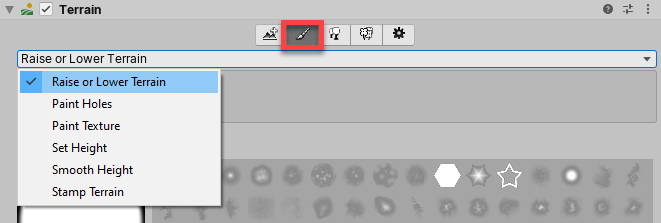
To access the Terrain painting tools, click on a Terrain object in the Hierarchy window and open an Inspector window. In the Inspector, click the Paint Terrain (paintbrush) icon to reveal the list of Terrain tools.
You can also access Terrain painting tools from the Terrain Tools overlay in Sculpt Mode  or Materials Mode
  .
.

The Terrain component provides six distinct tools:
| Topic | Description |
|---|---|
| Raise or Lower Terrain | Paint the heightmap with a paintbrush tool. |
| Paint Holes | Hide portions of the Terrain. |
| Paint Texture | Apply surface textures. |
| Set Height | Adjust the heightmap toward a specific value. |
| Smooth Height | Smooth the heightmap to soften Terrain features. |
| Stamp Terrain | Stamp a brush shape on top of the current heightmap. |
Additional terrain tools
The Terrain Tools package, when you install it, brings additional functionality on top of the built-in terrain tools listed above. It includes erosion tools, sculpting tools, brush mask filters, and a Terrain Toolbox which provides preset file management and heightmap import features, among others.
Custom terrain tools
The Unity API allows you to create your own custom Terrain tools to complete or override the existing tools, including the ones of the Terrain Tools package.
For more information about Terrain tool API, refer to TerrainAPI.TerrainPaintTool, and to create a custom Terrain tool with overlay support, refer to TerrainAPI.TerrainPaintToolWithOverlays.
The Terrain Tools package documentation also provides several Terrain API use case examples.