Spatial Entities Ray Casts feature
Learn how to use ray casts with OpenXR Spatial Entities.
This page is a supplement to the AR Foundation Ray casts manual. The following sections only contain information about APIs where Spatial Entities exhibits unique platform-specific behavior.
Tip
When developing an AR app, refer to both the AR Foundation documentation as well as the required packages for each platform you support.
Enable Spatial Entities Ray Casts
To configure ray casts in your Spatial Entities project:
- Open the OpenXR section of the XR Plug-in Management settings (menu: Edit > Project Settings > XR Plug-in Management > OpenXR tab).
- Under OpenXR Feature Groups, select Spatial Entities to open the list of Spatial Entities features.
- Enable Spatial Entities: Raycasts.
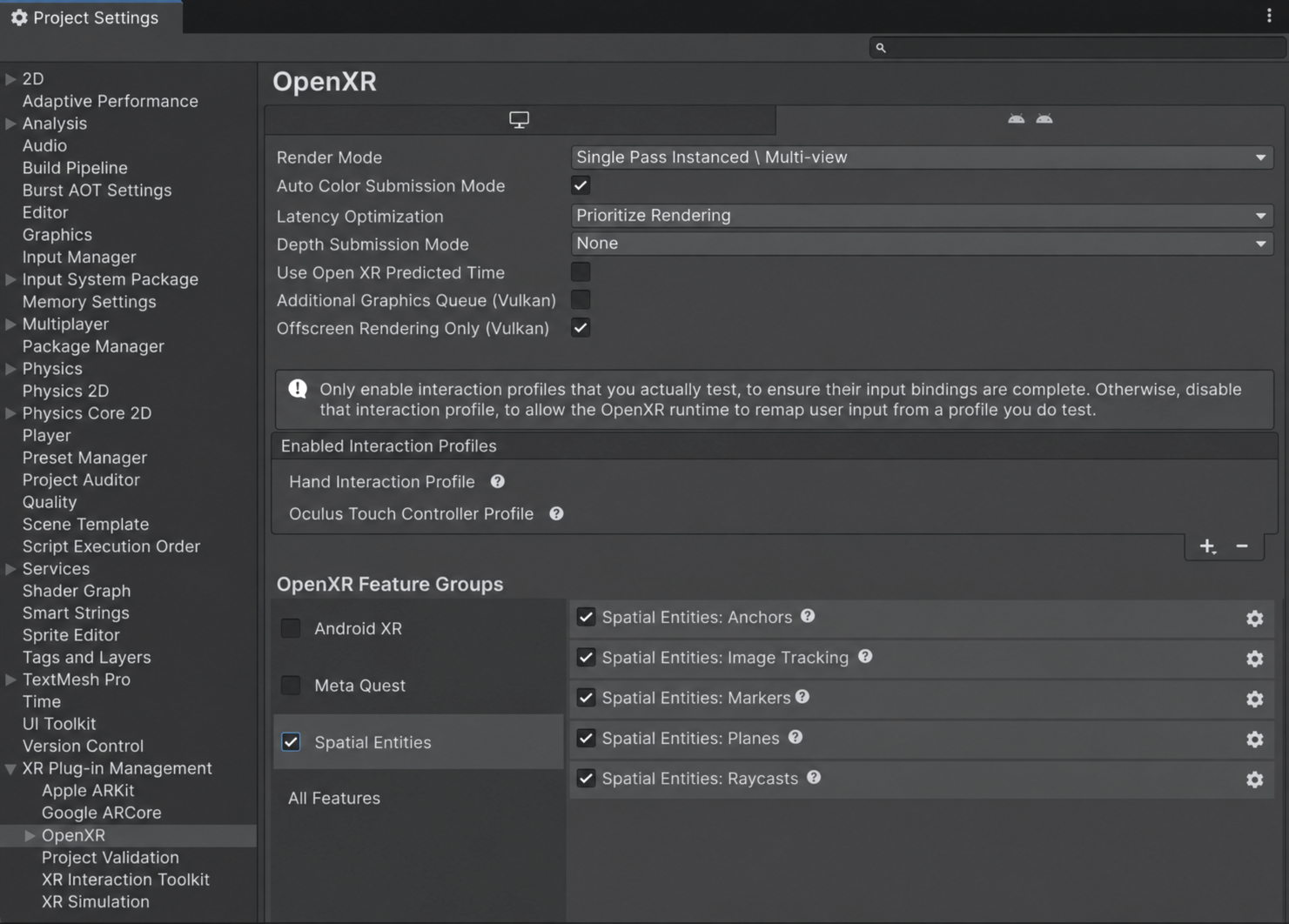
Spatial Entities: Raycasts feature in Project Settings.
By default, this feature produces no hits. Plane hits also require the Spatial Entities Planes feature. Depth hits come from this feature itself: enable Enable Depth Raycast, as described in Ray cast against depth.
Resolve subsystem conflicts
AR Foundation supports only one enabled ray cast provider at a time. If your project also uses provider plug-ins such as Unity OpenXR: Meta or Unity OpenXR: Android XR, you must disable the ray cast features in those packages.
Permissions
Your app can't access any spatial data until the user grants the necessary permissions on their device. Refer to Permissions for more information.
Ray cast against planes
To cast rays against planes, enable both the Spatial Entities Planes feature and the Spatial Entities Ray Casts feature. The Spatial Entities Ray Casts feature is only compatible with Spatial Entities planes. It can never hit a plane from another provider, such as the Meta Quest Planes feature or the Android XR Planes feature.
Ray cast against depth
Depth ray casts test against the runtime's environment depth data rather than structured plane geometry. They can hit non-planar surfaces such as objects on a table, curved walls, or other people in the environment. Depth hits report a pose and a distance but no trackable, so their trackableId is TrackableId.invalidId.
The depth ray cast capability is disabled by default. To enable it:
- Click the gear icon (⚙) next to Spatial Entities: Raycasts to open the Spatial Entities: Raycasts window.
- Enable Enable Depth Raycast.
You can also set enableDepthRaycast in code before you initialize the OpenXR loader.
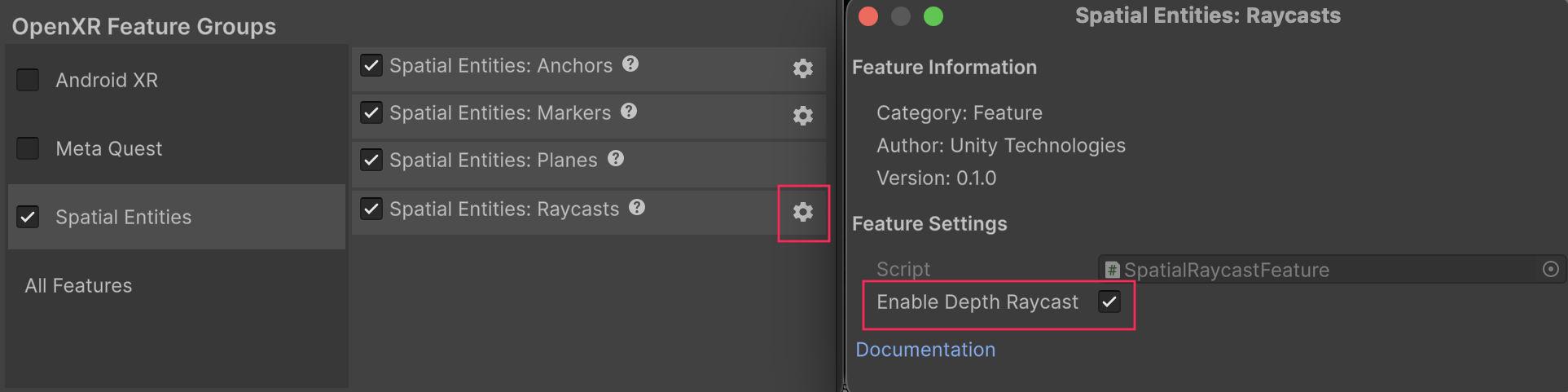
Ray casts configuration window.
Important
On Android XR, depth ray casts require the android.permission.SCENE_UNDERSTANDING_FINE permission rather than android.permission.SCENE_UNDERSTANDING_COARSE. Refer to Permissions to understand what this means for your app.