Scroll UI with XR input
The Near-Far Interactor and XR Ray Interactor can scroll the uGUI Scroll Rect or UI Toolkit Scroll View they point at with their ray. On controllers, the thumbstick is primarily used to scroll UI and provides continuous input.
To set up scrolling, enable UI Interaction on the interactor and assign the input to UI Scroll Input. The XR Origin (XR Rig) prefab in the Starter Assets sample is already set up this way, with the UI Scroll action bound to each thumbstick.
The scene also needs to be set up for your UI system. Refer to Set up UI Canvases for XR and XR UI Input Module for uGUI, or World-space UI Toolkit support for UI Toolkit.
Scroll with single presses and microgestures
To scroll with microgesture swipes or button presses, use a Press Scroll Input. Each press scrolls a fixed distance. Use one per hand or controller.
To scroll with microgestures:
- Enable the Hand Interaction Profile Microgestures feature in the OpenXR settings.
- Create a Value action with a Vector2 control type and add a 2D Vector composite binding. Bind Up to
<HandInteractionMicrogestures>{LeftHand}/swipeForward, Down toswipeBackward, Left toswipeLeft, and Right toswipeRight. Use{RightHand}for the right hand. Add an Invert Vector 2 processor to the action with Invert Y disabled, so horizontal swipes scroll the same direction as the thumbstick. The Starter Assets sample includes these as theXRI Left Interaction/Microgesture ScrollandXRI Right Interaction/Microgesture Scrollactions. - Under each hand in your XR Origin, create a child GameObject, such as
Microgesture Scroll Input, and add a Press Scroll Input component. - On the Press Scroll Input, set Scroll Input to Input Action Reference and assign the action for that hand.
- On the Near-Far Interactor or XR Ray Interactor, set UI Scroll Input to Object Reference and assign the Press Scroll Input.
- Enable UI Scroll Momentum on the interactor so each press glides to a stop. Without it, a uGUI Scroll Rect jumps the full distance at once, and a UI Toolkit Scroll View scrolls by its own wheel step instead of Scroll Amount.
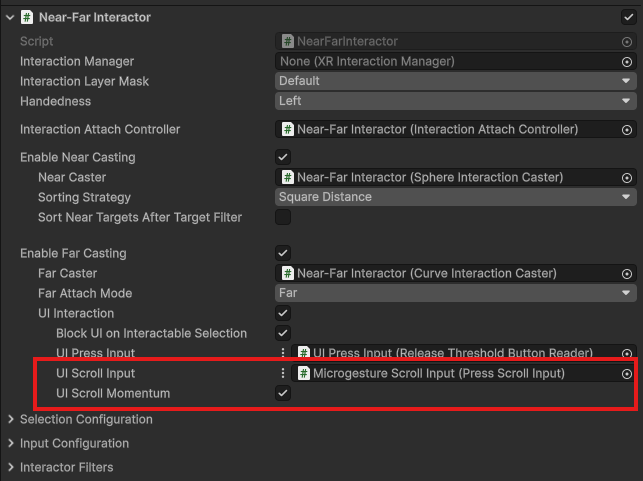
A Near-Far Interactor using a Press Scroll Input as its UI Scroll Input, with UI Scroll Momentum enabled.
The XR Origin Hands (XR Rig) prefab in the Hands Interaction Demo sample is already set up this way.
To scroll with buttons, follow steps 2 to 6 and bind the buttons to the 2D Vector composite instead. Refer to Bind Scroll Input for more binding options.
UI Scroll Momentum
UI Scroll Momentum makes each scroll glide to a stop instead of jumping to the end of the scroll. It's intended to be used with microgesture swipes and button presses, where each press would otherwise move the content all at once.
Enable UI Scroll Momentum on the interactor when you scroll with single presses. It's off by default, and can also work with a thumbstick.
Each scroll view sets how quickly its momentum slows down:
- uGUI: the Scroll Rect's Deceleration Rate, while Inertia is enabled. With Inertia disabled, the scroll applies at once.
- UI Toolkit: the Scroll View's Scroll Deceleration Rate.
The deceleration rate is the fraction of speed left after one second, so a higher value glides longer. It sets how long a scroll glides, not how far. Values above 0.99 are treated as 0.99, so the scroll always stops.
Scroll distance
Scroll Amount on the Press Scroll Input is the same for every scroll view. If your scroll views are different sizes and a press scrolls too far on one or not far enough on another, adjust that scroll view instead:
- uGUI: set Scroll Sensitivity on the Scroll Rect. Each press scrolls Scroll Amount multiplied by this value, so
0.5scrolls half as far. - UI Toolkit: set Mouse Wheel Scroll Size on the Scroll View. Each press scrolls Scroll Amount scaled against the default of
18, so9scrolls half as far.
These settings also change thumbstick and mouse wheel scrolling on that scroll view.