XR Interaction Toolkit + UI Toolkit
XR Interaction Toolkit has world space UI support using UI Toolkit in addition to the existing uGUI support, see UI Toolkit + uGUI.
Minimum Required Versions
| Package/Editor | Minimum Version |
|---|---|
| Unity | 6.2 |
| XR Interaction Toolkit | 3.2.0 |
Getting Started
Scene Configuration
There some scene configuration steps necessary to enable world space UI Toolkit support in conjunction with XR Interaction Toolkit.
Note
This configuration is already complete in the XRI World Space UI sample demo scene which can be imported into projects through the Package Manager window. Open Package Manager by navigating to Window > Package Manager, then select XR Interaction Toolkit package in the left side bar, and select the Samples tab. Scroll and locate the World Space UI sample and click Import.
Panel Input Configuration
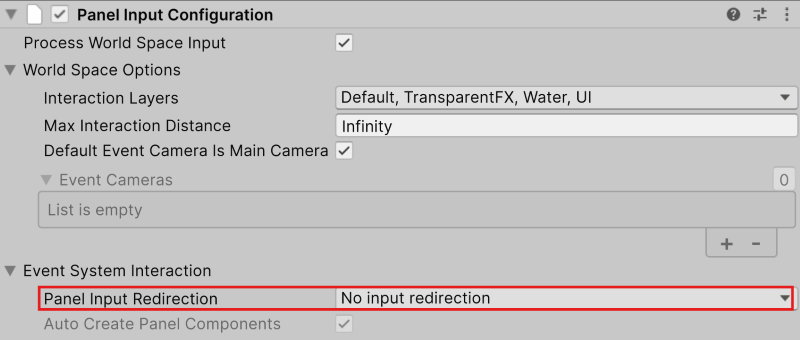
The event system can interfere with UI Toolkit input, so a properly configured Panel Input Configuration component is required in the scene.
To properly configure this component, set the Panel Input Redirection field to No input redirection. This configuration is pictured below.
Enable UI Toolkit Support
To enable UI Toolkit support for XRI, add an XR UI Toolkit Manager component to the scene. XRUIToolkitManager is a component that globally enables or disables UI Toolkit support with XR Interaction Toolkit components. When the XRUIToolkitManager component is enabled, the uiToolkitSupportEnabled property in the XRUIToolkitHandler is automatically enabled. When the XRUIToolkitManager is disabled, the uiToolkitSupportEnabled property in the XRUIToolkitHandler is automatically disabled.
By adding a XRUIToolkitManager to the scene, this support will be enabled or disabled automatically with the enabled state of the component.
UI Toolkit + uGUI
When using both uGUI and UI Toolkit together, bypassUIToolkitEvents property on the XRUIInputModule should be disabled. In the demo scene, the XR UI Input Module component can be found on the Event System GameObject.
Creating World Space UI Toolkit Panel
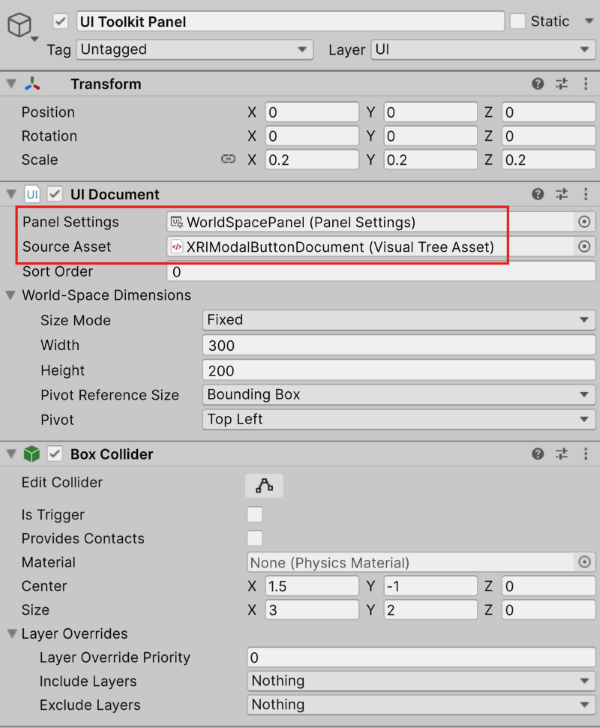
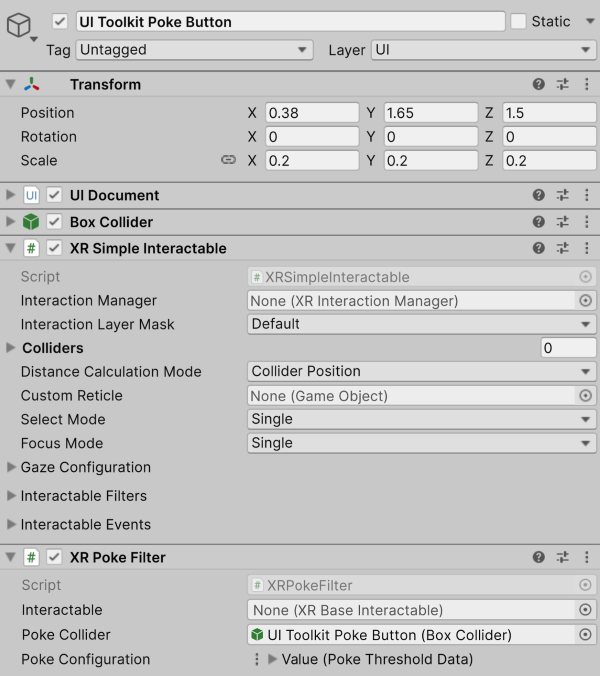
Basic world space UI panels using UI Toolkit require a Collider and a UI Document. The UI Document defines the panel settings, contains the UI source asset, and additional settings like dimensions for the UI panel.
See the image below for an example of a base world space UI configuration.
Panel Settings
An example of panel settings exists in the XRI World Space UI sample, or a new one can be created. To create a new Panel Settings asset, right click in the project Asset folder and select Create > UI Toolkit > Panel Settings Assets. This will generate a new asset in your project. To modify it, select it and use the inspector.
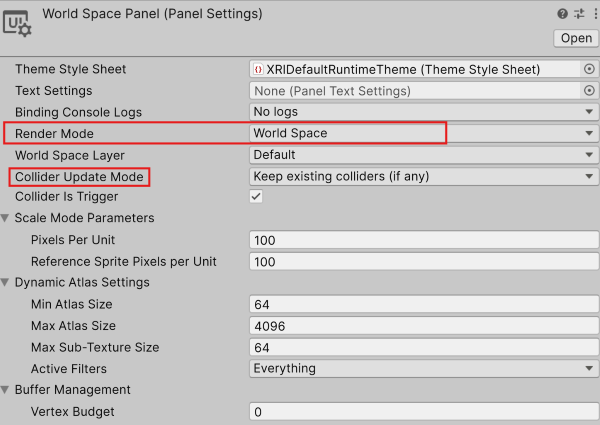
Update the Render Mode property in the panel settings asset to World Space.
Additionally, the Collider Update Mode defines if the UI Document will create colliders or use any existing colliders. When set to Match 2-D document rect, a collider will be generated on the UI Document GameObject. This can result in duplicate colliders if the UI Document already has a collider (as displayed in the previous image). When set to Keep existing colliders (if any), the UI Document will use existing colliders. In this case, it is important that the size of the existing collider matches the document size.
Collider Update Mode is an optional configuration, but will have implications how the GameObjects are configured and how XRI is used. In XRI, if no colliders are assigned to an interactable at runtime that interactable will search for colliders on the GameObject and its children. This can result in interactables incorrectly using UI Document colliders for interactable interaction. To avoid this, manually assign interactable colliders if there will be a UI Document nested as a child. Alternatively, enabling Is Trigger on the existing UI Document collider or setting Collider Is Trigger in the panel settings when using Collider Update Mode to Match 2-D document rect will result in the trigger colliders not being added to the interactable collider list.
Note
An example of a nested interactable using UI Documents can be found in the UI Toolkit Grab Interactable prefab in the XRI World Space UI sample demo scene.
Source Asset
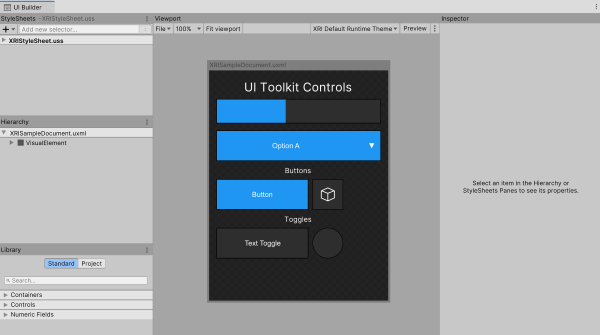
The source asset is the uxml file that defines the layout and styling of the UI to be displayed in the panel. To create a new document, navigate to the top menu bar and select GameObject > UI Toolkit > UI Document. It can also be created by right clicking the project Asset folder and selecting Create > UI Toolkit > UI Document.
To edit the file, double click it or open it in the UI Builder (Window > UI Toolkit > UI Builder).
Note
For more information on building UI with the UI Builder, please refer to UI Builder manual page
With the scene configuration complete, the UI Document configured, and the Collider added, the UI Toolkit panel is ready for base ray interaction with XRI.
Poke Interaction Support
To enable poke support that works with the XRPokeInteractor, additional components are required on the UI Toolkit panel.
Adding an XRSimpleInteractable component and an XRPokeFilter component in addition to the Collider and UI Document enables poke support on that world space UI panel.
Note
Poke is supported with both hands and controllers.
UI Toolkit Button, Toggle, and Visual Element all support z-depth with poke. Use the Translate style to set the initial z-depth of the UI element. This can be done via the UI Builder (Transform > Translate > Z) or by programmatically updating the style. The initial z-depth (relative to parent) is cached upon an interactors first interaction with the UI element, and the UI element depth will be reset to that initial z-depth when the interaction ends.
Note
Because the UI Toolkit support relies on a collider around the UI Document, there can be unexpected behavior if the z-depth of the UI Element protrudes out from the document box collider. The poke interaction won't be processed until the collider is reached, at which point the poke z-depth processing will begin.
Examples
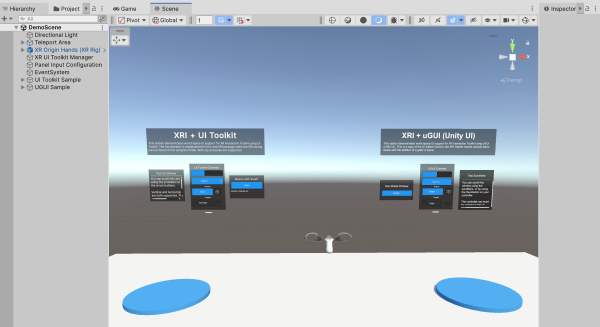
The World Space UI sample found in the XR Interaction Toolkit samples in Package Manager provides a demo scene that shows how to configure world space UI in both UI Toolkit as well as uGUI. To import, open the Package Manager by going to Window > Package Manager, then select XR Interaction Toolkit package in the left side bar, and select the Samples tab. Scroll and locate the World Space UI sample and click Import.
Known limitations
Important
When using an XR headset in play mode in the Unity Editor, such as over Meta Horizon Link, it may seem as though input is not working with UI Toolkit objects in the scene. This is because input will not be redirected to UI Toolkit unless the Game View is in focus. Bringing the Game View into focus can be done by simply clicking anywhere inside the Game View window.
- The scroll view in the in UI Toolkit station currently supports scrolling only using the horizontal and vertical handles. Support to grab the text area of the scroll view and scroll using the thumbstick is planned to be added in the future.
- Nested elements can impede z-depth support for poke. A
Visual Elementthat is a child of aVisual Elementwith z-depth can block the poke interaction on the parent and prevent the poke interaction updating z-depth. This is handled forButtonandToggle, but should be kept in mind when applying poke z-depth to genericVisual Elementcontainers.