Installation
To install this package, refer to the instructions that match your Unity Editor version. Keep in mind that each version of the Unity Editor will ship with a specific verified version of the XR Interaction Toolkit (XRI). To ensure you have access to the latest version of the XRI package, please update to the latest patch release of the Unity Editor for your project (if you are able to). If you are unable to update to the latest patch version of the Unity Editor, to access newer releases of the XR Interaction Toolkit, please refer to the Manual Installation steps below to modify your manifest.json.
Version 2022.3 and newer
To install this package, follow the installation instructions in the Unity User Manual or click the following link to open Package Manager in your currently open project: com.unity.xr.interaction.toolkit. This will bring up the Add package by name box with an optional version field. Click Add to install the latest verified version of the XR Interaction Toolkit for your Unity Editor version.
Manual Installation
In some cases, you may not be able to update the Unity Editor or may wish to manually install the latest verified or preview version of the XR Interaction Toolkit. To do this, follow these steps:
- Open your project folder in File Explorer, Finder or equivalent file browser.
- Navigate to the
Packagesfolder and then open themanifest.jsonfile in your favorite text editor. - If you already have the XR Interaction Toolkit installed in your project, locate the line starting with
com.unity.xr.interaction.toolkitand change it toX.Y.Z. If you are installing XRI for the first time, paste the following line into your manifest file inside of thedependenciesblock: "com.unity.xr.interaction.toolkit": "X.Y.Z", making sure to add commas to preserve a valid json structure. - Save the file and close.
- Return to your project or open the project back up and ensure there are no errors related to the changes you just made.
- Open
Package Managerand verify that the list now XR Interaction Toolkit with the correct version.
Input System
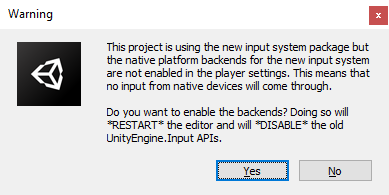
This package has a dependency on Input System. If that package has not already been installed, Unity will automatically add it to your Project. You might see a prompt asking you to enable input backends. Click Yes to accept it. For more information, see Enabling the new input backends in the Input System package documentation.
Interaction Layer Mask Updater
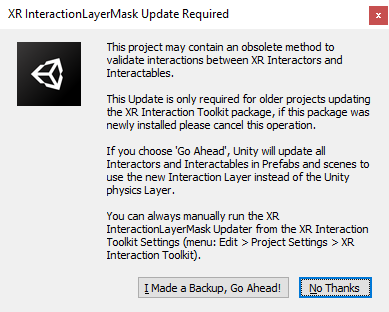
You may see a prompt asking you to upgrade your interaction layers in your project assets. If you're installing the XR Interaction Toolkit for the first time in your project, click No Thanks to skip. If you are upgrading from an older package version prior to 2.0.0, then it's recommended to update the interaction layer masks by clicking I Made a Backup, Go Ahead!. For more information, refer to Interaction Layer Mask Updater.
Installing samples
The package comes with a number of samples, including a Starter Assets sample that contains a recommended set of input actions, controller bindings, and presets. You can install these directly from the Package Manager:
- Open the Package Manager window (menu: Window > Package Manager).
- Select the XR Interaction Toolkit from the list of packages in the project. (If you haven't added the package to the project yet, you must do so before proceeding.)
- Select the Samples tab.
- Click the Import button next to the sample you want to import.
The sample files are installed into the default location for package samples, in the Assets\Samples\XR Interaction Toolkit\[version]\ folder. You can move these assets to a different location.
Important
There is a known issue when upgrading from an older version of the Starter Assets package sample to a newer version. Script references in the Demo Scene for scripts included in the Starter Assets become disconnected when upgrading in-place. It is recommended that you delete the Starter Assets folder from your Samples directory before importing the new Starter Assets sample package.
For more details about individual samples, refer to the Samples page.