Hand Tracking Subsystem OpenXR feature
Access hand tracking data from an OpenXR runtime through the XR Hands package.
The Hand Tracking Subsystem feature enables the XR_EXT_hand_tracking OpenXR extension, and creates and manages an XRHandSubsystem for you. You must enable this feature to access any hand tracking data with OpenXR. The other OpenXR features in XR Hands also require it.
To receive updates from the subsystem, subscribe to the XRHandSubsystem.updatedHands event. For more information, refer to Access hand data.
Prerequisites
To use the Hand Tracking Subsystem feature, your project must meet the following requirements:
- Install the OpenXR Plugin package. To deploy to Meta Quest devices, use version 1.6.0 or newer. Hand tracking doesn't work on Meta Quest devices with older versions of the OpenXR Plugin package.
- Enable the OpenXR plug-in provider in XR Plug-in Management for each platform you build for. Enabling the plug-in provider doesn't enable hand tracking. You must also enable this feature, as described in Enable the feature.
Enable the feature
To enable the Hand Tracking Subsystem feature:
- Go to Edit > Project Settings > XR Plug-in Management > OpenXR.
- Select the tab for the platform you build for.
- Under OpenXR Feature Groups, enable Hand Tracking Subsystem.
The feature now creates and manages the XRHandSubsystem for your app. To control when it creates the subsystem, use the Auto Start Subsystem setting.
OpenXR settings are separate for each platform. If you build for more than one platform, enable the feature in each platform's tab.
Android manifest entries
You don't need to edit the Android manifest for hand tracking. When you build for Android, Unity adds the entries that hand tracking needs:
- Meta Quest: If you enable the Meta Quest Support feature, XR Hands adds the
com.oculus.permission.HAND_TRACKINGpermission, and declaresoculus.software.handtrackingas an optional device feature (required="false"). - Android XR: If you enable the Android XR feature group, the Unity OpenXR: Android XR package adds the
android.permission.HAND_TRACKINGpermission. Your app must also request this permission from the user at runtime. For more information, refer to Hand tracking in the Android XR documentation.
Feature settings
To access the feature settings, select the gear icon next to Hand Tracking Subsystem in Edit > Project Settings > XR Plug-in Management > OpenXR.
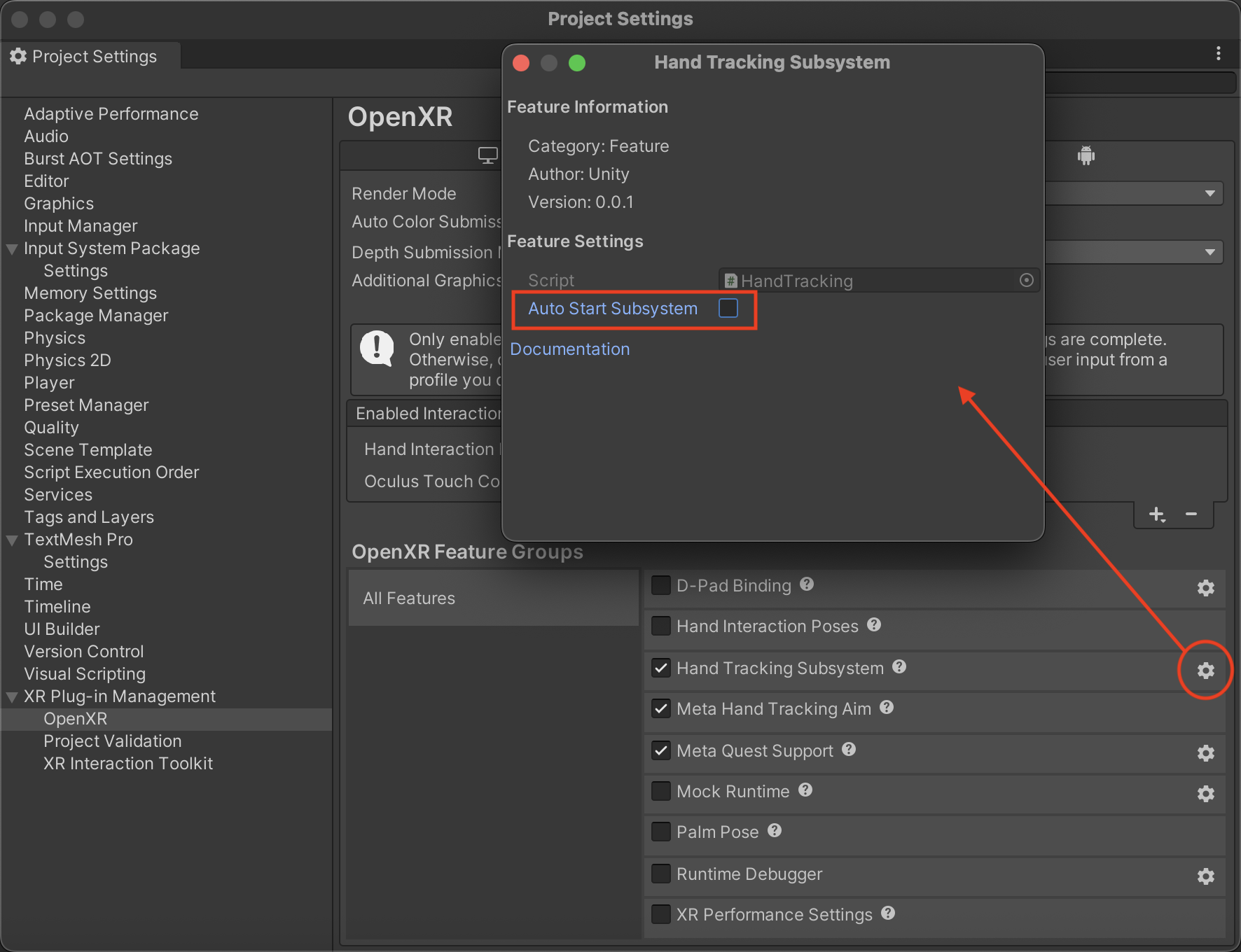
Hand Tracking Subsystem feature settings
| Property | Description |
|---|---|
| Auto Start Subsystem | Create and start the XRHandSubsystem automatically when the OpenXR session starts. Enabled by default. Disable this setting to start hand tracking later, for example after the user grants a permission that hand tracking requires. When this setting is disabled, Unity doesn't create the subsystem until you enable an OpenXR Hand Subsystem Manager component or call HandTracking.EnsureSubsystemInitialized. For more information, refer to Deferred initialization. |
Access the subsystem from scripts
The HandTracking class provides static members to access the hand subsystem that this feature manages, and to control when the feature creates it:
| Member | Description |
|---|---|
subsystem |
The XRHandSubsystem that this feature creates. Valid only while the feature is enabled and running. |
subsystemCreated |
Invoked when the feature creates the XRHandSubsystem. |
destroyingSubsystem |
Invoked just before the feature destroys the XRHandSubsystem. |
automaticallyInitializeSubsystem |
Overrides the Auto Start Subsystem setting at runtime. Set it in a static method marked with [RuntimeInitializeOnLoadMethod(RuntimeInitializeLoadType.SubsystemRegistration)]. |
EnsureSubsystemInitialized |
Creates the XRHandSubsystem if it doesn't exist yet, and starts it if the OpenXR session is running. |