Enable and disable layers
Enable and disable a composition layer by activating or deactivating its parent GameObject or the Component itself.
In the Editor
In the Editor, you can enable or disable the parent GameObject in the Inspector by toggling the checkbox next to the GameObject name field.
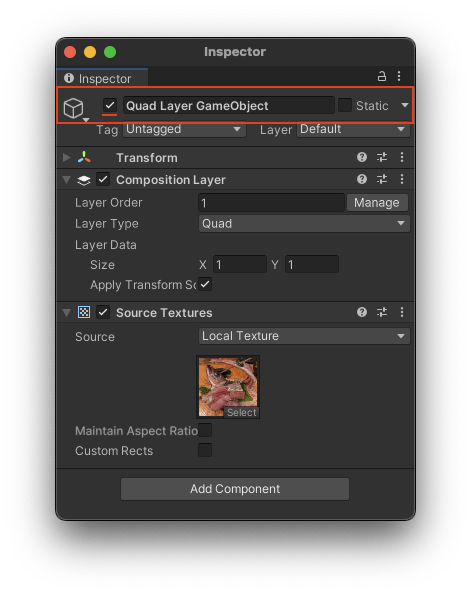
An inactive GameObject remains in the scene and can be activated at runtime.
Refer to Deactivate GameObjects in the Unity Manual for general information about managing GameObject state.
Alternately, you can enable or disable the CompositionLayer MonoBehaviour on its own by toggling the checkbox next to CompositionLayer in the inspector. This leaves the parent GameObject, any child GameObjects, and other components active.
Hide layers in the Scene view
The Scene view always shows composition layers through emulation. Emulated layers can get in the way of scene editing. To hide a layer in the Scene view without disabling it, turn off its visibility in the Hierarchy window. This doesn't affect the Game view or builds. For more information, refer to Scene visibility in the Unity Manual.
At runtime
At runtime, use the GameObject SetActive method to control whether a layer is enabled or disabled.
In the following code, layer is a reference to a CompositionLayer component:
// Enable
layer.gameObject.SetActive(true);

// Disable
layer.gameObject.SetActive(false);
To enable or disable a CompositionLayer MonoBehaviour without changing the state of its parent GameObject, set the enabled property:
// Enable
layer.enabled = true;

// Disable
layer.enabled = false;
Note
The state of the parent GameObject takes precedence over the state of any MonoBehaviours. When you set a GameObject to inactive, a MonoBehaviour of that GameObject won't receive updates even if its own state is enabled.
Keep layers out of builds without XR
In a player with no XR display running, such as the desktop version of a project that also ships on an XR device, composition layers can render through emulation. To keep composition layers out of these builds, deactivate their GameObjects, as you would other content that only belongs on XR platforms. Use one of the following approaches:
- Build without XR from a scene or prefab that doesn't contain the composition layers.
- Deactivate the composition layers at runtime when no XR display is running.
The following script deactivates its GameObject and that GameObject's children when no XR display is running at startup. Add it to the parent GameObject of your XR-only composition layers:
using System.Collections.Generic;
using UnityEngine;
using UnityEngine.XR;

namespace Unity.XR.CompositionLayers.Tests
{
    /// <summary>
    /// Deactivates this GameObject at startup when no XR display is running.
    /// </summary>
    public class DeactivateWithoutXRDisplay : MonoBehaviour
    {
        readonly List<XRDisplaySubsystem> m_DisplaySubsystems = new();

        void Start()
        {
            SubsystemManager.GetSubsystems(m_DisplaySubsystems);
            foreach (var displaySubsystem in m_DisplaySubsystems)
            {
                if (displaySubsystem.running)
                    return;
            }

            gameObject.SetActive(false);
        }
    }
}
The script checks once, in Start. If your project starts XR later than scene load, run the check after XR starts.