Object tracking
This page is a supplement to the AR Foundation Object tracking manual. The following sections only contain information about APIs where ARKit exhibits unique platform-specific behavior.
Tip
When developing an AR app, refer to both the AR Foundation documentation as well as the required packages for each platform you support.
Configure reference object library
To use object tracking on ARKit, you first need to create a reference object library (refer to Configure a reference object library for instructions).
Scan your reference objects
Next, you need to create an ARKit-specific reference object entry. Scanning and Detecting 3D Objects (Apple Developer documentation) provides an app you can download that you can use to produce a scan of an object. This is a third-party application, and Unity is not involved in its development.
The scanning app produces a file with the extension .arobject. Drag each .arobject file into your Unity project, and Unity generates an ARKitReferenceObjectEntry for it.
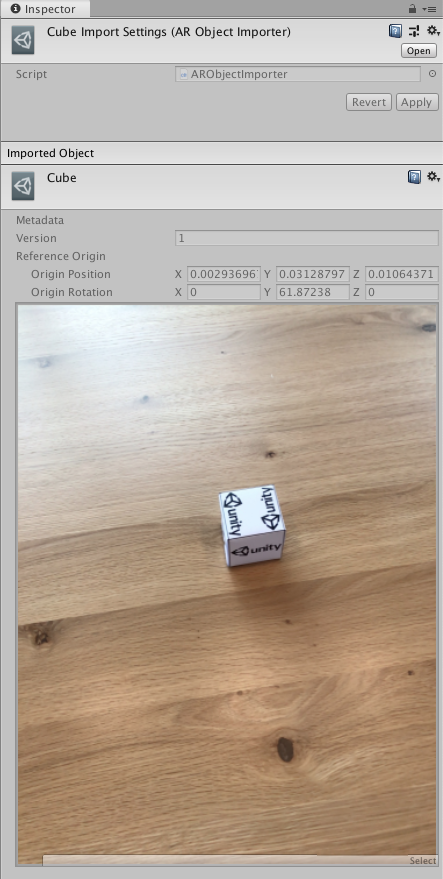
Example scan in the Inspector.
Once you have scanned an object, the Inspector displays metadata and a preview image of the scan.
Add scanned objects to reference object library
You can now add the .arobject to a reference object in your reference object library as shown in the following image:
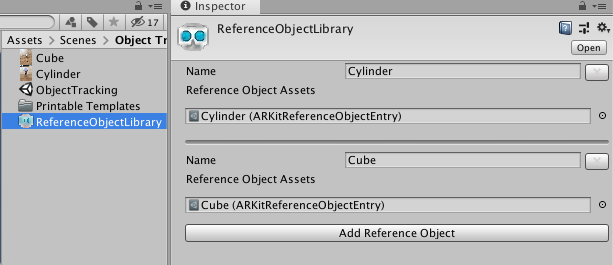
Example Reference Object Library
Apple and ARKit are trademarks of Apple Inc., registered in the U.S. and other countries and regions.