AR Tracked Object Manager component
Understand how to enable and use object tracking in your project with the AR Tracked Object Manager.
The ARTrackedObjectManager component is a type of trackable manager.
The tracked object manager creates a GameObject for each object detected in the environment.
Prerequisites
Before your app can detect an object, you must scan the object to create a reference object. You can then add the reference object to the tracked object manager's reference object library. Refer to Configure a reference object library to learn more.
Component reference
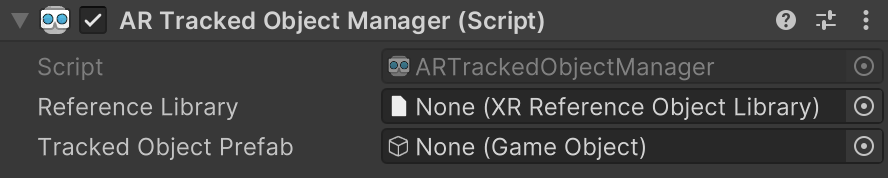
AR Tracked Object Manager component.
The Tracked Object Manager provides the following options:
| Property | Description |
|---|---|
| Trackables Changed | Invoked when trackables have changed (been added, updated, or removed). |
| Reference Library | The library of objects which will be detected and/or tracked in the environment. To learn more about reference object libraries, refer to Configure a reference object library. |
| Tracked Object Prefab | If not null, instantiates this prefab for each detected object. |
Enable object tracking
To enable object tracking in your app, add an AR Tracked Object Manager component to your XR Origin GameObject. If your scene doesn't contain an XR Origin GameObject, first follow the Scene setup instructions.
Whenever your app doesn't need object tracking functionality, disable the AR Tracked Object Manager component to disable object tracking, which can improve app performance. If the user's device doesn't support object tracking, the AR Tracked Object Manager component will disable itself during OnEnable.
Set the reference object library
To detect objects in the environment, you must instruct the manager to look for a set of reference objects compiled into a reference object library. AR Foundation only detects objects in this library.
To set your reference object library with the AR Tracked Object Manager component:
- View the AR Tracked Object Manager component in the Inspector window.
- Click the Reference Library picker (⊙).
- Select your reference object library from the
Assetsfolder.
Create a manager at runtime
When you add a component to an active GameObject at runtime, Unity immediately invokes the component's OnEnable method. However, the ARTrackedObjectManager requires a non-null reference object library. If the reference object library is null when the ARTrackedObjectManager is enabled, it automatically disables itself.
To add an ARTrackedObjectManager at runtime, set its reference object library and then re-enable it:
void AddTrackedObjectManagerAtRuntimeExample()
{
    var myLibrary = ScriptableObject.CreateInstance<XRReferenceObjectLibrary>();
    var manager = gameObject.AddComponent<ARTrackedObjectManager>();
    manager.referenceLibrary = myLibrary;
    manager.enabled = true;
}
Tracked object prefab
The Tracked Object Manager instantiates the tracked object whenever your app detects an object from the reference object library. The manager ensures the instantiated GameObject includes an ARTrackedObject component. You can get the reference object that your app used to detect the ARTrackedObject with the ARTrackedObject.referenceObject property.