AR Shader Occlusion component
Understand the AR Shader Occlusion component.
The ARShaderOcclusion component sets global shader properties each frame based on data it receives from the AR Occlusion Manager component. Your customizable occlusion shaders can read the global shader properties and use them to achieve an occlusion effect.
Important
With AR Shader Occlusion, you must apply a special occlusion shader to all occludable Materials in your project. Refer to occlusion shaders for more information, including how to use Unity-provided shaders.
Refer to the following sections to learn more about the AR Shader Occlusion and how to use it to enable occlusion in your project.
Component reference
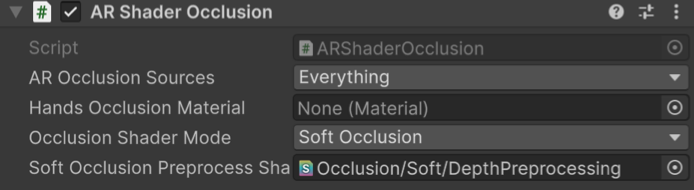
AR Shader Occlusion component.
You can configure the following properties with the AR Shader Occlusion component:
| Property | Description |
|---|---|
| AR Occlusion Sources | Select the flag for making an occlusion source mask. The occlusion source mask indicates the part of the scene that occludes virtual content based on depth information. The available options are:
|
| Hands Occlusion Material | A material to use on hands when you enable Hands Occlusion in AR Occlusion Sources. This property is currently only supported on Android XR. |
| Occlusion Shader Mode | The shader keywords to enable: Hard Occlusion, Soft Occlusion, or None. This option is only available if you select Everything or Environment Depth in AR Occlusion Sources. |
| Soft Occlusion Preprocess Shader | The preprocessing shader to use for soft occlusion. This option is only available when you enable Soft Occlusion in the Occlusion Shader Mode. |
Scene setup
The AR Shader Occlusion component is currently only supported for Meta Quest and Android XR devices. To set up a scene for either of these platforms that includes occlusion, add the AR Shader Occlusion and AR Occlusion Manager components to your XR Origin's Main Camera GameObject as outlined in Configure occlusion in your project.
Occlusion shaders
The AR Foundation Samples app provides sample shaders and shader graphs (GitHub) that you can use with the AR Shader Occlusion component in your project. Only Materials that use an occlusion shader can be occluded — the AR Shader Occlusion component has no effect on other Materials.
You can further customize these shaders to meet your project's needs. For information about writing shaders, refer to Writing shaders (Unity Manual).
Soft occlusion preprocess shader
If you set the AR Shader Occlusion component's Occlusion Shader Mode to Soft Occlusion, you are prompted to provide a preprocess shader, which by default is set to AR Foundation's Occlusion/Soft/DepthPreprocessing shader. This is the only supported preprocess shader, but if you are an advanced shader developer, you could create your own modified version.
Change occlusion mode at runtime
You can swap between hard and soft occlusion at runtime, for example to compare the effects of hard and soft occlusion on the same scene.
If you plan to change AR Shader Occlusion's Occlusion Shader Mode at runtime, Unity recommends that you initially set the value to Soft Occlusion, ensuring that the soft occlusion preprocess shader is included in the build.
To instead start with Hard Occlusion and switch to soft occlusion at runtime, you must use another method to ensure that the soft occlusion preprocess shader is included in your build. One way to do this would be to add the Occlusion/Soft/DepthPreprocessing shader to your project's preloaded assets (Project Settings > Player > Android > Optimization > Preloaded assets).
Additional resources
Apple and ARKit are trademarks of Apple Inc., registered in the U.S. and other countries and regions.