Face tracking
This page supplements the AR Foundation Face tracking manual. The following sections only contain information about APIs where Google's Android XR runtime exhibits platform-specific behavior.
Tip
When developing an AR app, refer to both the AR Foundation documentation as well as the required packages for each platform you support.
Important
You must ensure to configure the appropriate Permissions to use face tracking features on Android XR.
XREAL Aura support
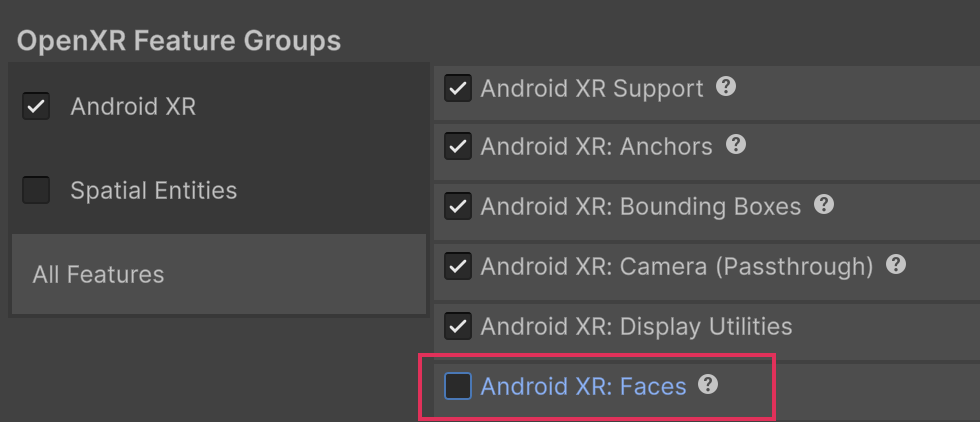
The XREAL Aura device doesn't support face tracking. A software issue can cause your application to crash when enabling face tracking on this device. For this reason, disable the Android XR: Faces feature when using an XREAL Aura device.
To disable face tracking:
- In the Unity Editor, go to Edit > Project Settings > XR Plug-in Management > OpenXR.
- In the OpenXR Feature Groups section, deselect Android XR: Faces.
Note
Refer to Enable Unity OpenXR: Android XR for more information about Android XR settings.
Optional feature support
Android XR implements the following optional features of AR Foundation's XRFaceSubsystem:
| Feature | Descriptor Property | Supported |
|---|---|---|
| Face pose | supportsFacePose | |
| Face mesh vertices and indices | supportsFaceMeshVerticesAndIndices | |
| Face mesh UVs | supportsFaceMeshUVs | |
| Face mesh normals | supportsFaceMeshNormals | |
| Eye tracking | supportsEyeTracking | Yes |
| Blend Shapes | supportsBlendShapes | Yes |
Note
Refer to AR Foundation Face tracking platform support for more information on the optional features of the face subsystem.
Face data
This platform exposes face data for the active user (the person wearing the headset). Currently, the platform surfaces gaze and blend shape data.
Gaze data is available within the ARFace class, while you must query blend shape data separately using the TryGetBlendShapes API.
New blend shape data might be available when the ARFace updated event fires.
Tip
To ensure you keep your mesh renderers up to date, update them each time the ARFace updated event fires.
You can use the TryGetInwardRegionConfidences API to determine the accuracy of blend shape data per face region. A confidence value of at least 0.3 indicates acceptable blend shape data. To learn how Android XR groups blend shape locations into confidence regions, consult the Android XR Face Tracking documentation.
To know which face is the inward avatar-eyes gaze object, cast an XRFaceSubsystem to an AndroidOpenXRFaceSubsystem and read its inwardID property.
Permissions
AR Foundation's face tracking feature requires two Android system permissions on the Android XR runtime. Your user must grant your app the android.permission.EYE_TRACKING_COARSE and android.permission.FACE_TRACKING permissions before it can track face data.
To avoid permission-related errors at runtime, set up your scene with the AR Face Manager component disabled, then enable it only after the user grants the required permissions.
The following example code demonstrates how to handle required permissions and enable the AR Face Manager component:
        const string k_EyeTrackingPermission = "android.permission.EYE_TRACKING_COARSE";
        const string k_FaceTrackingPermission = "android.permission.FACE_TRACKING";

        [SerializeField]
        ARFaceManager m_ARFaceManager;

#if UNITY_ANDROID
        void Start()
        {
            if (!Permission.HasUserAuthorizedPermission(k_EyeTrackingPermission) || !Permission.HasUserAuthorizedPermission(k_FaceTrackingPermission))
            {
                var callbacks = new PermissionCallbacks();
                callbacks.PermissionDenied += OnPermissionDenied;
                callbacks.PermissionGranted += OnPermissionGranted;

                Permission.RequestUserPermissions(new string[] { k_EyeTrackingPermission, k_FaceTrackingPermission }, callbacks);
            }
            else
            {
                // enable the AR Face Manager component if permission is already granted
                m_ARFaceManager.enabled = true;
            }
        }

        void OnPermissionDenied(string permission)
        {
            // handle denied permission
        }

        void OnPermissionGranted(string permission)
        {
            // enable the AR Face Manager component after permission is granted
            m_ARFaceManager.enabled = true;
        }
#endif // UNITY_ANDROID
For a code sample that involves multiple permissions in a single request, refer to the Permissions page.
Calibration
Your user must calibrate face tracking before the face tracking subsystem can provide information about their face. To confirm the present face tracking calibration state, use the TryGetIsFaceTrackingCalibrated API.
If your user hasn't calibrated face tracking, consider directing them to the operating system's face tracking calibration flow.