VFX Graph template window
The VFX Graph template window allows you to create a new VFX graph from an existing template with a predefined effect. You can use these templates as a starting point for your own effects.
There are multiple ways to access the VFX Graph template window.
Note: The template browser displays only templates that are compatible with the current project.
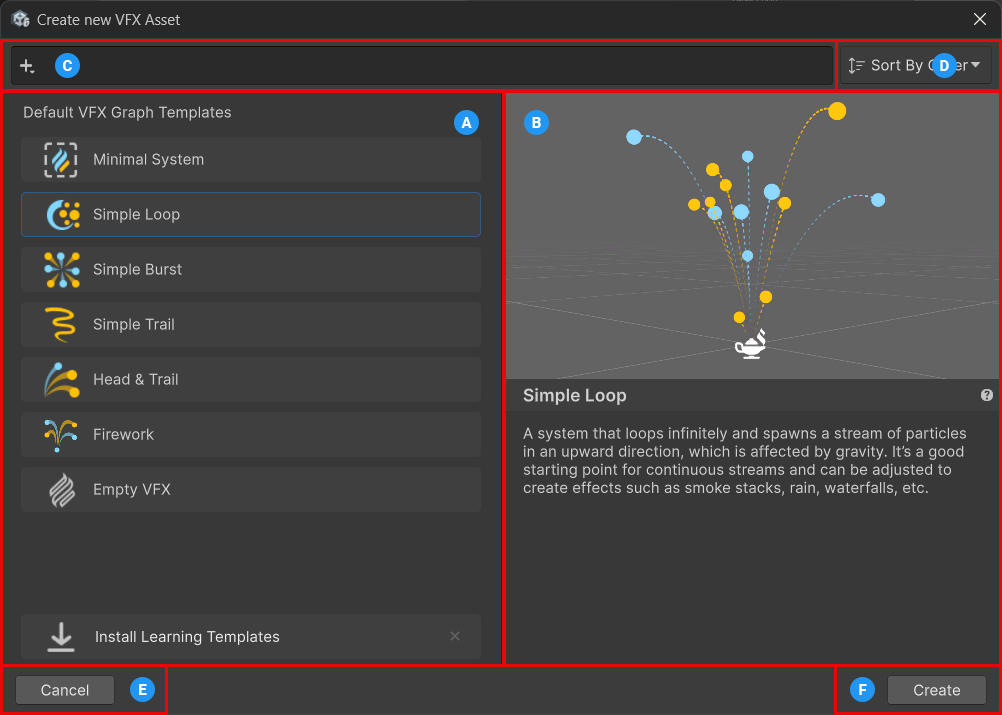
| Label | Name | Description |
|---|---|---|
| A | Template list | Lists all the available templates you can select and start from to create a new VFX graph. Note: the Install Learning Templates button imports the Learning Templates sample from the Visual Effect Graph package. |
| B | Template details | Displays a picture and description of the selected template. |
| C | Search and filtering tool | Filters the template list using the Unity Search functionality. Type text to search templates by name or select Add (+) to filter templates based on specific characteristics. In addition to some of the default Unity Search options, Visual Effect Graph allows you to filter the list by template grouping using Category. |
| D | Sorting tool | Sorts the templates within their respective categories. The categories remain listed in alphabetical order. The options are:
|
| E | Cancel | Closes the window and cancels the VFX graph asset creation. |
| F | Create | Creates a new VFX graph asset based on the selected template. |
Access the VFX Graph template window
From the Project window
Right-click in your Project window.
Select Create > Visual Effects > Visual Effect Graph.
From the VFX Graph editor toolbar
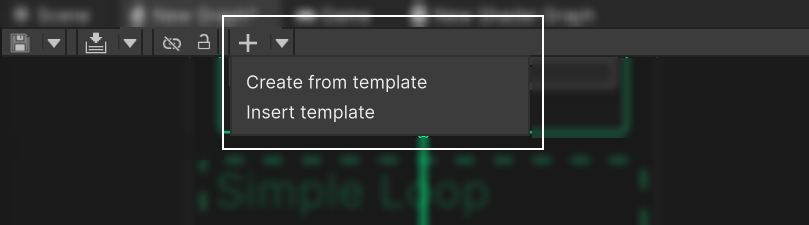
In the VFX Graph window's toolbar, select the drop-down arrow besides the Add (+) button.
Select one of the available options:
- Create from template to create a new asset file from a template.
- Insert template to insert a template in the current graph.
Once you complete a template insertion, Unity places it at the center of the VFX Graph window's workspace.
Tip
To create a new VFX graph asset, you can also hold the CTRL key while you directly select Add (+) in the toolbar.
From the VFX Graph workspace
Right-click in the VFX Graph window's workspace.
Select Insert template.
Once you complete the VFX graph asset creation, Unity inserts the template at the right-click position.
Create a custom VFX graph template
You can create your own VFX graph templates to have them available in the template browser.
To create a custom VFX graph template, follow these steps:
In the Project window, select the VFX graph asset you want to use as a template.
In the Inspector window, select Use as Template.
Expand the Template section.
Optional: Set the metadata that describes the template in the template browser: Name, Category, Description, Icon, and Thumbnail.