The Visual Compositor Window
Introduction
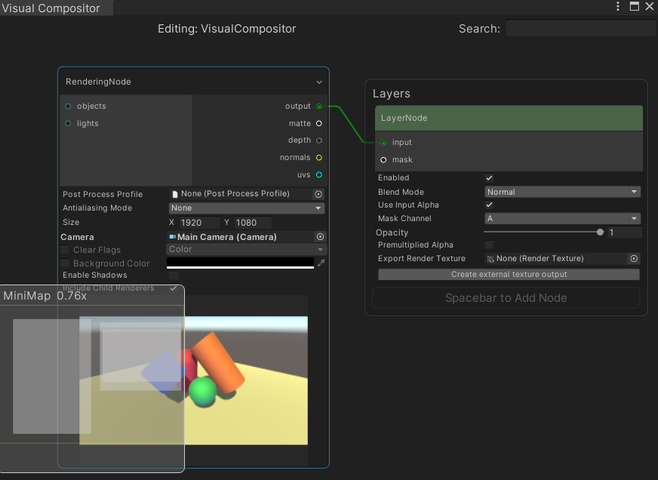
The Visual Compositor window shows the Compositor Graph of the selected GameObject, as indicated by the GameObject name located at the top.
When we create a new Compositor Graph , two nodes (Render and Layer), which are connected by an edge, will be automatically created as shown in the figure above.
Ports
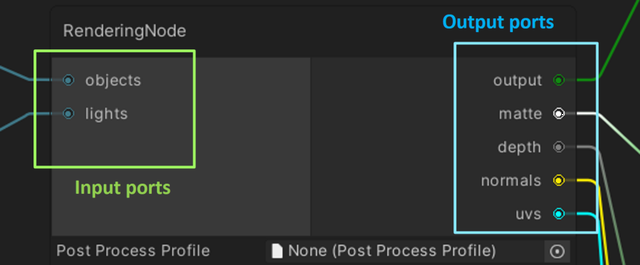
The small circles on the left and right sides of the nodes are called input and output ports.
They can be connected to ports in other nodes to form edges.
Edges
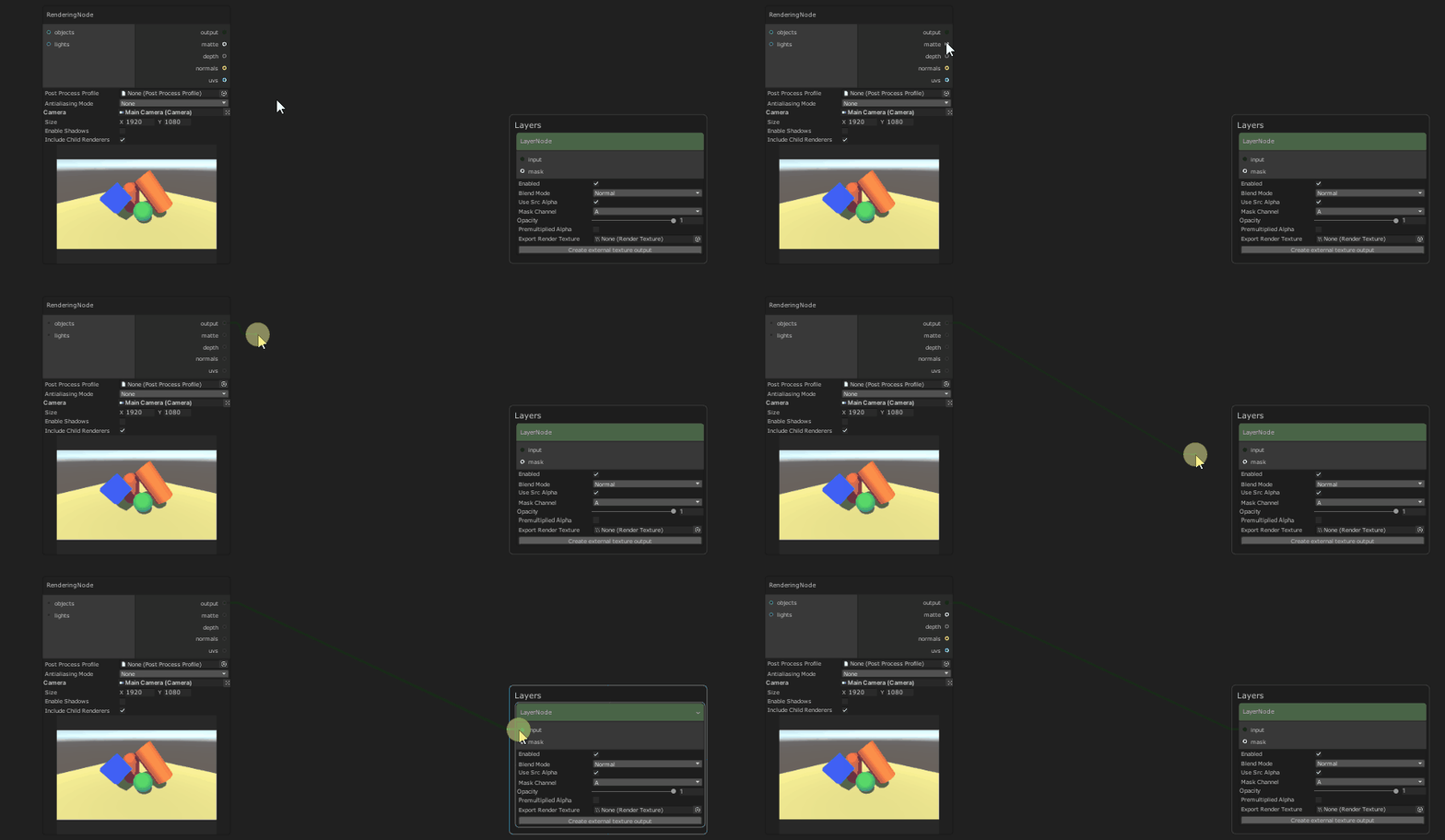
Edges connect output ports to input ports in order to create the functionality of the graph.
Click and drag an output port to the input port of another node to connect them.
Node Manipulation
Creating and Deleting Nodes
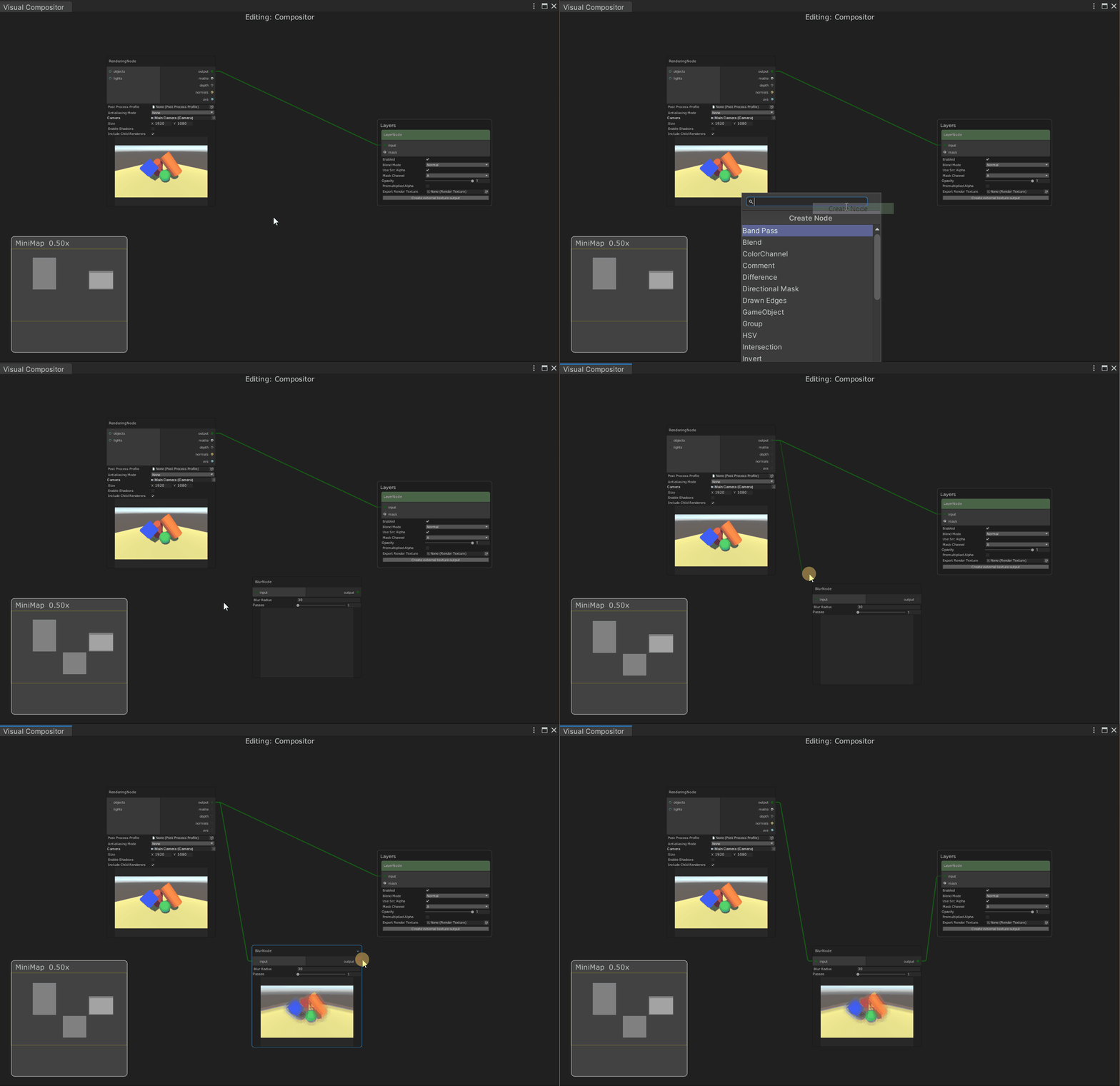
To create a node:
- Show the search box by:
- Right clicking in an empty area and choose Create Node, or
- Pressing the spacebar key.
- Select the node to create in the search box.
We can filter nodes by name in the search box.
The types of supported nodes can be seen in the nodes documentation.
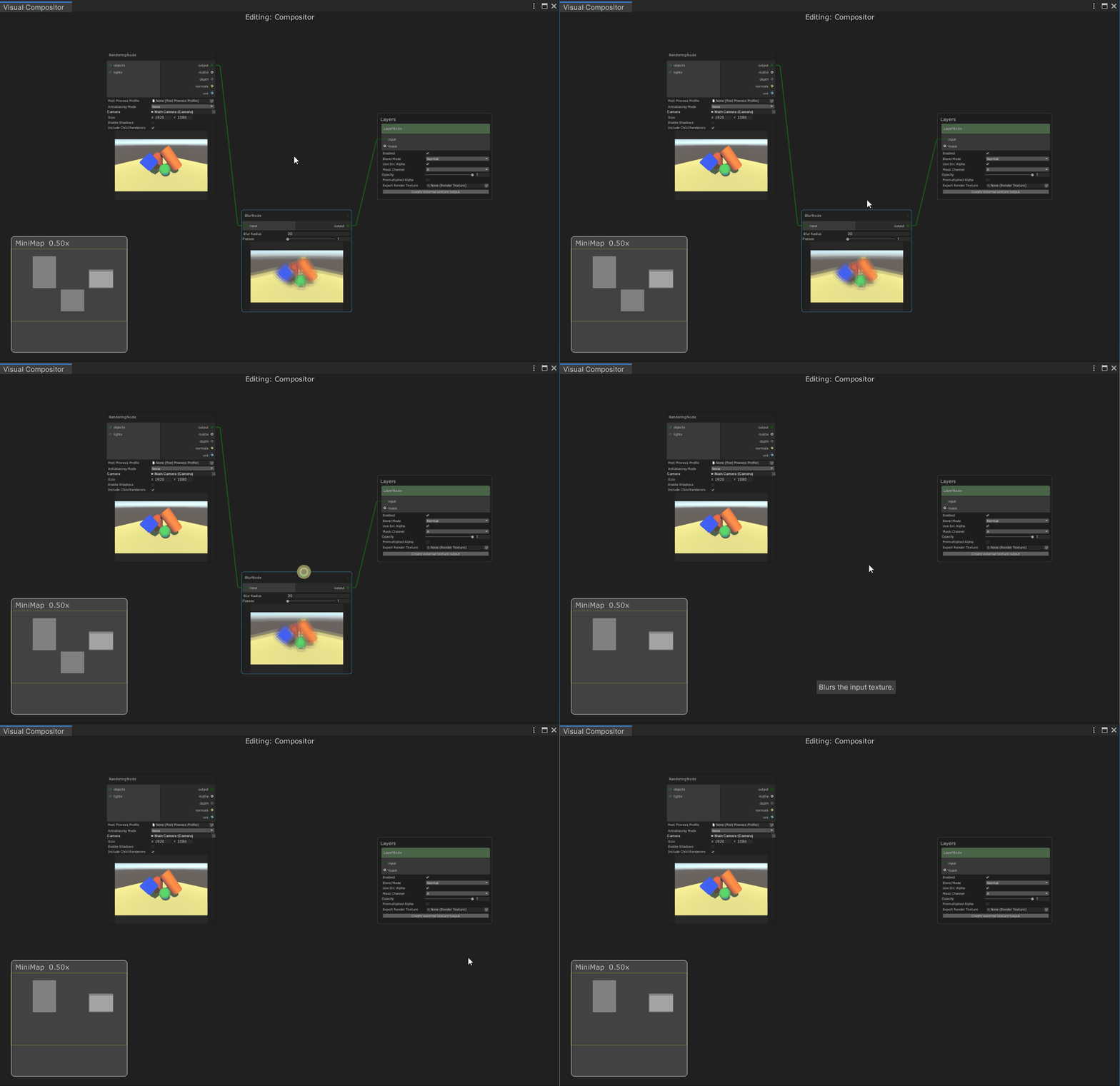
To delete a node, select it, and then press the delete key.
Enabling and Disabling Nodes
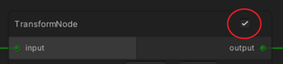
Some nodes have a checkbox at the top right corner which can be used to enable or disable the nodes.
If a node is disabled, then the node is grayed out and the input goes straight to become the output directly.
Renaming Nodes
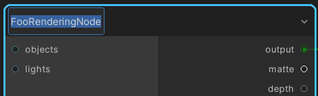
We can rename the title of a node by double-clicking on the title and typing a new name.
Folding Nodes
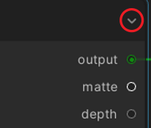
A node can be folded to save window space by clicking on the its top right arrow button,
which becomes visible when hovering the mouse cursor on the node.
Click on it again to unfold the node.
Node Output Viewer
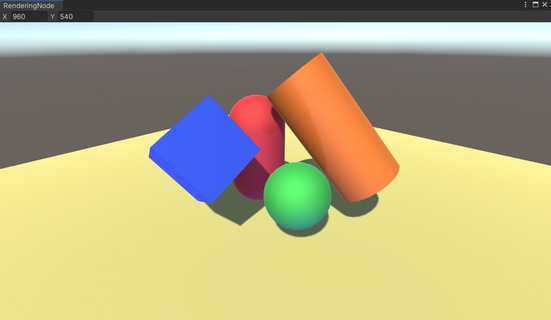
Double clicking on the output preview of a node will open a resizable and dockable image viewer window, which we can use to inspect the output of the node in more detail.
Navigation
Selecting
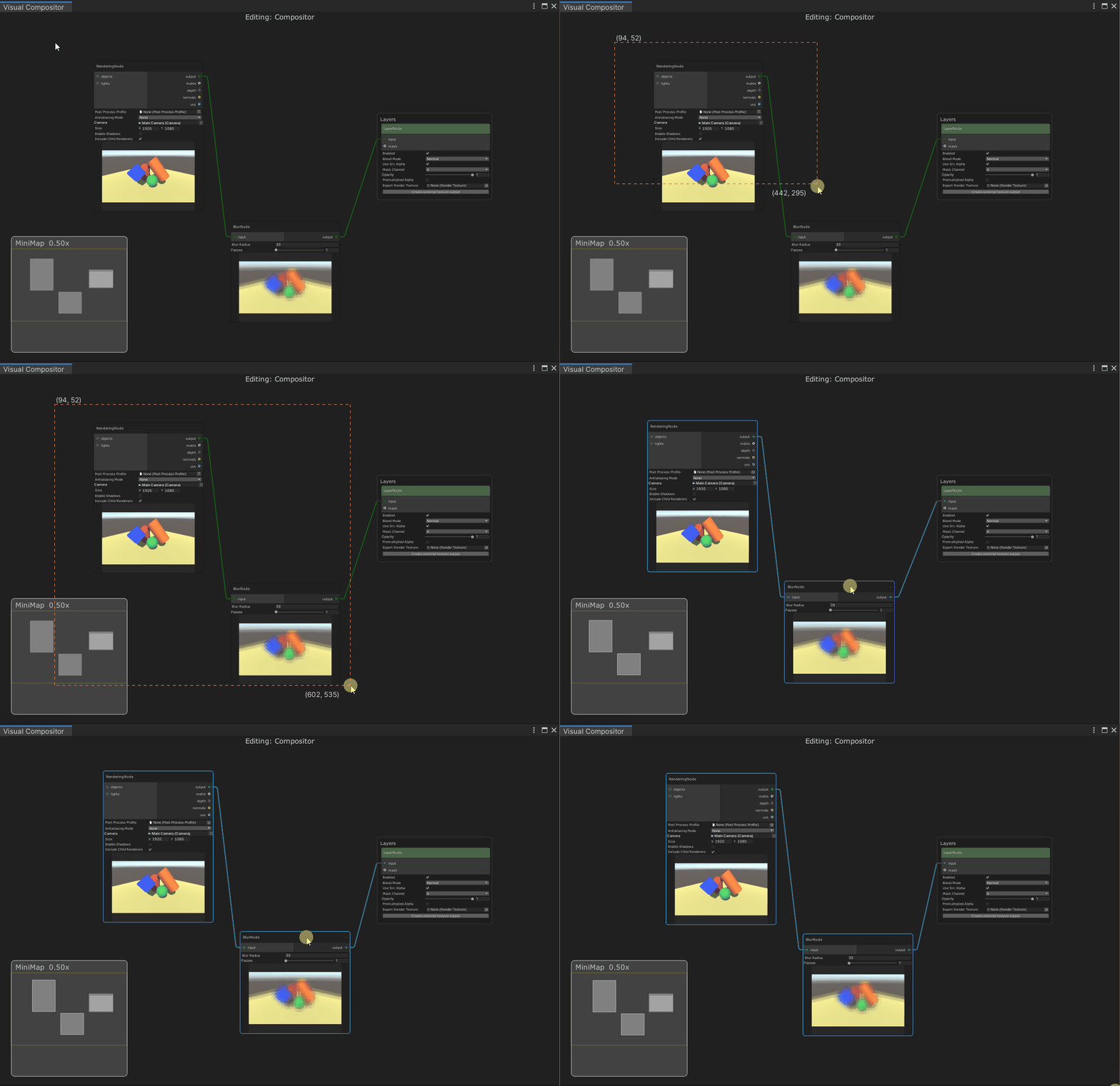
Selecting nodes is done with the left mouse button. We can also select multiple nodes by left clicking an empty area, and dragging to draw a rectangle around the nodes we want to select. We can then reposition all selected nodes by left clicking on a selected node and dragging to the new position.
Zooming
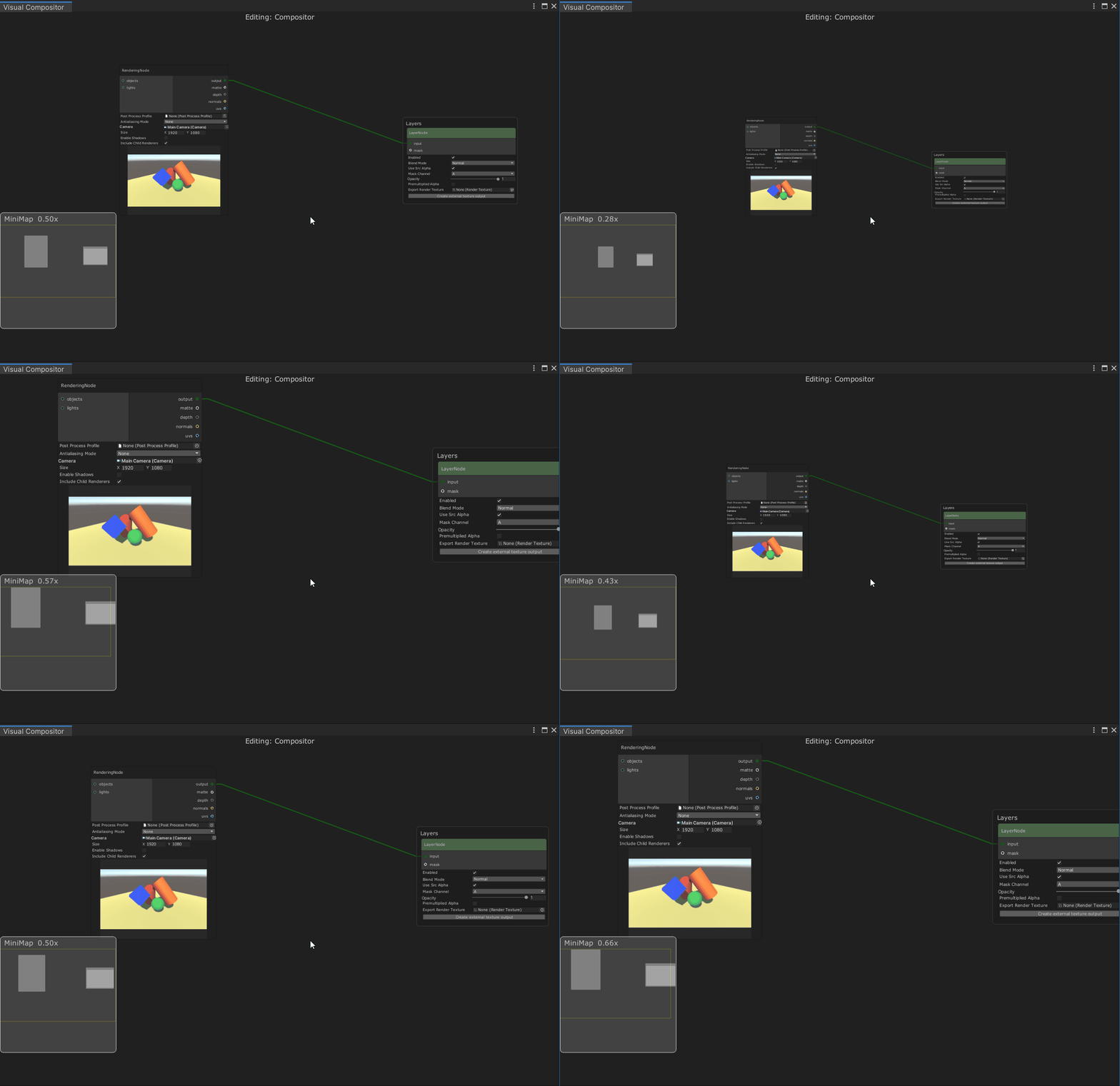
We can zoom the view in and out, using the scroll wheel on the mouse.
Panning
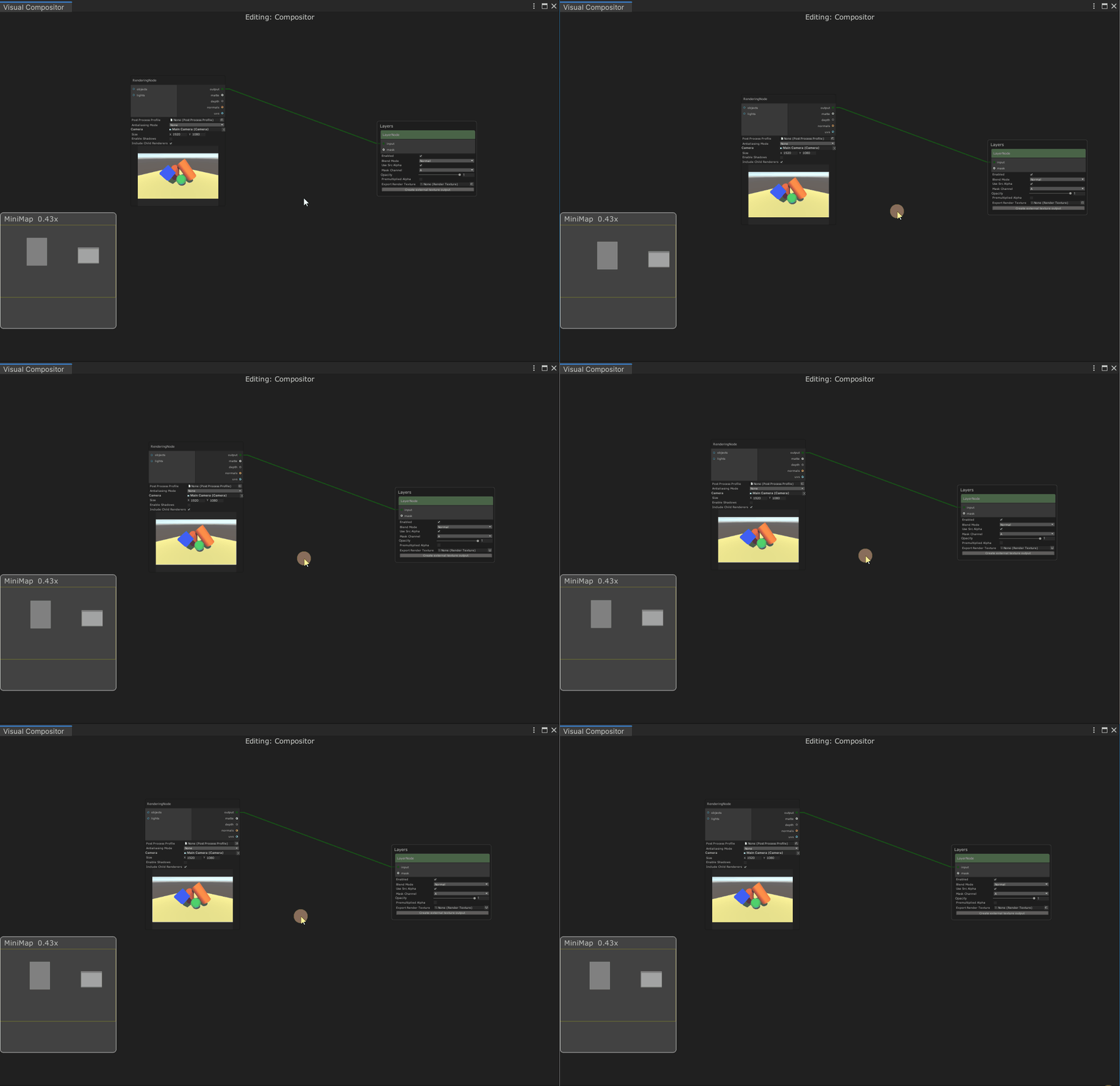
We can pan the view by middle-clicking in an empty space, and dragging in the appropriate direction.
Minimap
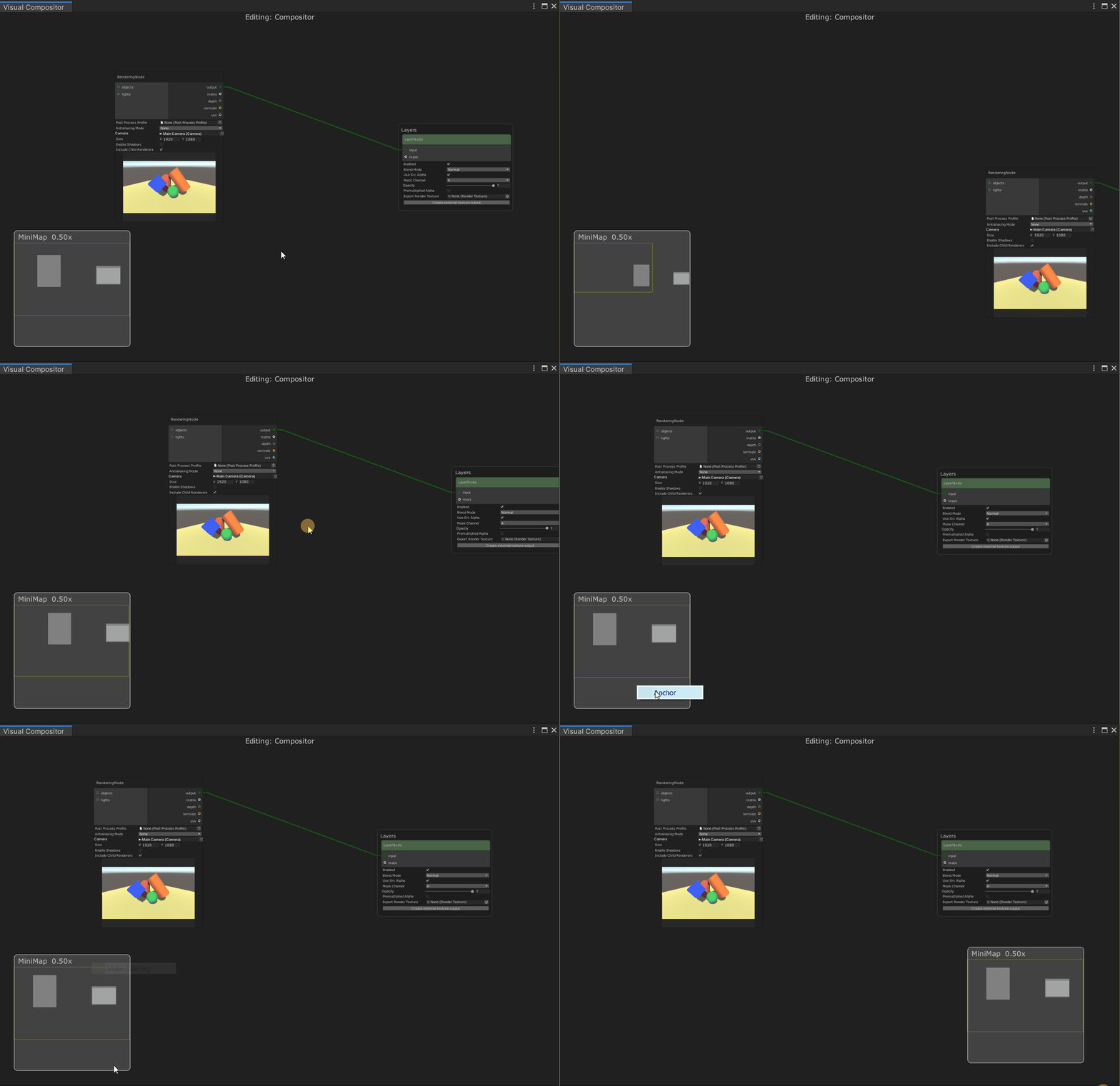
As we pan the view, some nodes will disappear off the edge of the window.
We can find them using the minimap, which will grow and shrink in scale
so that it can display the entire graph.
Right-clicking on the minimap will open a context menu which allows us to anchor the minimap to a certain position or to make the minimap floating so that we can drag it around.
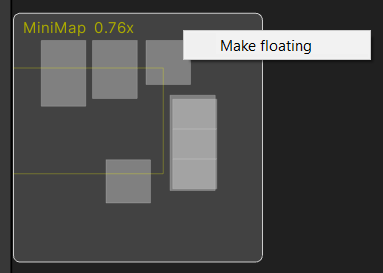
The minimap can also be hidden.
Please refer to additional options to hide the minimap.
Searching
We can use the search box at the top right of the window to
focus on a node with a particular title.
If there are multiple nodes with the same title as the input,
then the window will zoom the view out to make all the applicable nodes visible.

Special Nodes
Group
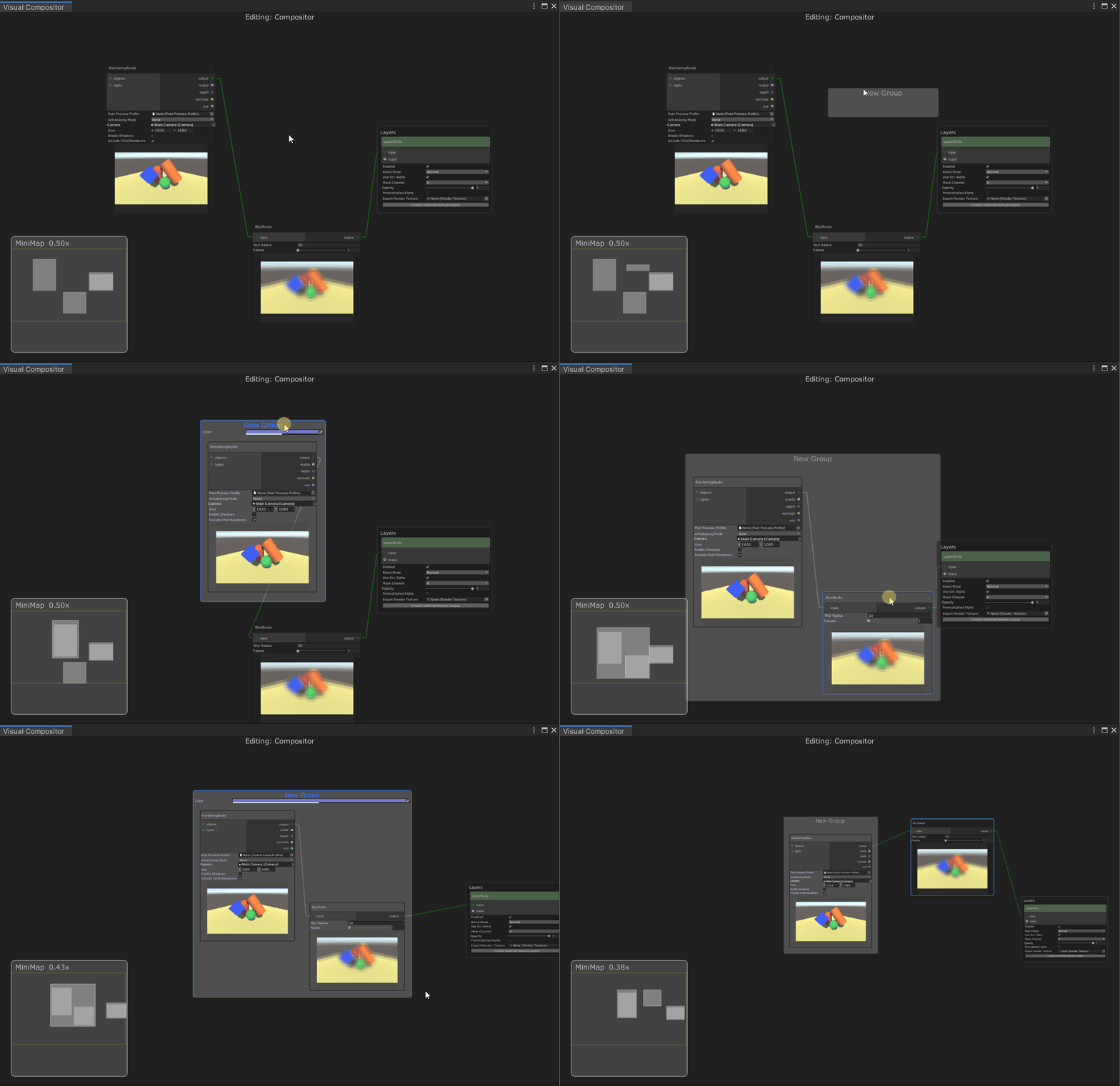
Group is a special node which can contain other nodes.
Other than helping organize our graph, it has no other functionality.
We can drag nodes into the group node, which will add them to the group.
To remove a node from a group, press shift while dragging the node outside of the group.
Layer
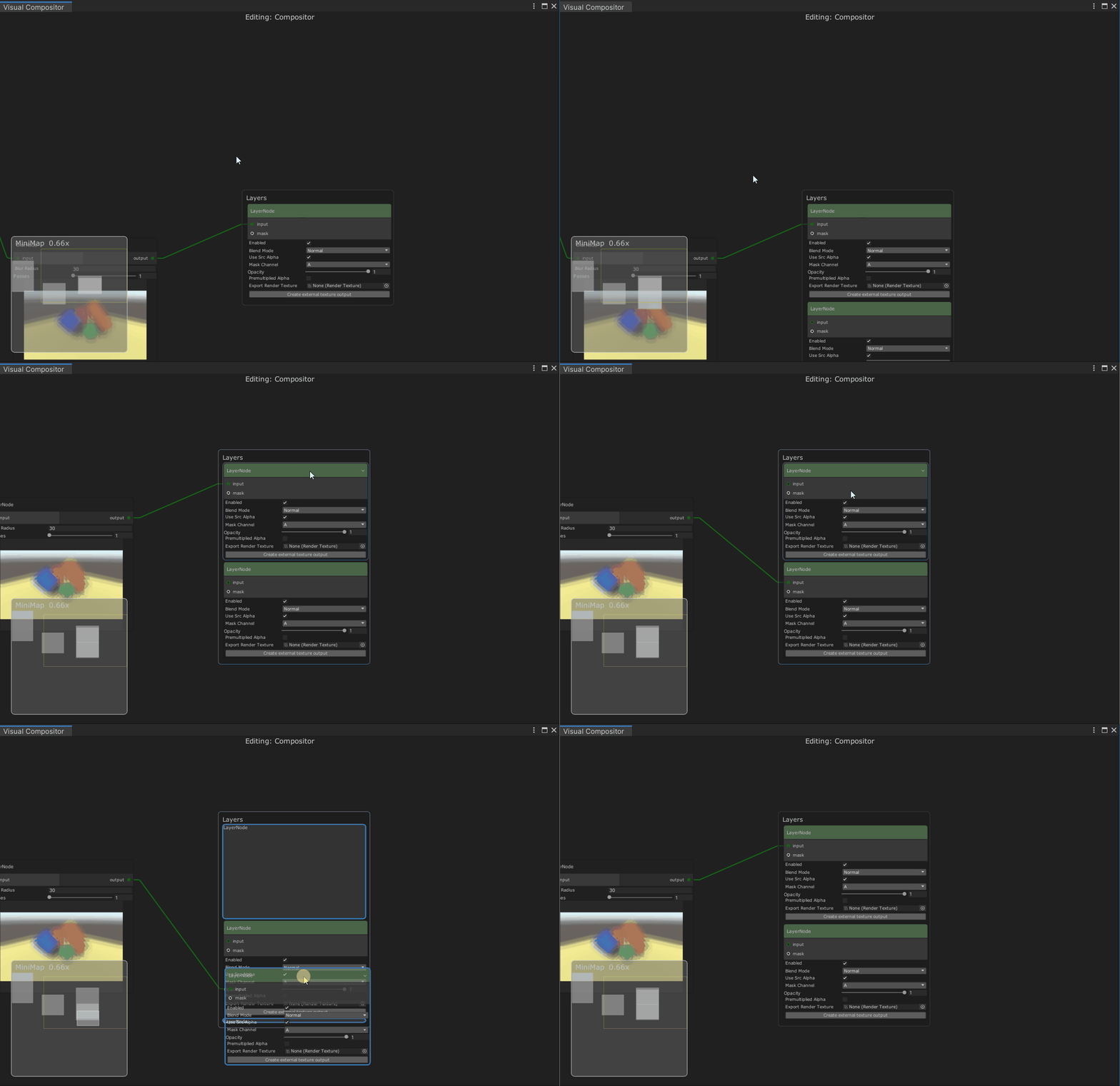
Layer is a special node, which represents a part of the composition final output.
Multiple layers are arranged in a stack, and we can re-order individual layer nodes as required.
If a layer is detached from the stack, it is no longer used in the composition, and
it can be dragged back into the stack when needed.
Additional Options

The Visual Compositor window has additional options which can be accessed by right-clicking on the window title.
| Options | Description |
|---|---|
| Lock | Lock the Visual Compositor window to the current Compositor Graph asset. |
| Minimap | Show/hide the minimap. |