Highlight Settings
The ability to display specular highlights in a cel-animation-like manner is essential for toon shaders. The Unity Toon Shader provides a wide variety of expressions with controllable illumination that works independently of light color and intensity for impressive cel-shading.
Settings:
- Highlight
- Highlight Power
- Specular Mode
- Highlight Blending on Shadows
- Highlight Mask
- Highlight Mask Level
Highlight
Highlight: Texture(sRGB) × Color(RGB). Defines the pattern and tint of the specular highlight.
Default: white.
Drag the slider to compare the images.
Highlight Power
The highlight size is controlled by the Highlight Power slider.
Specular Mode
UTS provides two modes for the highlight for different occasions and effect. The hard mode provides a crisp and solid edge to the highlight while the soft mode provides a blended blurred effect.
Drag the slider to compare the images.
Color Blending Mode
Specular color blending mode allows the user to control the hardness of the colour applied to the highlight. Users have two options: Multiply or Add.
Note that Color Blending Mode is disabled when Specular Mode is set to Soft.
Drag the slider to compare the images.
Highlight Blending on Shadows
Control the blending for the highlights in shadows. Please refer to the image at Blending Level.
Blending Level
Adjusts the intensity of highlight applied to shadow areas.
Highlight Mask
A gray scale texture which utilises its brightness to control highlight intensity. Applying the highlight mask allows to fine-tune the reflectivity on the material.
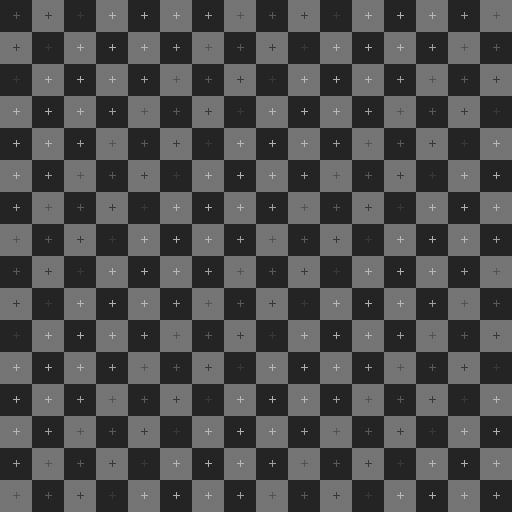
An example of a grayscale texture highlight mask.
Drag the slider to compare the images.
Highlight Mask Level
Highlight mask texture blending level to highlights.