Installing the package
Package Manager
mFollow these steps:
From the menu, choose Window > Package Manager to open the package manager.
In the package manager, check the Advanced dropdown and make sure Show Preview Packages is enabled.
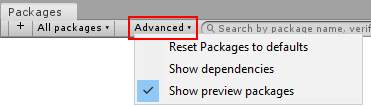
The preview packages option in the Package Manager window
From the package list in the left-hand pane, choose Project Tiny.
In the right-hand pane, click the Install button.
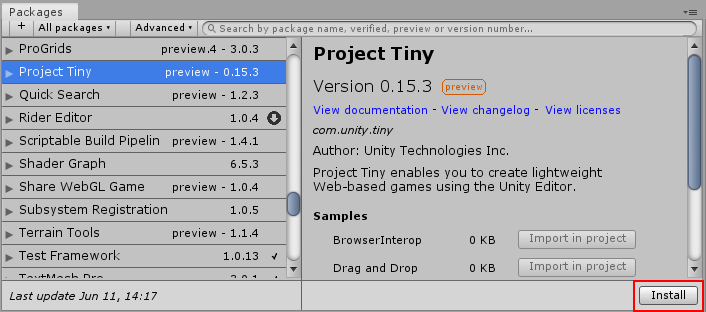
The package manager window, showing the Project Tiny Install button
Prerequisites
Project Tiny works when installed in a new project created with Unity 2019.2 beta (b3 or above). When creating your new project, use the 2D template. We recommend you do not use an existing Unity project.
The minimum requirements for Scripting in DOTS Mode are Visual Studio 2017 15.8 or JetBrains Rider 2019.1.