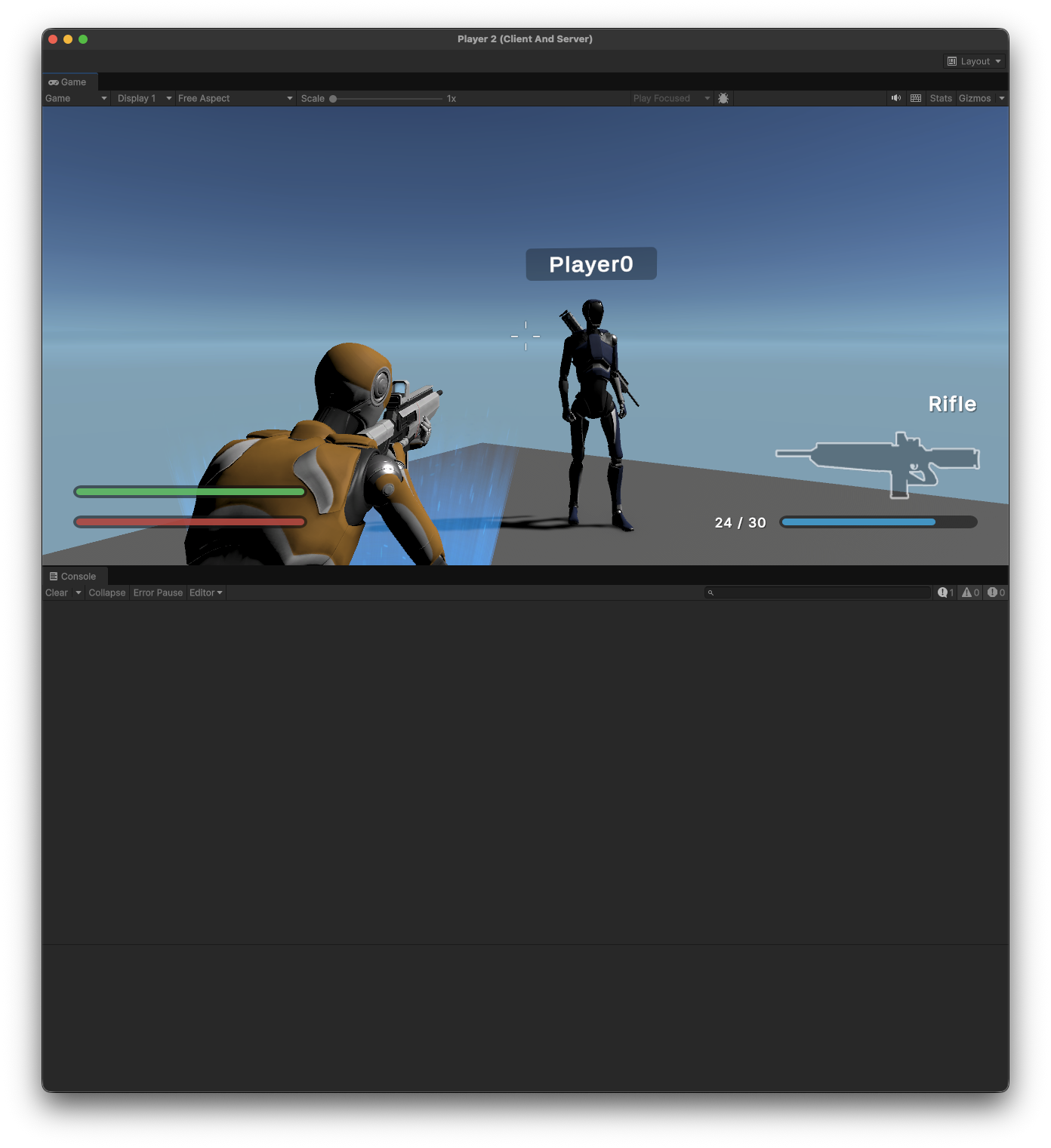
Playing the Sample Scenes
This project includes sample scenes demonstrating different gameplay styles. Each sample has a standard version and a multiplayer-ready session version.
Available Scenes
You can find the sample scenes in the Assets folder under their respective categories:
- Core: Basic movement and interaction.
Assets/Core/TestScenes/[BB] Core.unity
- Platformer: Jumping and navigating obstacles.
Assets/Platformer/TestScenes/[BB] Platformer.unity
- Shooter: Shooting mechanics.
Assets/Shooter/TestScenes/[BB] Shooter.unity
Note
Look for scenes with "MultiplayerSession" or "MS" in the name for network-ready setups using Multiplayer Session Building Blocks.*
Testing with Multiplayer Play Mode
Multiplayer Play Mode allows you to test multiple clients directly in the editor.
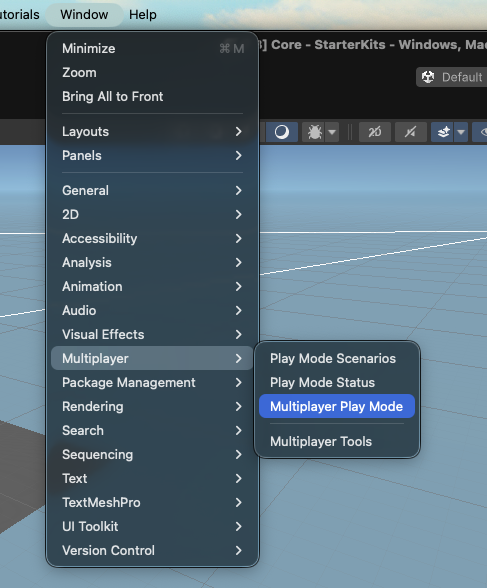
Open the Multiplayer Play Mode window from the top menu:
Window > Multiplayer > Multiplayer Play Mode.In the window that appears, you can configure the number of players (clients) to simulate.
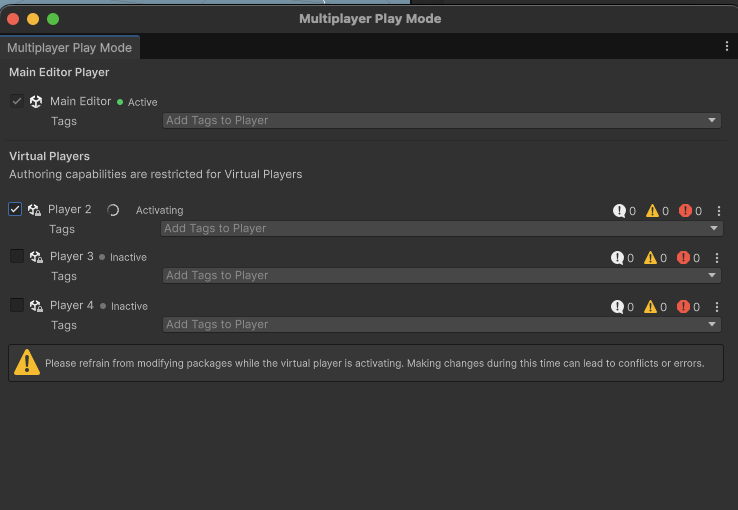
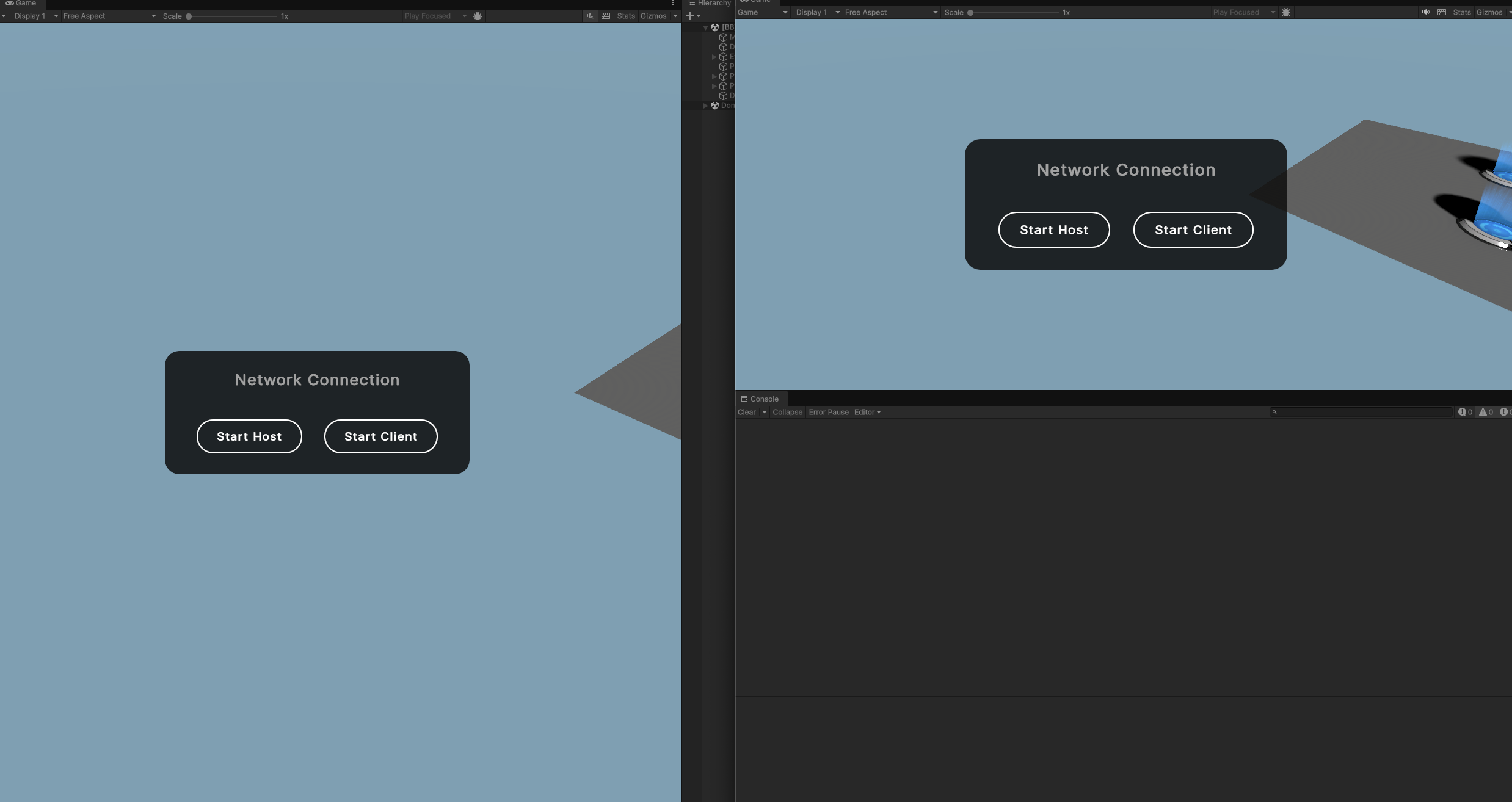
Play the scene. Click Start Host button on one of the clients to start the session. And click Start Client button on the other clients to join the session.
Changing the Player Character
You can swap the character prefab used by players in the NetworkManager.
In your scene (e.g.,
[BB] Core), select theNetworkManagerobject in the Hierarchy.In the Inspector, look for the Network Manager or GameNetworkManager component and find the Default Player Prefab field.
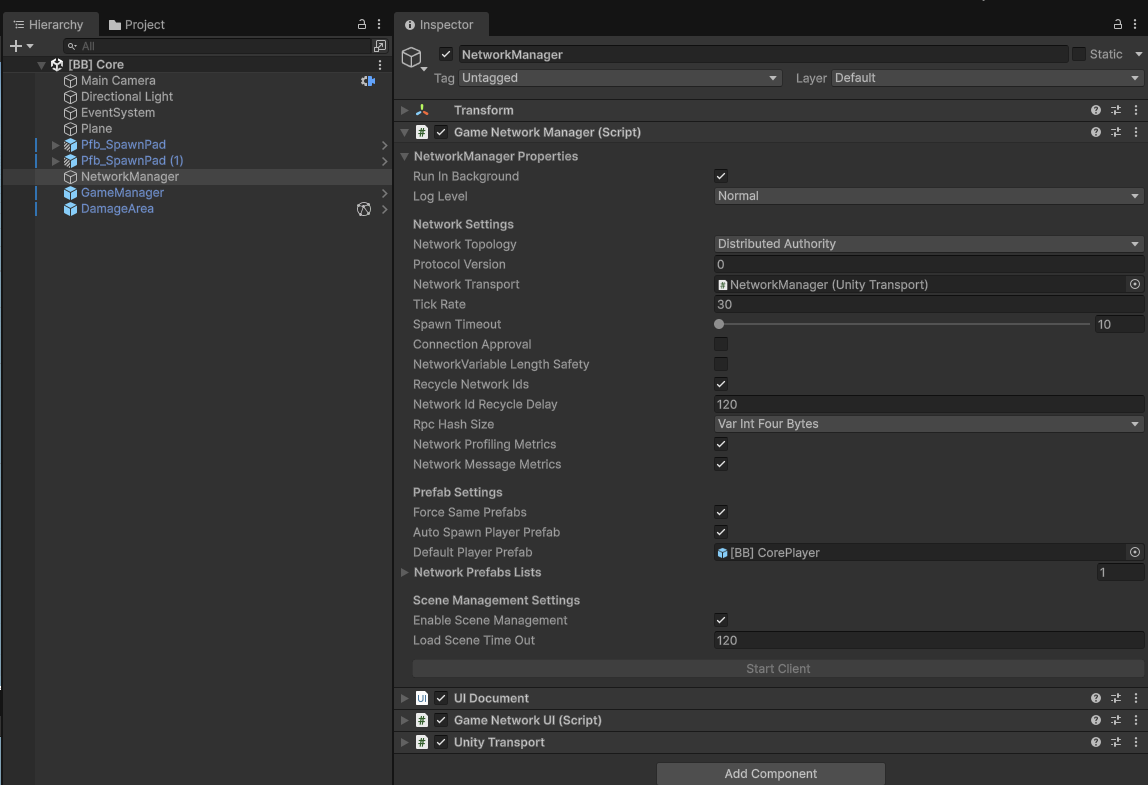
Drag and drop the [BB] ShooterPlayer prefab from the Assets folder into this slot to change the player character for the game. Play the scene and you will see the new player character in action.