Ability & Modular Component Pattern
This project assumes that you will want to extend or modify the gameplay mechanics without rewriting the core systems. To achieve this, we use a Modular Component Pattern.
The core idea is simple: The Manager handles the "Admin work" (Networking, State, Input), while Modules handle the specific "Action logic" (Jumping, Shooting, Opening a door).
How it works
Instead of a monolithic PlayerController.cs that contains code for Walking, Jumping, Swimming, Shooting, and Driving, we split these into small, focused scripts.
1. Movement System
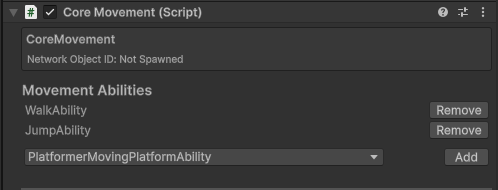
The CoreMovement script acts as the central motor. It doesn't know how to jump or dash; it only knows how to move the CharacterController.
- Manager:
CoreMovement - Interface:
IMovementAbility - Modules:
JumpAbility,WalkAbility,DashAbility
Pseudocode Flow:
// CoreMovement.cs (The Manager)
foreach (var ability in abilities) {
    // Collects movement vectors from all active abilities
    movement += ability.Process();
}
ApplyMovement(movement);
2. Player Addons
The CorePlayerManager handles the player's lifecycle (Spawning, Health, Death). It allows different game types (Shooter vs. Platformer) to attach extra logic without changing the manager.
- Manager:
CorePlayerManager - Interface:
IPlayerAddon - Modules:
ShooterAddon(adds aiming/guns),PlatformerAddon(adds coin collection)
3. Weapon System
Weapons are complex, so we split them into How it fires vs. What it fires.
- Manager:
ModularWeapon - Interfaces:
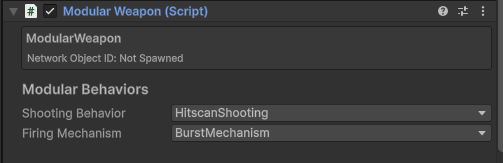
IFiringMechanism: "How I click" (Auto, Semi, Burst)IShootingBehavior: "What happens" (Hitscan, Projectile, Beam)
- Example: An Assault Rifle uses
AutomaticFiring+HitscanBehavior. A Grenade Launcher usesSemiAutoFiring+ProjectileBehavior.
4. Interaction System
Interactables (buttons, doors, pickups) share a common trigger logic but have different effects.
- Manager:
ModularInteractable - Interface:
IInteractionEffect - Modules:
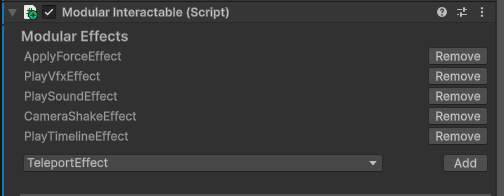
ApplyForceEffect,PlayVfxEffect,PlaySoundEffect
Editor Tools
To make this easy to use, we've built Custom Editors for these systems. You don't need to manually drag-and-drop scripts.
- Automatic Discovery: The Inspector automatically searches your project for any script implementing the relevant interface (e.g.,
IMovementAbility). - Dropdown Selection: You will see a "Add Ability" or "Shooting Behavior" dropdown in the Inspector.
- Easy to use: You can add or remove modules using the "Add" or "Remove" buttons.
- Easy Understanding: Each module has a clear description of what it does, making it easy to understand. And you can combine to make new behavior. (e.g., Jump pad =
ApplyForceEffect+PlayVfxEffect+PlaySoundEffect)
How to Add Your Own
Adding a new ability (e.g., a "Jetpack") is incredibly simple. You do not need to register it anywhere.
- Create a New Script: Name it
JetpackAbility.cs. - Inherit from the Interface: Make it inherit
MonoBehaviourandIMovementAbility. - Implement Logic: Fill in the
Process()method to return an upward force.
public class JetpackAbility : MonoBehaviour, IMovementAbility
{
    public MovementModifier Process() {
       // implement logic
    }
    // ... implement other interface members
}
Full examples on how to extend this can be found in Extending section.
That's it!
Go back to Unity, select your Player, and look at the CoreMovement component. Your new JetpackAbility will automatically appear in the "Add Ability" dropdown.