Developing with GhostBridge
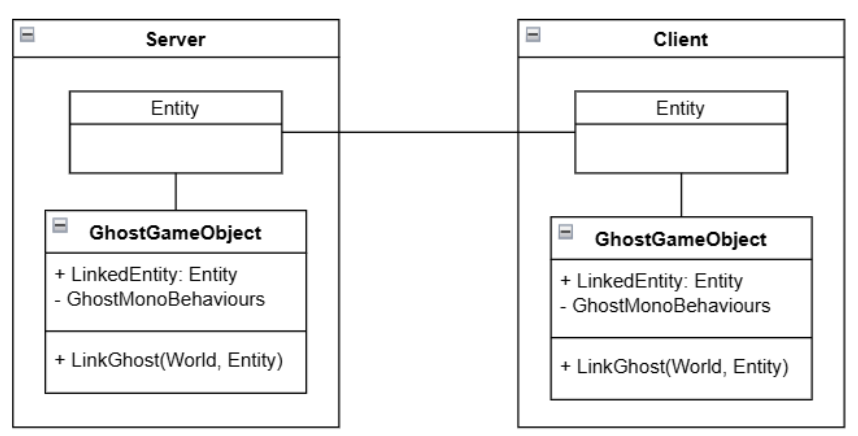
GhostBridge offers the possibility for developers to use game object-like programming approaches to develop game objects based on Netcode for Entities. Figure 1 shows the relationship between an entity and its ghost game object in the entity world and game scene.
View ghost game objects in the editor
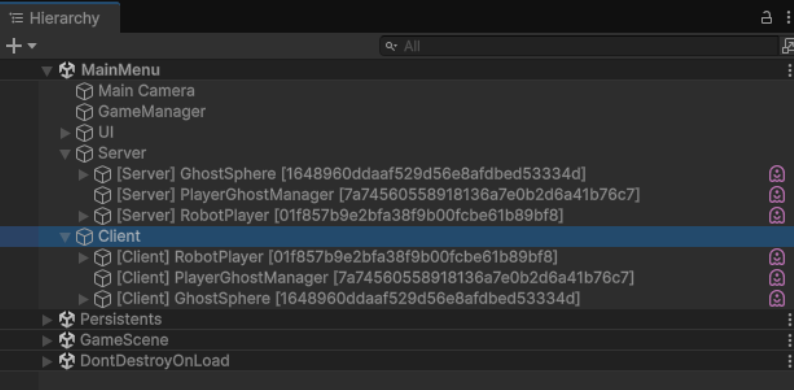
While playing the game in the editor, you can view GhostGameObjects in the scene hierarchy. Under the root node, the /Server node contains all the ghost game objects in the server world and the /Client node contains all the ghost game objects in the client world.
Defining ghost game objects
To define a ghost game object, you have to add at least one behaviour script that inherits from GhostMonoBehaviour.
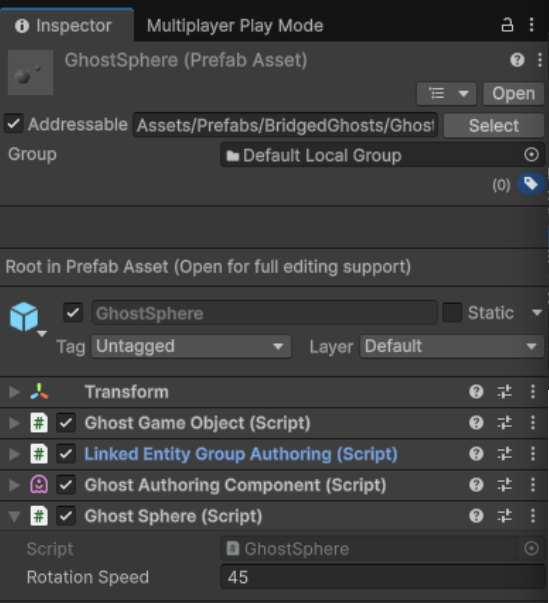 Example of how the GhostSphere prefab is set up with the GhostSphere script component.
Defining a ghost game object
To define a new ghost game object, inherit from GhostMonoBehaviour instead of MonoBehaviour . Below is an example showing how the GhostSphere class is declared:
public class GhostSphere : GhostMonoBehaviour, IUpdateServer, IUpdateClient
{
	...
}
Implement the Update functions
You can write code to handle the server process in UpdateServer and client process in UpdateClient. The following
code snippet demonstrates spinning the sphere and determining the color of the sphere on the server side and physically
changing the sphere color on the client side.
public void UpdateServer(float deltaTime)
{
    // Rotate the sphere continuously
    m_RotationYaw += deltaTime * RotationSpeed;
    if (m_RotationYaw > 360f)
    {
        // After one full rotation, change color
        var colourState = ReadGhostComponentData<ColourState>();
        colourState.ColourIndex++;
        WriteGhostComponentData(colourState);

        // Notify all clients of the color change
        BroadcastRPC(new ColourChangedRPC
        {
            NewColourIndex = colourState.ColourIndex,
        });

        m_RotationYaw -= 360f;
    }

    transform.rotation = Quaternion.Euler(0f, m_RotationYaw, 0f);
}

public void UpdateClient(float deltaTime)
{
    var colourState = ReadGhostComponentData<ColourState>();
    if (colourState.ColourIndex != m_ClientCachedColourIndex)
    {
        m_ClientCachedColourIndex = colourState.ColourIndex;
        m_Renderer.material.color = Colour.GetSequentiallyDifferentColour(colourState.ColourIndex);
    }

    if (ConsumeRPC<ColourChangedRPC>(out var rpc))
    {
        Debug.Log($"[ColourChangedRPC] Colour changing to {rpc.NewColourIndex}");
    }
}
Defining entity data components
By using the GhostBridge feature, you can define ECS component data and access the data values within your GhostMonoBehaviour scripts. See the following code sample to understand how the definition of the ColourIndex component is defined.
public class GhostSphere : GhostMonoBehaviour, IUpdateServer, IUpdateClient
{
    public struct ColourState : IComponentData
    {
        [GhostField] public int ColourIndex;
    }

  ...
}
Handling OnGhostLinked
OnGhostLinked is called once the game object is linked with its entity.
public override void OnGhostLinked()
{
    if (Role == MultiplayerRole.Server)
    {
        var colourState = ReadGhostComponentData<ColourState>();
        colourState.ColourIndex = 0;
        WriteGhostComponentData(colourState);
    }
    else
    {
        m_Renderer = GetComponentInChildren<Renderer>();

        var colourState = ReadGhostComponentData<ColourState>();
        m_ClientCachedColourIndex = colourState.ColourIndex;
        m_Renderer.material.color = Colour.GetSequentiallyDifferentColour(colourState.ColourIndex);
    }
}
Sending RPCs
Define an RPC by inheriting from IRpcCommand:
public class GhostSphere : GhostMonoBehaviour, IUpdateServer, IUpdateClient
{
    public struct ColourChangedRPC : IRpcCommand
    {
        public int NewColourIndex;
    }
  ...
}
Send the RPC by calling the RPC functions:
public void BroadcastRPC<T>(T rpcCommand)
   where T : unmanaged, IRpcCommand

public void SendDirectedRPC<T>(T rpcCommand)
   where T : unmanaged, IRpcCommand, IGhostGameObjectDirectedRPC

public bool ConsumeRPC<T>(out T rpc)
   where T : unmanaged, IRpcCommand