Adding a New Player Class
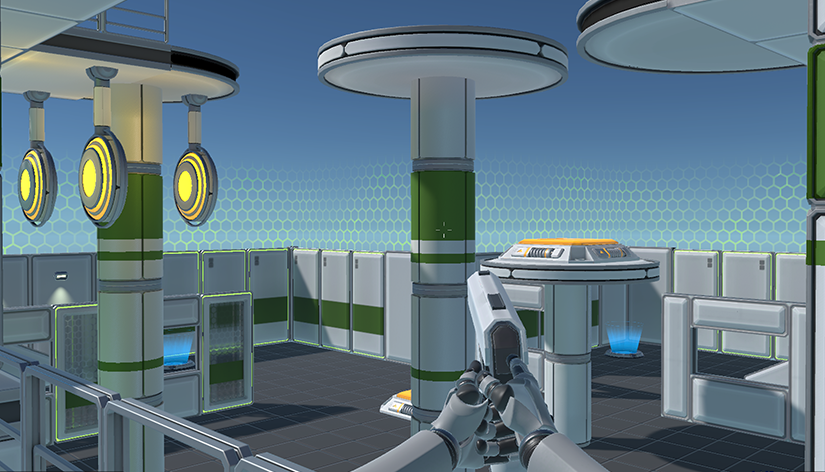
This guide explains how to add a new selectable player class to the FPS multiplayer template. The template ships with Rifle and Shotgun; this shows how to add a third class (Pistol).
Required steps
High level overview of required changes for adding a new character class
| Step | Location | Action |
|---|---|---|
| 1 | PlayerEntityPrefabsAuthoring.cs |
Add authoring field, struct field, and baker assignment for the new prefab. |
| 2 | ServerGameSystem.cs |
Clamp character index; select prefab by index; null-check and fallback; set weaponId from index. |
| 3 | MainMenu.uxml |
Add the new class name to the "Choose Character" radio group choices. |
| 4 | Assets/Data/Weapons/ |
Create new WeaponData asset; add it to WeaponRegistry.asset at the correct index (e.g. 2 for third class). |
| 5 | Assets/Prefabs/PlayerGhosts/ |
Duplicate Rifle/Shotgun prefab, rename, set unique Ghost Prefab Id. |
| 6 | GameResources subscene | Assign new prefab to PlayerEntityPrefabsAuthoring; add same prefab to GhostPrefabsAuthoring list. |
| 7 | Addressables | Add the new player ghost prefab to the Default Local Group (or correct group). |
Overview
When a player joins, they choose a character (Rifle, Shotgun, Pistol) on the main menu. That choice is stored in GameSettings.PlayerCharacter (0, 1, 2) and sent to the server in ClientJoinRequestRpc.CharacterIndex. The server uses the index to:
- Pick the correct player ghost prefab (Rifle, Shotgun, or Pistol).
- Assign the matching weapon ID (0, 1, 2) so
WeaponRegistry.GetWeaponData(weaponId)returns the right weapon (ammo, damage, etc.).
Below are the steps required to hook up an additional player and update the associated UI
Step 1: Player Prefab Singleton and Baking
File: Assets/Scripts/GhostBridge/Player/PlayerEntityPrefabsAuthoring.cs
Authoring class: Add a new serialized field for the new prefab (same type as Rifle/Shotgun):
[field: SerializeField] public GhostAuthoringComponent PlayerPistolEntityPrefab { get; private set; }Struct
PlayerEntityPrefabs: Add a matching entity field:public Entity PlayerPistolEntityPrefab;Baker: In
Bake, assign the new prefab (and useEntity.Nullif the reference is null):PlayerPistolEntityPrefab = authoring.PlayerPistolEntityPrefab != null ? GetEntity(authoring.PlayerPistolEntityPrefab.gameObject, TransformUsageFlags.None) : Entity.NullAdd this inside the
AddComponentcall that builds thePlayerEntityPrefabsstruct (afterPlayerShotgunEntityPrefab).
Step 2: Server Spawn Logic
File: Assets/Scripts/Networking/Server/ServerGameSystem.cs
Add using:
using Unity.Mathematics;(formath.clamp).In
SpawnPlayerCharacter, replace the logic that chooses the player prefab and weapon ID:Clamp
characterIndexto the valid range (e.g. 0–2 for three classes):characterIndex = math.clamp(characterIndex, 0, 2);Select the player entity prefab by index (e.g. 0 = Rifle, 1 = Shotgun, 2 = Pistol):
Entity playerEntityPrefab = characterIndex == 0 ? playerEntityPrefabs.PlayerRifleEntityPrefab
    : (characterIndex == 1 ? playerEntityPrefabs.PlayerShotgunEntityPrefab : playerEntityPrefabs.PlayerPistolEntityPrefab);
If the chosen prefab is
Entity.Null(e.g. not assigned in the scene), fall back to rifle and index 0 so the server does not crash:if (playerEntityPrefab == Entity.Null) { playerEntityPrefab = playerEntityPrefabs.PlayerRifleEntityPrefab; characterIndex = 0; }Set weapon ID from the (possibly clamped/fallback) index:
var weaponId = (uint)characterIndex;
Then instantiate
playerEntityPrefaband useweaponIdforEquippedWeaponIDand forWeaponRegistry.GetWeaponData(weaponId)when setting initial ammo.
Step 3: Main Menu UI
File: Assets/UI Toolkit/GameUI/MainMenu.uxml
- Find the "Choose Character"
RadioButtonGroup. - Change the
choicesattribute from"Rifle,Shotgun"to"Rifle,Shotgun,Pistol"(or add your new class name in the same comma-separated list). - Do not change the control name or the binding in
MainMenu.cs;GameSettings.PlayerCharacterwill now receive 0, 1, or 2 when the user selects the first, second, or third option.
Step 4: Weapon Data and Registry
Create a new WeaponData asset
- In the Project window:
Assets/Data/Weapons/. - Right-click → Create → FPS Sample → Weapon Data (or duplicate
AssaultRifleorShotgun). - Name it (e.g.
Pistol). - Set
WeaponName, type (Hitscan/Projectile), damage, magazine size, reload time, SFX, VFX references, etc. Unity will create a.metafile with a new GUID.
- In the Project window:
Add the weapon to the registry
- Open
Assets/Data/Weapons/WeaponRegistry.asset. - In the
Weaponslist, add a new element and assign it to your new WeaponData asset (e.g. Pistol). - The order of the list matters: index 0 = Rifle, 1 = Shotgun, 2 = Pistol. The server uses
characterIndexas the weapon ID, so the third class must be at index 2.
- Open
Step 5: Player Ghost Prefab
Duplicate an existing player prefab
- In
Assets/Prefabs/PlayerGhosts/, duplicateArmaturePlayer_Rifle(orArmaturePlayer_Shotgun). - Rename the new prefab (e.g.
ArmaturePlayer_Pistol).
- In
Set the root GameObject name
- Open the prefab and set the root GameObject’s name to match (e.g.
ArmaturePlayer_Pistol).
- Open the prefab and set the root GameObject’s name to match (e.g.
Give the prefab a unique Ghost prefab ID
- On the root GameObject, find the Ghost Authoring Component (NetCode).
- The Prefab Id must be unique.
- Unity will set a unique ID when you apply the prefab
- Do not reuse the Rifle or Shotgun prefab ID; each class must have its own.
For the visuals you can use the pistol / handgun animations and gun model from the Multiplayer Third Person Gameplay template and update the new ArmaturePlayer_Pistol prefab. For animation it's recommended to duplicate one of the existing 1P and 3P animation controller (e.g. 'Armature_1P_Rifle' and 'Armature_3P_Rifle') and replace the Aim and Locomotion state clip references.
Step 6: Scene Assignment and Ghost Prefabs List
Scene: The player prefabs are configured in the GameResources subscene.
Open the subscene
- Open
Assets/Scenes/GameResourcesSubScene.unity(or the scene that contains the GameResources GameObject withPlayerEntityPrefabsAuthoring).
- Open
Assign the new prefab to PlayerEntityPrefabsAuthoring
- Select the GameResources GameObject.
- On Player Entity Prefabs Authoring, you will see a new slot (e.g. Player Pistol Entity Prefab).
- Assign your new player ghost prefab (e.g.
ArmaturePlayer_Pistol) to that slot.
Add the prefab to the Ghost Prefabs list
- On the same GameResources GameObject, find Ghost Prefabs Authoring.
- Its Ghost Prefabs list must include every ghost prefab that can be spawned (including player ghosts).
- Add your new player prefab (e.g.
ArmaturePlayer_Pistol) to this list. If it is missing, the ghost system may not recognize it and spawning can fail.
Step 7: Addressables
- Open Window → Asset Management → Addressables → Groups.
- Select Default Local Group (or the group used for gameplay prefabs).
- Add the new player ghost prefab (e.g.
Assets/Prefabs/PlayerGhosts/ArmaturePlayer_Pistol.prefab) to the group. - Ensure it has an address (often the same path). Save.
The template loads player ghosts via Addressables; if the new prefab is not in the group, it may not load correctly at runtime.