Shader Graph template browser
The Shader Graph template browser allows you to create a new shader graph from an existing template.
To access the Shader Graph template browser, right-click in your Project window and select Create > Shader Graph > From Template.
Note: The template browser displays only templates that are compatible with the current project.
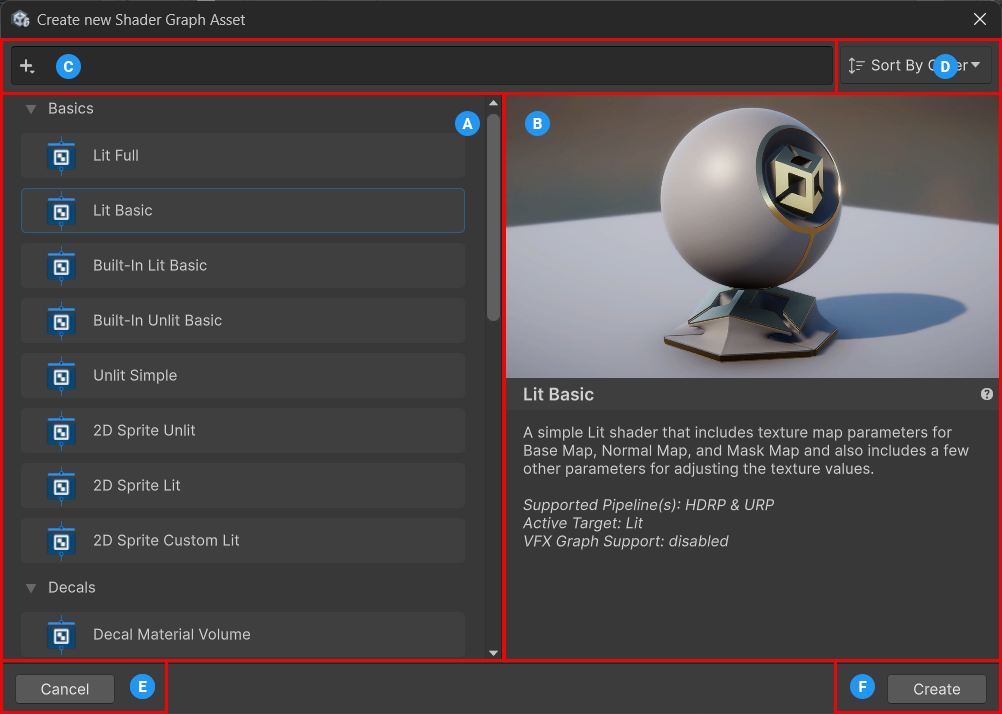
| Label | Name | Description |
|---|---|---|
| A | Template list | Lists all the available templates you can select and start from to create a new shader graph. |
| B | Template details | Displays a picture and description of the selected template. |
| C | Search and filtering tool | Filters the template list using the Unity Search functionality. Type text to search templates by name or select Add (+) to filter templates based on specific characteristics. In addition to some of the default Unity Search options, Shader Graph includes the following filters:
|
| D | Sorting tool | Sorts the templates within their respective categories. The categories remain listed in alphabetical order. The options are:
|
| E | Cancel | Closes the window and cancels the shader graph asset creation. |
| F | Create | Creates a new shader graph asset based on the selected template. |
Create a custom shader graph template
You can create your own shader graph templates to have them available in the template browser. You can share these templates with your team to maintain consistency across shaders, for example in projects with unique lighting setups or specific shader requirements.
To create a custom shader graph template, follow these steps:
In the Project window, select the shader graph asset you want to use as a template.
In the Inspector window, select Use As Template.
Expand the Template section.
Optional: Set the metadata that describes the template in the template browser: Name, Category, Description, Icon, and Thumbnail.
Select the Apply button to save the template settings.
Alternatively, select the Revert button to discard your changes and restore the previous settings.
Note
By default, when you convert an existing shader graph asset into a template, you can no longer assign it to any materials through the Material Inspector. However, it remains active for materials that were already using it. To make the shader graph asset available again for any materials, enable the Expose As Shader option in the shader graph asset Inspector.