Sample Texture 2D node
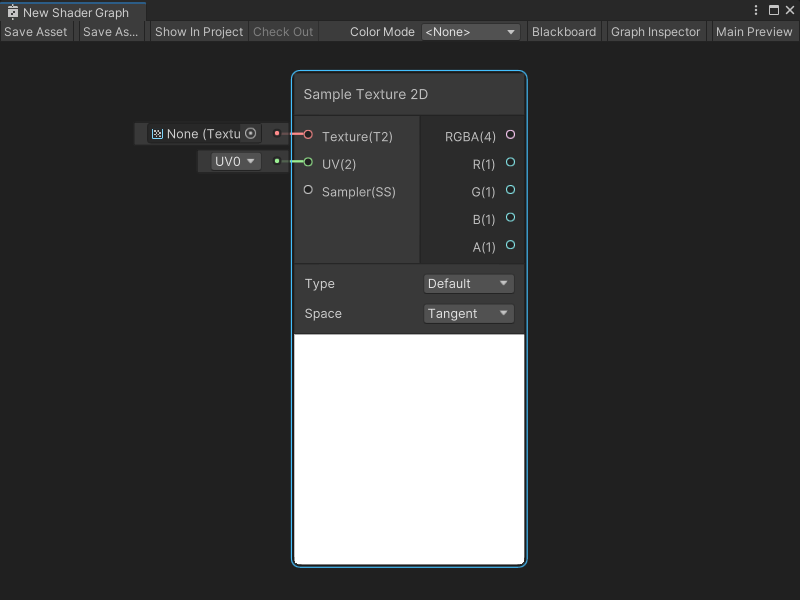
The Sample Texture 2D node samples a Texture 2D asset and returns a Vector 4 color value. You can specify the UV coordinates for a texture sample and use a Sampler State node to define a specific Sampler State.
A Sample Texture 2D node can also sample a normal map. For more information, refer to the Controls section, or Normal map (Bump mapping) in the Unity User manual.
Note
If you experience texture sampling errors for this node in a graph with Custom Function Nodes or Sub Graphs, upgrade to Shader Graph version 10.3 or later.
Create Node menu category
The Sample Texture 2D node is under the Input > Texture category in the Create Node menu.
Limitations
With its default settings, this node can only connect to a Block node in the Fragment Context of a Shader Graph. To sample a Texture for the Vertex Context of a Shader Graph, set the Mip Sampling Mode to LOD.
Inputs
The Sample Texture 2D node has the following input ports:
| Name | Type | Binding | Description |
|---|---|---|---|
| Texture | Texture 2D | None | The Texture 2D asset to sample. |
| UV | Vector 2 | UV | The UV coordinates to use to sample the texture. |
| Sampler | Sampler State | Default Sampler State | The Sampler State and settings to use to sample the texture. |
| LOD | Float | LOD | The specific mip to use when sampling the Texture. Note: The LOD Input port only displays if Mip Sampling Mode is LOD. For more information, refer to Additional node settings. |
| Bias | Float | Bias | When you enable Use Global Mip Bias, Unity adds this Bias amount to the Global Mip Bias for a texture's mip calculation. When you disable Global Mip Bias, Unity uses this Bias amount instead of the Global Mip Bias. Note: The Bias Input port only displays if Mip Sampling Mode is Bias. For more information, refer to Additional node settings. |
| DDX | Float | DDY | The specific DDX value to use to calculate the texture's mip when sampling. For more information on DDX values for mipmaps, refer to Mipmaps introduction in the Unity User Manual. Note: The DDX Input port only displays if Mip Sampling Mode is Gradient. For more information, refer to Additional node settings. |
| DDY | Float | DDY | The specific DDY value to use to calculate the texture's mip when sampling. For more information on DDY values for mipmaps, refer to Mipmaps introduction> in the Unity User Manual. Note: The DDY Input port only displays if Mip Sampling Mode is Gradient. For more information, refer to Additional node settings. |
Controls
The Sample Texture 2D node has the following controls:
| Name | Description |
|---|---|
| Type | Select whether the texture is a Texture asset or a normal map. The options are:
|
| Space | Select the space used when Type is Normal. Behavior varies based on whether the blue channel is used. The options are:
|
Additional node settings
The Sample Texture 2D node has some additional settings that you can access from the Graph Inspector:
| Option | Description |
|---|---|
| Use Global Mip Bias | Enable Use Global Mip Bias to use the render pipeline's Global Mip Bias. This bias adjusts the percentage of texture information taken from a specific mip when sampling. For more information on mip bias, refer to Mipmaps introduction in the Unity User Manual. The options are:
|
| Mip Sampling Mode | Choose the sampling mode to use to calculate the mip level of the texture. The options are:
|
Outputs
The Sample Texture 2D node has the following output ports:
| Name | Type | Description |
|---|---|---|
| RGBA | Vector 4 | The full RGBA Vector 4 color value of the texture sample. |
| R | Float | The Red channel or X component of the texture sample. |
| G | Float | The Green channel or Y component of the texture sample. |
| B | Float | The Blue channel or Z component of the texture sample. |
| A | Float | The Alpha channel or W component of the texture sample. |
Example graph usage
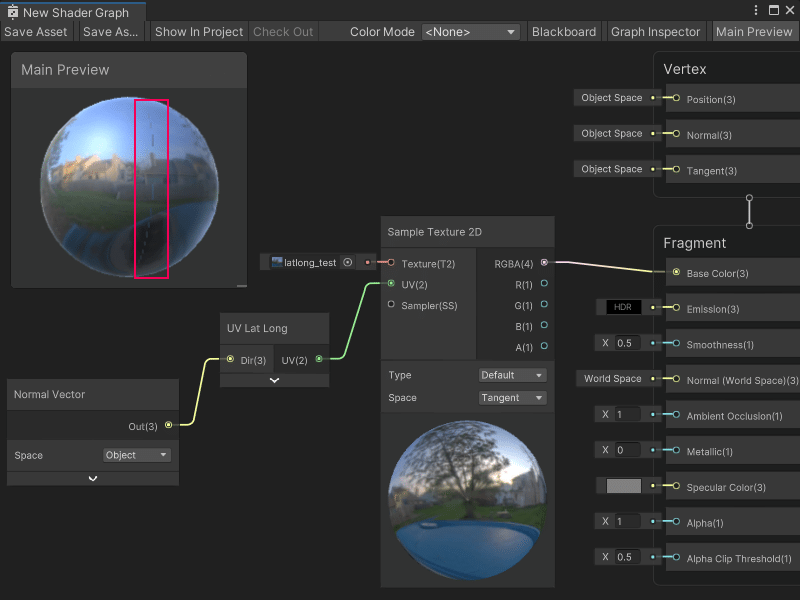
In the following example, the Sample Texture 2D node uses a Subgraph node that generates UV coordinates in latitude and longitude format. These latitude and longitude UV coordinates help render the latlong_test 2D Texture asset, which was created and formatted with a latitude and longitude projection. The generated latitude and longitude UVs accurately map the 2D Texture asset onto a spherical geometry.
If the Sample Texture 2D node uses the Standard Mip Sampling Mode, the Texture displays with a seam along the side of the sphere where the left and right sides of the texture meet. The latitude and longitude UV coordinates for sampling the texture jump from 0 to 1 at the seam on the model, which causes a problem with the mip level calculation in the sample. The error in the mip level calculation causes the seam. The texture requires a different mip sampling mode to remove the seam.
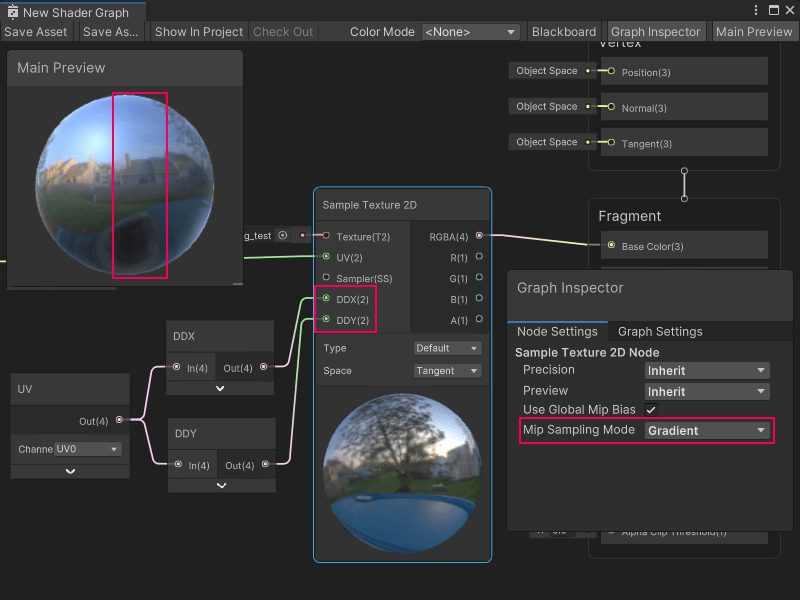
When you set the Mip Sampling Mode to Gradient, the Sample Texture 2D node can use the standard set of UVs for the model in the mip level calculation, instead of the latitude and longitude UVs needed for sampling the texture. The new UV coordinates passed into the DDX and DDY input ports result in a continuous mip level, and remove the seam.
Generated code example
The following code represents this node in Unity's shader code, based on the selected Type on the Sample Texture 2D node:
Default
float4 _SampleTexture2D_RGBA = SAMPLE_TEXTURE2D(Texture, Sampler, UV);
float _SampleTexture2D_R = _SampleTexture2D_RGBA.r;
float _SampleTexture2D_G = _SampleTexture2D_RGBA.g;
float _SampleTexture2D_B = _SampleTexture2D_RGBA.b;
float _SampleTexture2D_A = _SampleTexture2D_RGBA.a;
Normal
float4 _SampleTexture2D_RGBA = SAMPLE_TEXTURE2D(Texture, Sampler, UV);
_SampleTexture2D_RGBA.rgb = UnpackNormalMapRGorAG(_SampleTexture2D_RGBA);
float _SampleTexture2D_R = _SampleTexture2D_RGBA.r;
float _SampleTexture2D_G = _SampleTexture2D_RGBA.g;
float _SampleTexture2D_B = _SampleTexture2D_RGBA.b;
float _SampleTexture2D_A = _SampleTexture2D_RGBA.a;
Related nodes
The following nodes are related or similar to the Sample Texture 2D node: