Introduction to Sub Graphs
A Sub Graph is a type of shader graph that you include in other shader graphs. Use a Sub Graph to perform the same operations multiple times within a single shader graph, or across multiple shader graphs. It's similar to a reusable function in programming.
Create and edit Sub Graphs in the same way as regular shader graphs. Sub Graphs differ from regular shader graphs in the following ways:
- A Sub Graph is saved in its own asset file.
- A Sub Graph doesn't have a Master Stack. Instead it has an Output Node.
- When you add a Sub Graph to a shader graph, Unity creates a Sub Graph Node. The inputs are the blackboard properties of the Sub Graph, and the outputs are from the Output node.
- To change the behavior of a Sub Graph, add a Dropdown node to the Sub Graph. For more information, refer to Change the behavior of a Sub Graph with a dropdown.
For more information, refer to Create a Sub Graph.
Examples
The following Sub Graph uses a Multiply node to brighten an input color.
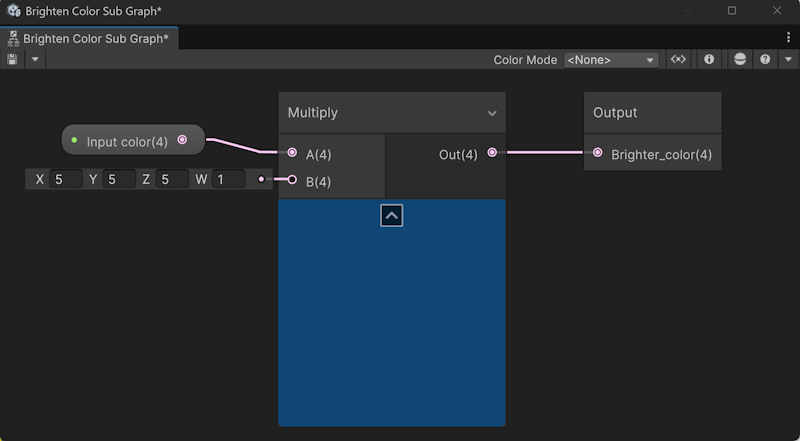
The following shader graph uses the Sub Graph to brighten a custom color.
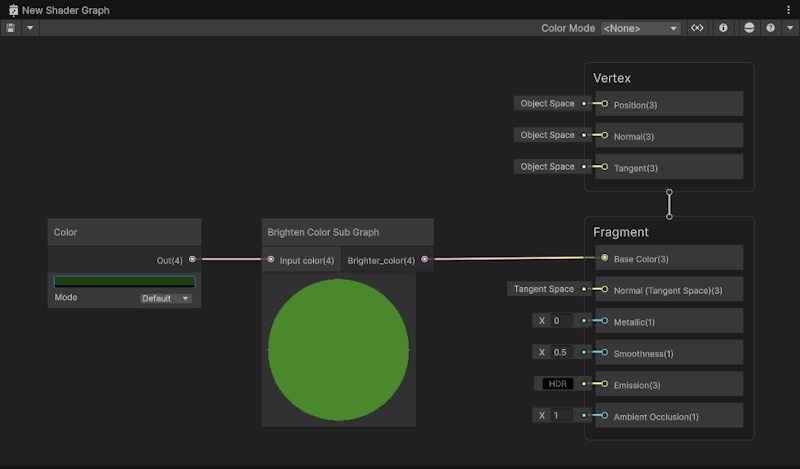
Refer to the following for other example Sub Graphs:
- Shader Graph samples
- Built-in nodes that are Sub Graphs, for example the ThreadMapDetail node or the SpeedTree nodes.
- The example shader graph on the Sample Texture 2D node page.