Selection Groups User Documentation
Overview
Selection groups allow a number of Unity Objects to be categorized under a common name. The selection group data is initially stored outside of the scene, and cannot be used by scripts. However, it can optionally be stored in a scene which allows the data to be used by scripts.
Getting Started
- Open the selection group window via Window -> General -> Selection Groups. A new window will open, it makes sense to dock this window next to the Hierarchy window.
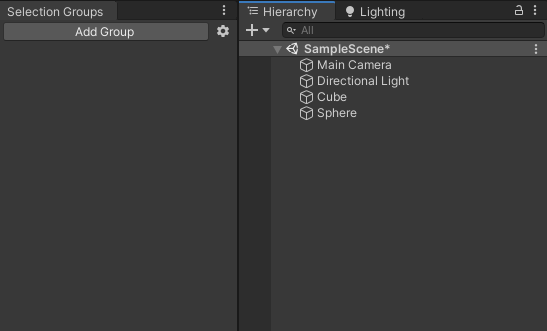
- Select some Game Objects from the hierarchy, or assets from the Project window.
- Click “Add Group” in the Selection Groups window, and a new item will appear inside the window.
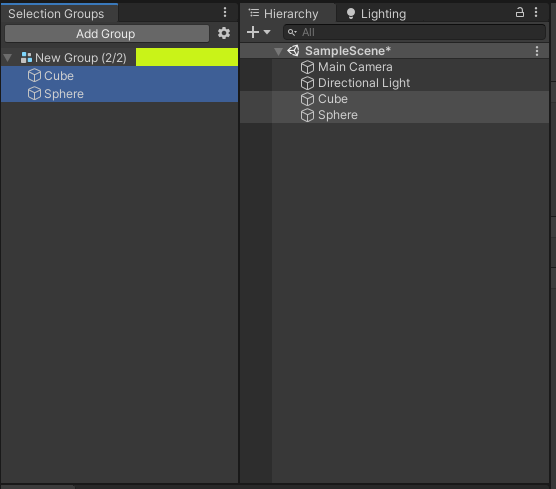
- Double click the group name, and a configuration dialog box will appear.
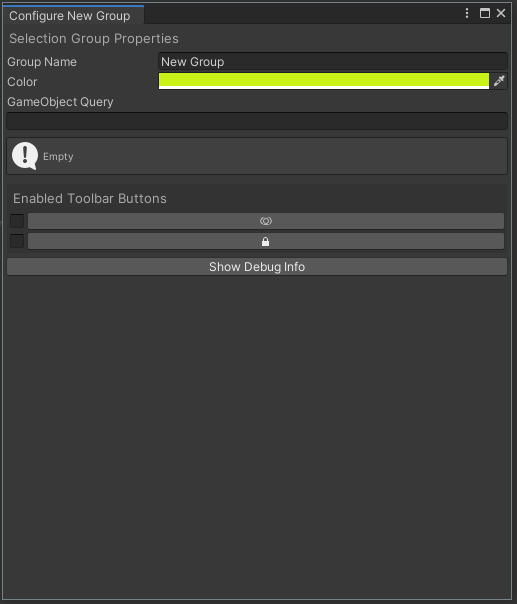
- You may change the group name and color, GoQL query or enable and disable Group Tools.
- The GoQL: Game Object Query Language field allows you to specify a query which will automatically select Game Objects from the hierarchy that match the query. For example, “/Enemy*” will select all GameObjects that are in the root of the hierarchy that have a name starting with “Enemy”. See the GoQL documentation for more information.
- The Group Tools checkboxes enable toolbar items in the main Selection Groups window for each group.
These tools allow you to show and hide an entire group with a single click, or enable and disable editing of an entire group with a single click.
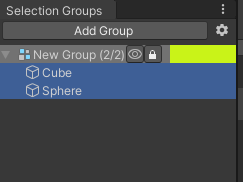
- The settings (gear) icon in the Selection Groups window allows you to enable runtime usage of selection group data.
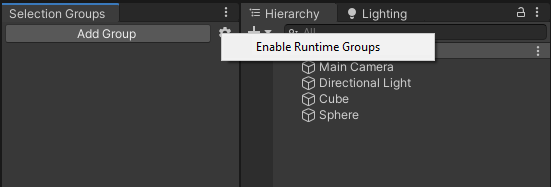
- When runtime groups are enabled, the group data appears in the scene hierarchy as components on a set of nested Game Objects. These components are updated when the group data is changed in the Selection Groups window.
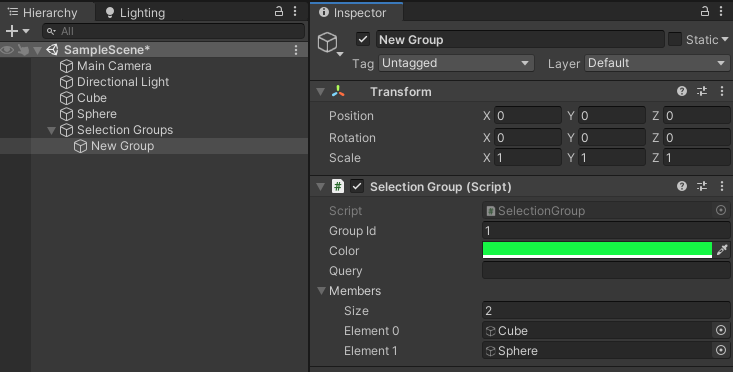
- When runtime groups are enabled, the group data appears in the scene hierarchy as components on a set of nested Game Objects. These components are updated when the group data is changed in the Selection Groups window.
How does it work?
Unity has an API (GlobalObjectId) for creating a global identifier for objects in scenes. The Selection Group stores references to objects using this API, which is saved in an asset external to the project. This allows the same group to exist across the project, containing game assets and Game Objects from multiple scenes. When a scene is loaded, the Selection Group window will only list Game Objects that currently exist in that scene.