Render Pipeline Wizard
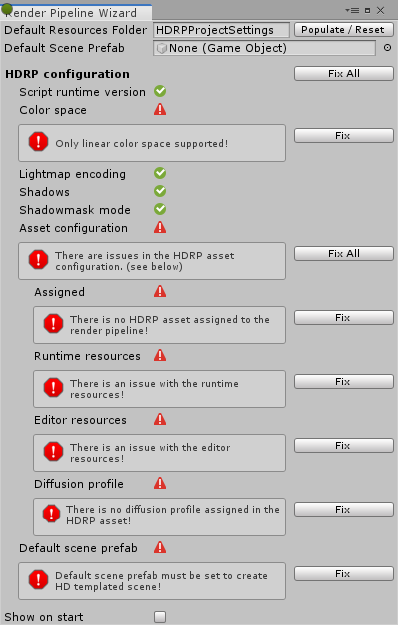
The High Definition Render Pipeline (HDRP) includes the HD Render Pipeline Wizard to help you configure your Unity Project so that it is compatible with HDRP.
To open the Render Pipeline Wizard, go to Window > Render Pipeline and select HD Render Pipeline Wizard.
Contents
| Property | Description |
|---|---|
| Default Resources Folder | Set the folder name that the Render Pipeline Wizard uses when it loads or creates resources. Click the Populate / Reset button to populate the Default Resources Folder with the resources that HDRP needs to render a Scene (for details, see Populating the default resources folder). If a default Asset already exists in the folder then clicking the Populate/Reset button resets the existing Asset. |
| Default Scene Prefab | Set the default Prefab that Unity needs to instantiate in a new Scene when you select File > New Scene. To instantly create a Scene Asset with this template, go to Assets > Create and click HD Template Scene. |
HDRP configuration checker
Your Unity Project must adhere to all the configuration tests in this section for HDRP to work correctly. If a test fails, a message explains the issue and you can click a button to fix it. This helps you quickly fix any major issues with your HDRP Project. The Render Pipeline Wizard can load or create any resources that are missing by placing new resources in the Default Resources Folder.
| HDRP Configuration | Description |
|---|---|
| Color Space | Checks to make sure Color Space is set to Linear. HDRP only supports Linear Color Space because it gives more physically accurate results than Gamma.Press the Fix button to set the Color Space to Linear. |
| Lightmap Encoding | Checks to make sure Lightmap Encoding is set to High Quality, which is the only mode that HDRP supports. Press the Fix button to make Unity encode lightmaps in High Quality mode. This fixes lightmaps for all platforms. |
| Shadows | Checks to make sure Shadow Quality is set to All. Unity hides this option when you install HDRP, and automatically sets it to All.Press the Fix button to set Shadow Quality to All. |
| Shadowmask Mode | Checks to make sure Shadowmask Mode is set to Distance Shadowmask at the Project level. This allows you to change the Shadowmask Mode on a per-Light level.Press the Fix button to set the Shadowmask Mode to Distance Shadowmask. |
| Asset Configuration | Checks every configuration in this section.Press the Fix All button to fix every configuration in this section. |
| - Assigned | Checks to make sure you have assigned an HDRP Asset to the Scriptable Render Pipeline Settings field (menu: Edit > Project Settings > Graphics).Press the Fix button to open a pop-up that allows you to either assign an HDRP Asset or create and assign a new one. |
| - Runtime Resources | Checks to make sure that your HDRP Asset references a Render Pipeline Resources Asset.Press the Fix button to reload the runtime resources for the HDRP Asset. |
| - Editor Resources | Checks to make sure that your HDRP Asset references a Render Pipeline Editor Resources Asset.Press the Fix button to reload the runtime resources for the HDRP Asset. |
| - Diffusion Profile | Checks to make sure that your HDRP Asset references a Diffusion Profile Asset.Press the Fix button to reload the runtime resources for the HDRP Asset. |
| Default Scene Prefab | Checks to make sure you have assigned something to Default Scene Prefab in this wizard.Press the Fix button to open a pop-up that allows you to either assign a Prefab or create and assign a new one. |
| VR Additional Configuration | Description |
|---|---|
| VR Activated | Checks to make sure Virtual Reality Supported is checked. It is recquired for VR. Press the Fix button to make check it. |
| DXR Additional Configuration | Description |
|---|---|
| Auto Graphics API | Checks to make sure Auto Graphics API is not checked in the Player Settings regarding your current plateform. DXR need it to force recquired Direct3D 12. Press the Fix button to make uncheck it. |
| Direct3D 12 | Checks to make sure Direct3D 12 is the first Graphic API set in Player Settings regarding your current plateform. Press the Fix button to make Unity use Direct3D 12 as Graphic API. |
| Scripting Symbols | Checks to make sure Scripting Symbols in Player Settings contains REALTIME_RAYTRACING_SUPPORT (regarding your current plateform). Press the Fix button to add REALTIME_RAYTRACING_SUPPORT to Scripting Symbols. |
| DXR Activated | Checks to make sure DXR Activated is check in the current HDRP Asset. Press the Fix button to Check it. |
| DXR Ressources | Checks to make sure that your HDRP Asset references a HD Render Pipeline RayTracing Resources Asset. Press the Fix button to reload the raytracing resources for the HDRP Asset. |
Populating the default resources folder
When you click Populate/Reset, HDRP generates the following Assets:
- DefaultSceneRoot: The Prefab that Unity instantiates in each new HDRP template Scene.
- DefautRenderingSettings: The default Volume Profile that the template Scene uses to render visual elements like shadows, fog, and the sky.
- DefautPostprocessingSettings: The default Volume Profile that the template Scene uses for post-processing effects.
- HDRenderPipellineAsset: The HDRP Asset that Unity uses to configure HDRP settings for the Unity Project.
- Foliage Diffusion Profile: A Diffusion Profile that simulates sub-surface light interaction with foliage.
- Skin Diffusion Profile: A Diffusion Profile that simulates sub-surface light interaction with skin.