Configure achievements with the Achievement Editor
Use the Achievement Editor to create and configure achievements in your game.
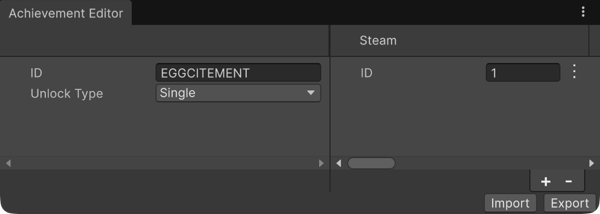
Example of the Achievement Editor window with a Single achievement type
Add achievements
Use the following steps to add achievements to your project:
- In the Unity Editor, navigate to Window > Platform Toolkit > Achievement Editor.
- Use the Add (+) button to create a new achievement. A new row is added to the table for the achievement.
- Enter a unique ID for the achievement. Refer to the ID requirements section for more information on valid ID values.
- Set the Unlock Type to one of the following options.
- Single: For achievements that are unlocked once.
- Progressive: For achievements that track a progress value.
- For Progressive achievements, set a Progress Target value. This is the progress value at which achievement is unlocked.
- For each platform service you want to target, enter the corresponding achievement ID in the platform specific column. This must be the ID that the platform uses to identify the achievement.
A warning icon might appear next to each platform or achievement ID if there are any issues with the configuration. Hover over the icon to display details about the issue. If a warning appears next to an ID for a platform you're not currently targeting, open the More (⋮) menu and select Toggle Ignore to dismiss the warning.
Note
For platforms that don't support progressive achievements, this behavior is handled by the Platform Toolkit API. Refer to the scripting documentation for more information.
ID requirements
When entering achievement IDs, the following restrictions apply:
- ID values can't exceed 64 characters in length.
- ID values can only contain the following alphanumeric characters (
A-Z,a-z,0-9), and the following special characters: (_,-).