Getting Started with Perception
This walkthrough will provide creating a new scene for generating perception datasets including segmentation data and image captures.
Step 1: Create a project and install Perception
First, follow this guide to install Perception in your project.
Step 2: Create a new scene and camera
- Create a new scene using File -> New Scene
ctrl+sto save the scene and give it a name- Select the Main Camera and reset the Position transform to 0
- In the Hierarchy window select the main camera
- In the inspector panel of the main camera select Add Component
- Add a Perception Camera component

Step 3: Create labeled objects
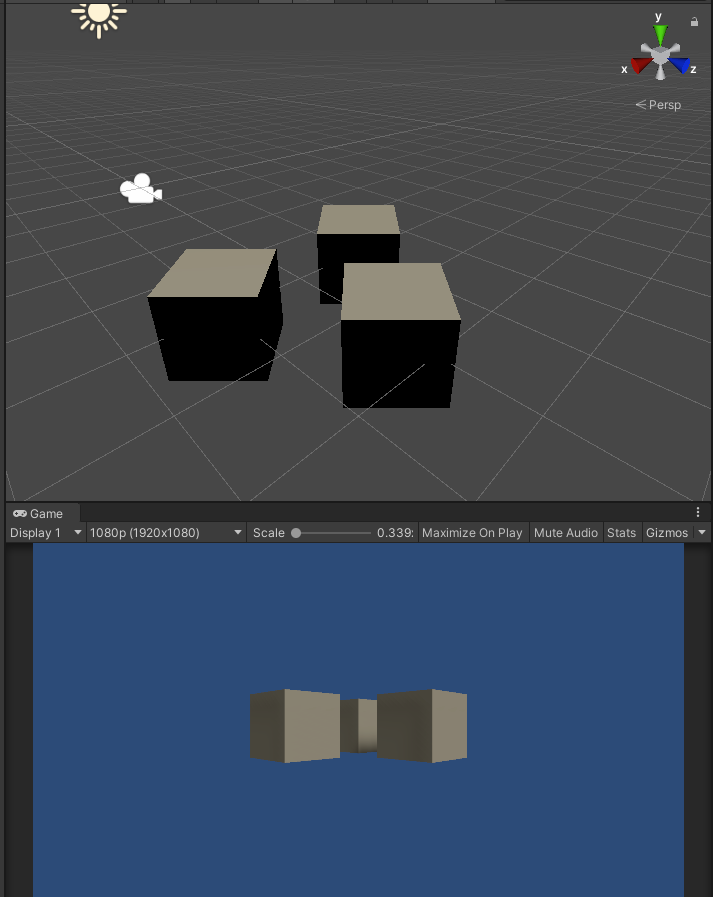
Create a cube by right-clicking in the Hierarchy window, select 3D Object -> Cube
Create 2 more cubes this way
Change the names of the cubes to Cube, Box, and Crate
Position the Cubes in front of the main Camera
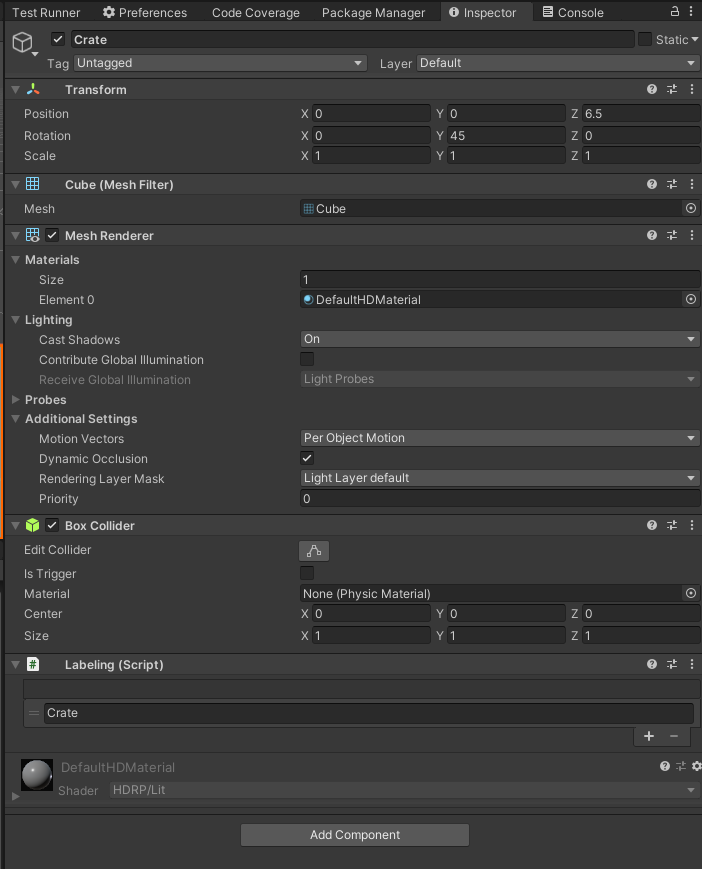
On each cube, from the inspector panel add a Labeling component
- Click the +
- In the text field add the name of the object i.e Crate. This will be the label used in the semantic segmentation images
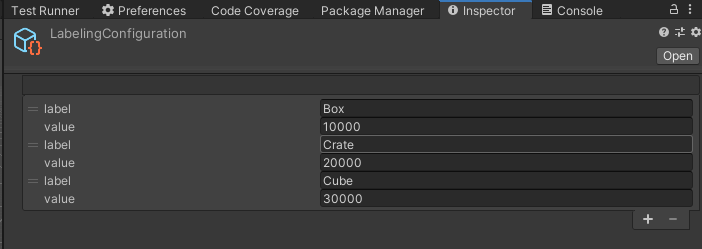
In the Project panel right click -> Perception -> Labeling Configuration
Select the new Labeling Configuration
Click the +
In the label text field add the same text that the Label script contains on the objects created in the scene (i.e Cube, Box, Crate)
Add a numerical value to the value field
Make sure the labels all have different values, for this example use increments of 10,000 to ensure they show up as very distinct colors in the segmentation images
Select the Main Camera in the Hierarchy panel
In the Perception Camera attach the Labeling Configuration created in previous step
Step 4: Run simulation and generate dataset
- Press play in the editor, allow the scene to run for a few seconds, and then exit playmode
- In the console log you will see a Shutdown in Progress message that will show a file path to the location of the generated dataset.
Example file path on a Windows PC :
C:/Users/<User Name>/AppData/LocalLow/DefaultCompany/UnityTestFramework\2e10ec21-9d97-4cee-b5a2-7e95e299afa4\RGB18f61842-ef8d-4b31-acb5-cb1da36fb7b13. In the dataset folder you will find the following data: - RGB captures - Semantic segmentation images - Logs - JSON dataset
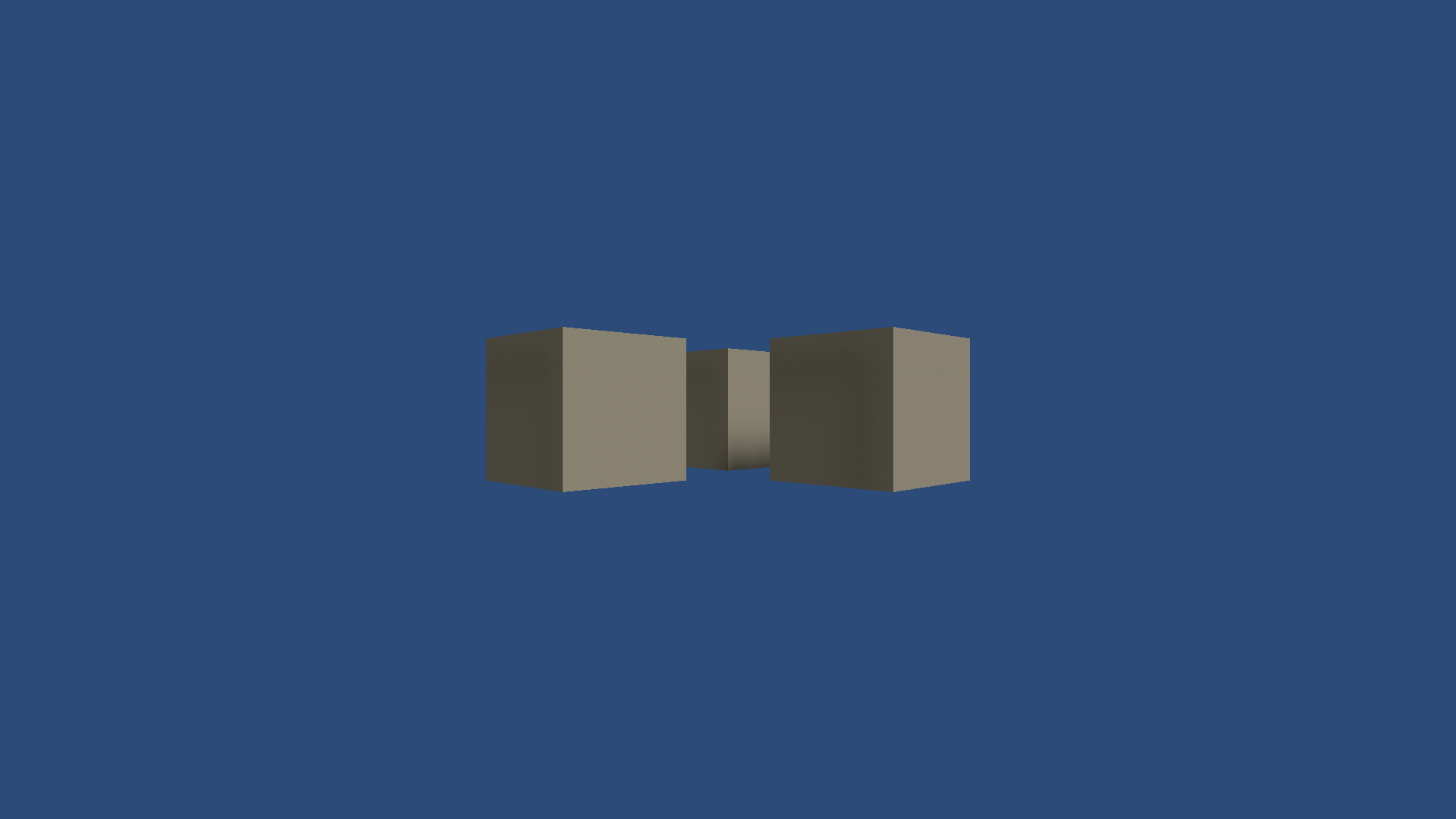
RGB image
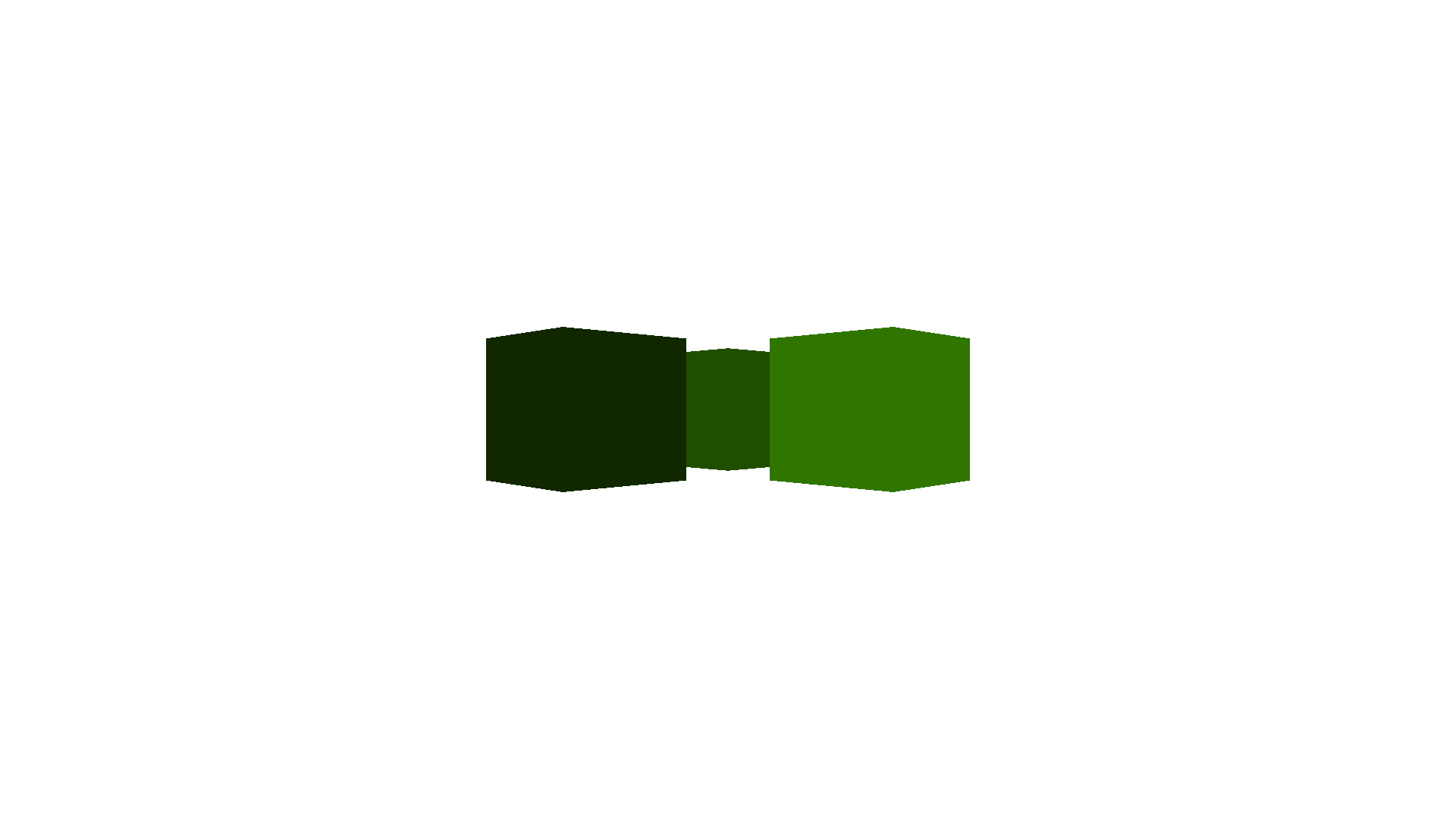
Example semantic segmentation image