Generate documentation
To build a package's documentation, you must have the package installed in the same project as the Package Manager Documentation Tools (PMDT). When you open the Package Manager window a set of buttons and options are displayed that enable you to generate the documentation for the selected package, and generate other relevant reports.
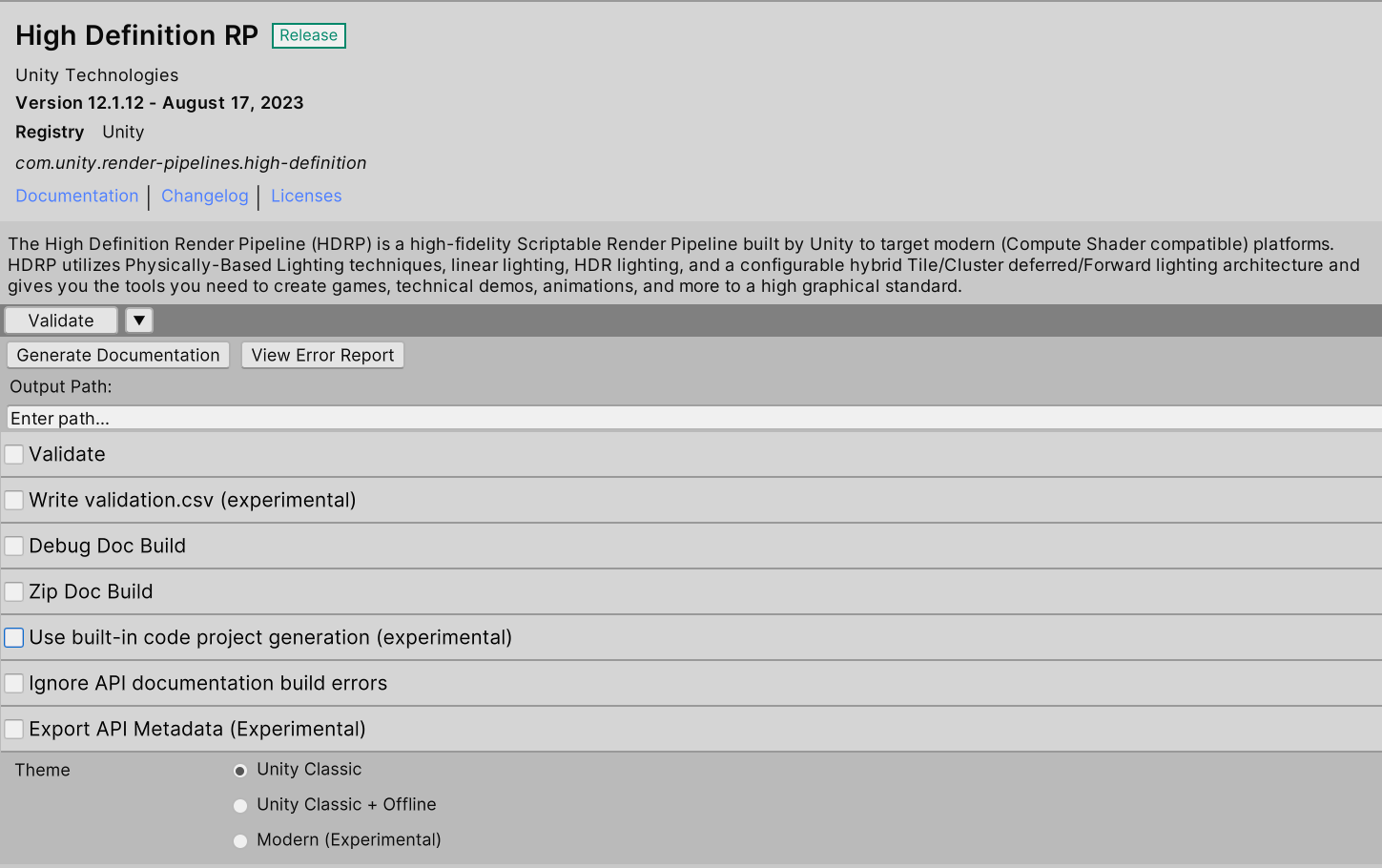
The Package Manager Window with the PMDT package installed
To generate the documentation, select Generate Documentation. PMDT then uses DocFX to build the documentation on your local machine. It then opens an Explorer or Finder window to a folder that contains the website files.
Important
Starting from PMDT 3.0.0 DocFX is not included and must be installed as a dotnet tool. Further information.
Find and view errors
Once you've generated the documentation for a package, you can select View Error Report to check errors and warnings emitted by DocFX or the Package validation tool. This contains information such as:
- Broken or missing links
- Broken syntax
- Missing API documentation (must have the Validate setting enabled)
Package Manager Documentation Tools settings
The Package Manager Documentation Tools contains the following settings:
| Setting | Description | Command line argument |
|---|---|---|
| Output Path | Optionally override where PMDT generates the documentation on your computer. By default, it writes the reports relative to the root of the project. For more information refer to Output directories. | None |
| Validate | Enable to run the Package Validation Suite to find any missing documentation in your API scripts. The report is included in the Error Report. | None |
| Write validation.csv (experimental) | Enable to generate a spreadsheet from the validation report. | None |
| Debug Doc Build | Enable to save the intermediate build files used during doc generation. Only use enable this if you need to debug at the DocFX build level. The terminal command needed to rerun DocFX is printed to the Unity Console so that you can easily rerun the DocFX portion of the doc build. | -debug |
| Zip Doc Build | Enable to create a zip file containing the generated documentation. Can be used with any selected theme. The file is copied to Output Path inside a zip subfolder. The zip file is given a generated name with the following format: two-character language code + cryptographic hash of zip file + .zip for example en8bc17314f502b2b2d0fa75477f6e86c19e5c8c0b.zip. This filename is designed for upload to docs.hq.unity3d.com which needs to know the target language of the documentation, and the hash string allows the server to verify that the contents of the zip file were transmitted correctly. |
-zipOutput |
| Use built-in code project generation | Submit code project files for DocFX API documentation built by one of Unity's IDE support packages instead of a code project file generated by PMDT. Further information. | -builtInCSProj |
| Ignore API documentation build errors | Enable this to convert API documentation build errors to warnings. Built-in code project generation is designed to produce fewer errors by default with DocFX 2.70.0 and above, but may not be suitable for all packages or all contributors. | -ignoreAPICompileErrors |
| Export API Metadata | Enable this to save the .NET API Docs YAML files generated during documentation build for use by other tools. The files are copied to Output Path inside an api-metadata subfolder. If Output Path is unset, the files are copied to an api-metadata folder in the default location. |
-exportAPIMetadata |
| Theme | Select a DocFX theme of Unity Classic, Unity Classic + Offline or Modern. |
None |
Themes
Important
Modern Theme selection is not available in Unity 2020.3 or 2019.4. In these versions of Unity PMDT uses the Unity Classic theme and presents the Build offline docs checkbox to enable Unity Classic + Offline.
Unity Classic is a customized DocFX default theme with some UX improvements as well as support for Unity's language switcher, version switcher and feedback submission widgets.
Unity Classic + Offline is Unity Classic plus the DocFX statictoc template. Select this theme to build a docs website with a static table of contents, suitable for viewing in a browser without a local server.
Modern is DocFX's new production template which enables new features including dark mode, Math expressions and Mermaid diagrams. It does not include Unity's language switcher, version switcher, feedback widget, or UX improvements at this time and is not production-ready. It is included for early testing only.
Validate button
The Validate button (separate to the Validate checkbox) is inserted by the Package Validation package. You can use this button to run the Package Validation Suite checks, but the results aren't included in the documentation error report.
The Validation Suite checks identify C# ctypes and members that don't have any documentation. The Write validation.csv option doesn't generate a spreadsheet for this action.
Output directories
Reports are written relative to the root of the project that PMDT is installed into:
- Full validation report:
<project root>/Logs/DocToolReports/<package name@version>.txt - Validation spreadsheet:
<project root>/Logs/DocToolReports/<package name@version>_validation_report.csv
The package documentation is written to the persistent data path for the Editor. The appropriate folder is opened when the documentation generation completes:
- Package and offline documentation:
<persistent data path>/../../unity/editor/documentation/packages/<package name@version> - Zipped documentation:
<persistent data path>/../../unity/editor/documentation/zips/<language code + cryptographic hash>.zip - API metadata:
<persistent data path>/../../unity/editor/documentation/api-metadata/<package name@version>
You can set a different path in the Output Path field in the Package Manager window before generating the documentation. To restore the default path, delete the contents of the field.
View the generated documentation
By default, you must view the generated documenation on a web server. This is because of the way the web page code is set up in DocFX. You have the following options to view the documentation you have just generated:
- Select a theme with + Offline before generating. This option uses different web page code that can be viewed by opening the pages directly from the file system in your web browser. However, the pages are larger and the code is a little slower.
- Use a
localhostweb server to serve the pages.
Tip
Use Python to run a local host server by running python -m http.server 8080 in a command line or terminal.
For example, you can run the following commands in a batch file on Windows to start a server and open the Chrome browser:
pushd "d:\docs"
start chrome http://localhost:8080
python -m http.server 8080
popd
(replacing d:\docs with the path at which you generate your docs.)