Commands window reference
Explore the controls and dialogs in the Commands window to run and manage Android Debug Bridge (adb) commands.
The Commands window is a separate window that you can dock. To open it, select Tools > Commands in the Android Logcat window toolbar. If the Android Build Support module isn't installed, the window displays a message and doesn't list any commands.
When you open the Commands window for the first time, the General list contains three default commands: List Devices, Kill Server, and Reboot Device. Unity saves your commands in your user settings, so they persist between Editor sessions.
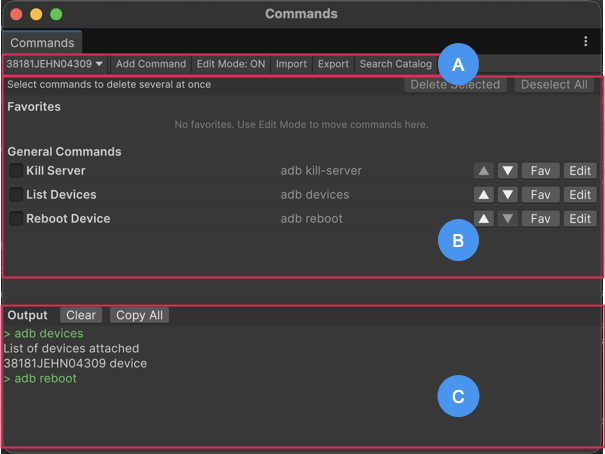
The Commands window displaying the toolbar, command lists, and the output panel.
| Label | Description |
|---|---|
 |
Toolbar: Contains controls to add, import, export, and search for commands, and switch to Edit Mode. |
 |
Command lists: Lists your Favorites and General commands, with a Run button for each command. |
 |
Output panel: Displays the output of the commands that you run, with an option to copy the output and cancel a running command. |
Toolbar
The toolbar contains the following controls:
| Control | Description |
|---|---|
| Add Command | Opens the Add Command dialog to create a command. |
| Edit Mode | Turns Edit Mode on or off. In Edit Mode, each command displays controls that you can use to reorder, edit, and delete commands, and mark them as favorites. |
| Import | Replaces your current commands with the commands from a JSON file. |
| Export | Saves your current commands to a JSON file. |
| Search Catalog | Opens the Search Commands window. |
Add Command and Edit Command dialogs
The Add Command and Edit Command dialogs contain the following properties:
| Property | Description |
|---|---|
| Name | Sets the name that the Commands window displays for the command. |
| Command | Defines the command to run. You can enter multiple lines of commands. Each line runs as a separate command in sequence. For example:adb shell pm clear <package>adb shell am start -n <package/activity>A line that starts with adb runs on the device selected in the Android Logcat window. Unity applies the selected device automatically unless you specify -s or --serial. Any other line runs as a program on your computer, for example java -jar bundletool.jar.To add a placeholder, enter the name in angle brackets. For more information, refer to Resolve Placeholders dialog. Note: Unity doesn't validate a command. If a command fails, the error appears in the output panel when you run it. For adb syntax, refer to Android Debug Bridge (adb). |
| Category | Sets the category that the Search Commands window uses to filter the command. The available options are: • Uncategorized • Device Management • Packages • Permissions • File Transfer • System Info • Dumpsys • Settings • Networking • Advanced • Quest • Bundletool |
Search Commands window
The Search Commands window lists all commands, including the predefined commands in the built-in catalog and the commands that you add through the Add Command dialog. Commands that are already in your command list are labeled Added. The commands from the built-in catalog are labeled Catalog. To view a description of a catalog command, hover over its name or command text.
| Control | Description |
|---|---|
| Search field | Filters the list by command name or command text. |
| Category buttons | Filters the list by category. Select All to remove the category filter. |
| Add | Adds a command from the catalog to your list. |
| Run | Runs a command directly from the Search Commands window without adding it to your command list. |
Resolve Placeholders dialog
The Resolve Placeholders dialog appears when you select Run on a command that contains placeholders. A placeholder is a token in angle brackets, such as <package> or <permission>. For example, the Clear App Data command is adb shell pm clear <package>.
The Resolve Placeholders dialog displays the command and a field for each placeholder. Each field displays an example value. To view a description of the placeholder, hover over the field.
| Control | Description |
|---|---|
| Placeholder fields | Enter a value for each placeholder. Unity prefills the <package> and <package/activity> fields with values from the Player settings. |
| ▾ | Displays a list of common values for the placeholder, such as permissions and Quest levels. The dropdown is available for only some placeholders. |
| Run | Replaces the placeholders with the values that you enter and runs the command. |
Command lists
This part of the window contains two lists:
- Favorites: Commands that you use often.
- General: All other commands, including the default commands and commands that you add from the catalog. By default, this section contains three commands: List Devices, Kill Server, and Reboot Device.
To view the full text of a command, hover over the command text. For commands that you added from the catalog, the tooltip also displays a description of the command.
Each command has a Run button. In Edit Mode, each command also has the following controls:
| Control | Description |
|---|---|
| Move up / Move down | Moves the command up or down in the list to change the order that the list displays. Use these controls to move the commands that you use most often to the top. |
| Fav / Unfav | Fav moves the command from General to Favorites. Unfav moves it back to General. |
| Edit | Opens the Edit Command dialog. |
| Delete Selected | Deletes the selected commands after you confirm. To select a command, select its checkbox. You can delete multiple commands together. |
Output panel
The output panel displays the output of the commands that you run. It contains the following controls:
| Control | Description |
|---|---|
| Copy All | Copies all output to the clipboard. |
| Clear | Clears the output displayed in the output panel. |
| Cancel | Stops the running command sequence. This control is available only when you run a command. |