Scene Cache In Timeline
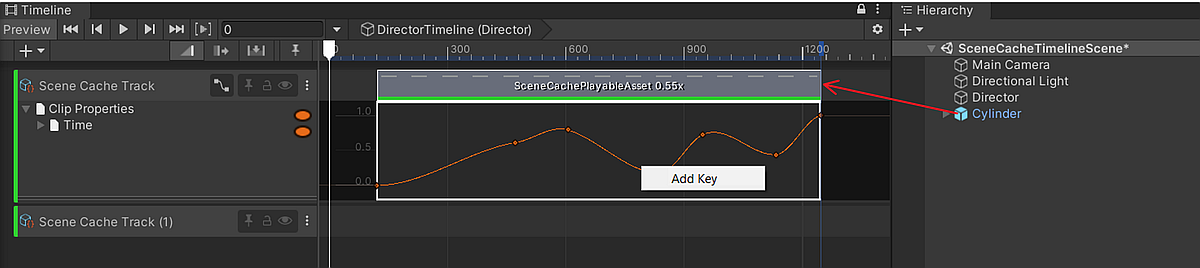
Scene Cache can be controlled via Timeline by performing the following steps:
- Open the Timeline window.
- In the Timeline Window, click Unity.MeshSync > Scene Cache Track to add a SceneCacheTrack.
- Drag and drop the SceneCachePlayer GameObject to the newly added track, which will automatically create a SceneCachePlayableAsset.
To view animation curves of the clip, click the Curves icon next to the Track name.
Scene Cache Playable Asset
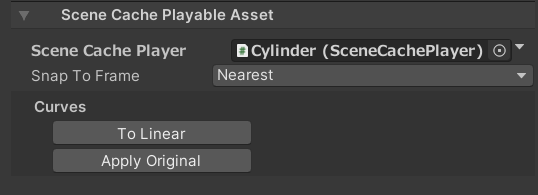
| Properties | Description |
|---|---|
| Scene Cache Player | The SceneCachePlayer to be played in Timeline. |
| Snap To Frame | Sets if the playback time should snap to a frame and how. |
Curve buttons
| Buttons | Description |
|---|---|
| To Linear | Set the animation curve to a linear curve. |
| Apply Original | Applies the original animation curve from the Scene Cache (.sc) file. |