MARS Companion Core
The MARS Companion Core package is used to sync resources for the MARS companion apps. This documentation gives a brief overview on how to use the package, and covers its technical requirements and known limitations.
Installing MARS Companion Core
Install the MARS Companion Core package like you would any other package. To install this package, follow the instructions in the Package Manager documentation.
Using MARS Companion Core
Most of the controls for the MARS Companion Core package are located in the Companion Resource Manager window. To open this window, from Unity's main menu, go to Window > MARS > Companion Resource Manager.
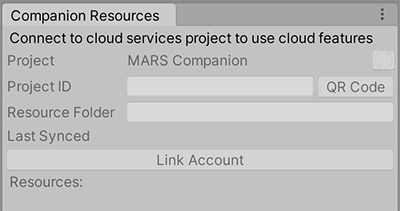
In order to sync resources to the Companion App, you must connect your project to a Cloud Services project. To link your project, enable any service (e.g. Cloud Build) from the services window (menu: Window > General > Services), or link to an existing project.
If your project is not linked to Unity's Cloud Services, you will see the following:
Once your project is linked, and you have published some resources, you will see the following:
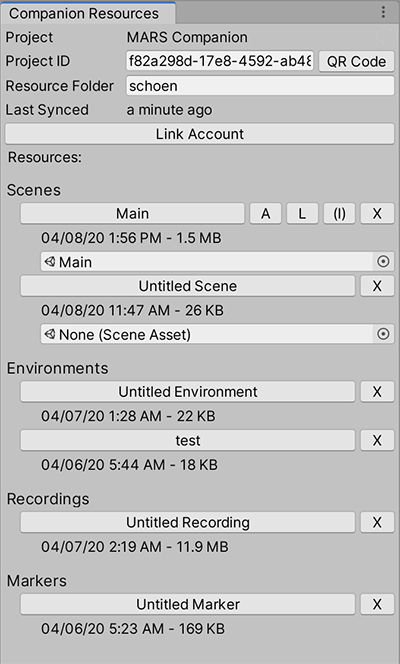
- Click the Refresh button (top-right circle arrows button) to update the resource list.
- Select the checkboxes associated with the platforms which should be used when exporting AssetBundles for this resource. You can choose from iOS, Android, or Lumin.
- To import a resource into your project, click its corresponding button in the Sync Status column. This will open a file dialog where you can specify a path within the
Assetsfolder where you want to save the new resource(s). - Hover the mouse cursor over a resource's metadata in the Asset Name, Size, or Date column to see a tooltip with its unique identifier.
- The Asset column contains an object field to indicate which Unity project asset is associated with the cloud resource. This will say
Nonefor resources which have not been imported into the project, or did not originate in this project. TheAssets/MARSSettings/ScriptableSettings/CompanionResourceSyncasset keeps track of which cloud resource is associated with which Unity project asset, and this asset should be tracked in version control so that all users of the project have the same asset files associated with their corresponding cloud resources. - Click the - button next to any resource to remove it from the list. This will delete the resource on cloud storage and remove the resource from the list for all users of this resource folder. If there is a local asset associated with this resource, it will not be deleted, but its association with a unique identifier will be removed from the
CompanionResourceSyncasset.
In the bottom right, you will see two buttons: Sync Bundles and Sync All.
- The Sync Bundles button exports and syncs asset bundles to the Platforms you selected in their respective columns. This process can take a long time depending on your project size, because it requires Unity to switch to each of the target build platforms if necessary. For example, if your project is currently set to the iOS platform, and you want to export Android bundles, Unity must switch to the Android build target to do so, which is equivalent to pressing the
Switch Platformbutton in theBuild Settingswindow. - The Sync All button allows you to quickly sync all the resources. This is equivalent to clicking the Sync Status button for each resource.
Publishing Scenes and Prefabs
The MARS Companion Core package also adds a menu item to the context (right-click) menu for assets. Right-click the asset in the Project view, then select MARS Companion > Publish from the context menu.
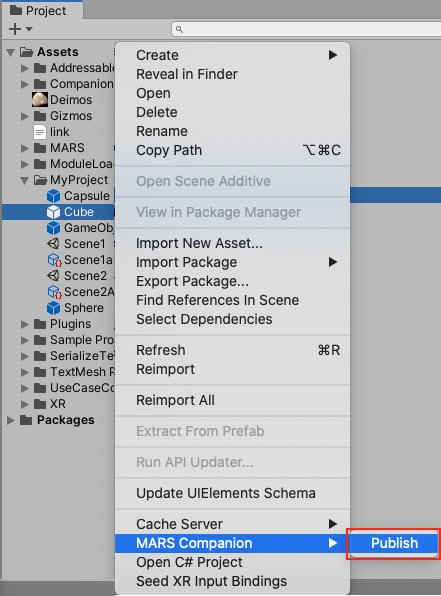
You can publish the following asset types:
- Scenes
- Scene Asset Pack ScriptableObjects
- Prefabs
When you publish a scene that has asset references, Unity displays a save dialog that lets you select where to save an additional ScriptableObject which contains references to these assets and their guids. Unity also logs instructions to the console reminding you to publish an AssetBundle for these assets. To do this, right-click the newly saved ScriptableObject, then select MARS Companion > Publish from the context menu. This will start a build process to build and upload an AssetBundle for the current build target which contains the assets referenced by this scene. You can also export the scene's AssetBundles using the Platform check boxes and Sync Bundles button in the Companion Resource Manager.
The MARS Companion app currently supports iOS, Android, and Lumin (Magic Leap) devices. If you need to edit a scene or use a Prefab on all platforms, you must ensure that the checkbox for each platform you want is checked in the Companion Resource Manager. If you need additional AssetBundles, check the boxes you need and press Sync Bundles. This applies to published Prefabs, as well as Scene AssetPacks.
Note: The MARS Companion > Publish context menu option will only publish an AssetBundle for your Project's current build target, even if it is not iOS or Android. This method of publishing AssetBundles does not switch platforms because because it can take a long time the process cannot be canceled.
If you want to publish an AssetBundle to the cloud from a platform other than the current build target, select that platform's checkbox in the appropriate column. An asterisk (*) next to a toggle indicates that an AssetBundle has been published for this resource, and unchecking it will delete the bundle to free up storage space.
Note: Currently, Unity does not check if the published AssetBundle is up-to-date. If you added asset references to your scene, you need to upload the AssetBundle again, even if the resource window indicates that a bundle exists for that scene.
Technical details
Requirements
This version of MARS Companion Core is compatible with the following versions of the Unity Editor:
- 2019.3.0f6 or later
Known limitations
MARS Companion Core version 0.1 includes the following known limitations:
- Recordings do not display their videos in Simulation View
- Image marker import does not create a proxy, thus Hotspots are not imported
- When linking a mobile project to a Cloud project, the Cloud project name will take precendence
- Prefab overrides are not saved, and will be lost when publishing scenes
- Proxies inside of prefabs will be editable on device, but edits will not be saved because prefab overrides are not supported
- If you edit and save scene on device which is missing its AssetBundle, asset references will be lost and prefabs will be replaced with placeholder objects
Document revision history
| Date | Reason |
|---|---|
| Aug 06 2020 | Update docs with new companion app UI |
| Apr 08, 2020 | Update for 0.1 release |
| Oct 20, 2019 | Document created. |