Preparing a Unity project for Shotgrid
Using the Package Manager window, add the Shotgrid package which matches your pipeline configuration in the table below:
| tk-config-unity version | tk-unity version | com.unity.integrations.shotgrid version |
|---|---|---|
| 1.3.19.1 | 1.1 | 1.1.0 |
Shotgrid should automatically initialize on Unity startup if you launched Unity from Shotgrid. You should see a progress bar reporting the Shotgrid toolkit bootstrap progress:
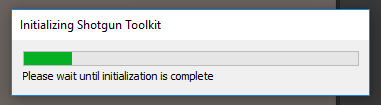
Once the progress bar disappears, you can use the Shotgrid menu items.
Notes
Launching A Project
Shotgrid replaces the need to launch a project through the Unity hub. Simply launch Shotgrid desktop and click on your unity version. A file Selection Directory should pop up. Navigate to your Unity project folder and select it. This should launch the project directly into your project Unity Editor.
The Shotgrid folder
A Shotgrid folder will be created under your Unity project's
Assets folder. This Shotgrid folder will automatically be deleted when Unity
exits. Do not use the Assets/Shotgrid folder to store your files, and do not
modify its content.
Disable Debug Logging
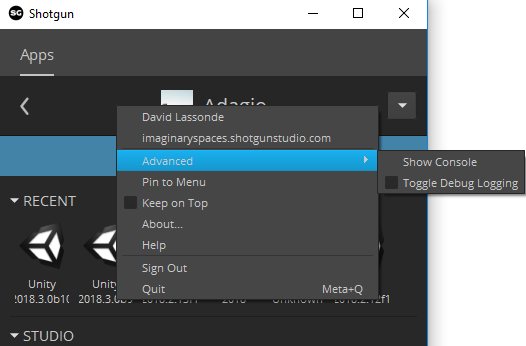
It is recommended to disable Debug Logging in order to get better performance (right-click in a gray area of Shotgrid Desktop / Advanced / Toggle Debug Logging):