Advanced Workflows
The tk-config-unity configuration comes with customizations that can greatly improve artist productivity.
See Enabling Advanced Workflows for details on how to configure your Shotgrid site to take advantage of these workflows.
Metadata
When you publish your recordings to Shotgrid, Unity embeds the current project path
and the scene asset path in the created Version entity sg_unity_metadata field:
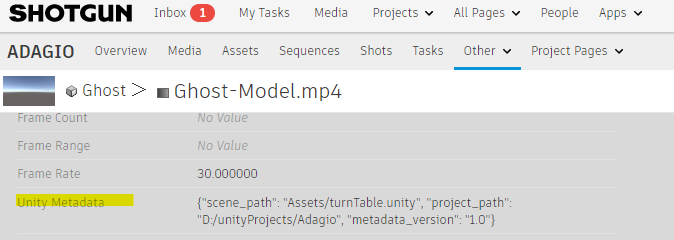
This allows Shotgrid to start in the right context (right project, right scene) when launched from a Version or Note entity.
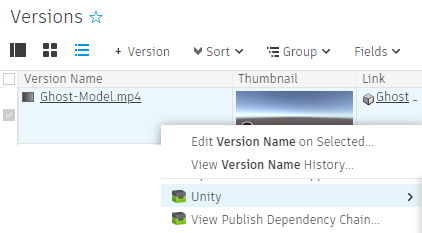
Launching from a Version entity
You can launch Unity from a Version entity in the Versions page:
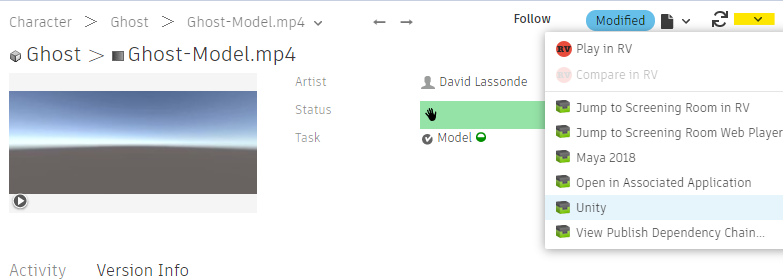
Or from a Version entity page
Launching from a Note entity
You can launch Unity from a Note entity in the Notes page:

Or from a Note entity page
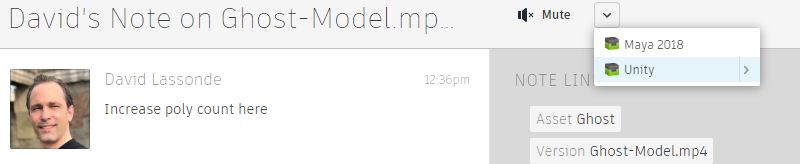
In all cases, the Unity Editor should launch directly without going through the Unity Hub first.
Note: Launching from a Version entity or from a Note entity straight to the
right Unity project and scene only works if the user has their
project in the location that is saved in the sg_unity_metadata field.
If there is no matching Unity project, then the Unity Hub will
be launched instead.
Jump to Frame
You can use the Shotgrid Panel to automatically select the right Timeline, on the frame associated with a Shotgrid Note. In order to do so:
- Select
Shotgrid Panel...in theShotgridmenu - Click on the
Notestab and select the Note - Click the arrow displayed in the top-right corner of the selected Note
- Click on
Jump to Frame

Note: The Jump to Frame advanced workflow will only work for Note entities
relating to an existing scene in the current Unity project. Also, there must
exist a Main Timeline in the scene.
(see Establishing the Main Timeline).
When successful, the Main Timeline will be selected, and its frame will be set to the value reflected by the Shotgrid Note entity.

Establishing the Main Timeline
Timeline Assets can be assigned to multiple Playable Directors in Unity. There is no strict concept of a Main Playable Director or Timeline in Unity. The Jump to Frame advanced workflow needs a way to identify the Main Timeline so it can select its Playable Director and set its frame value.
tk-config-unity determines which Timeline is the Main one by searching for
Game Objects tagged with a specific name. By default, if a Game Object is tagged
MainTimeline and possesses a Playable Director driving a Timeline instance, then
this Timeline instance is considered as the Main Timeline.
To tag a Game Object, select it and choose MainTimeline in the list of tags
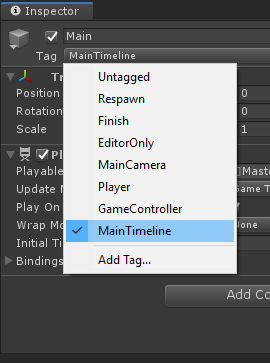
You can use the Add Tag... menu item in the list of tags to add the
MainTimeline tag to the list if it is not present.
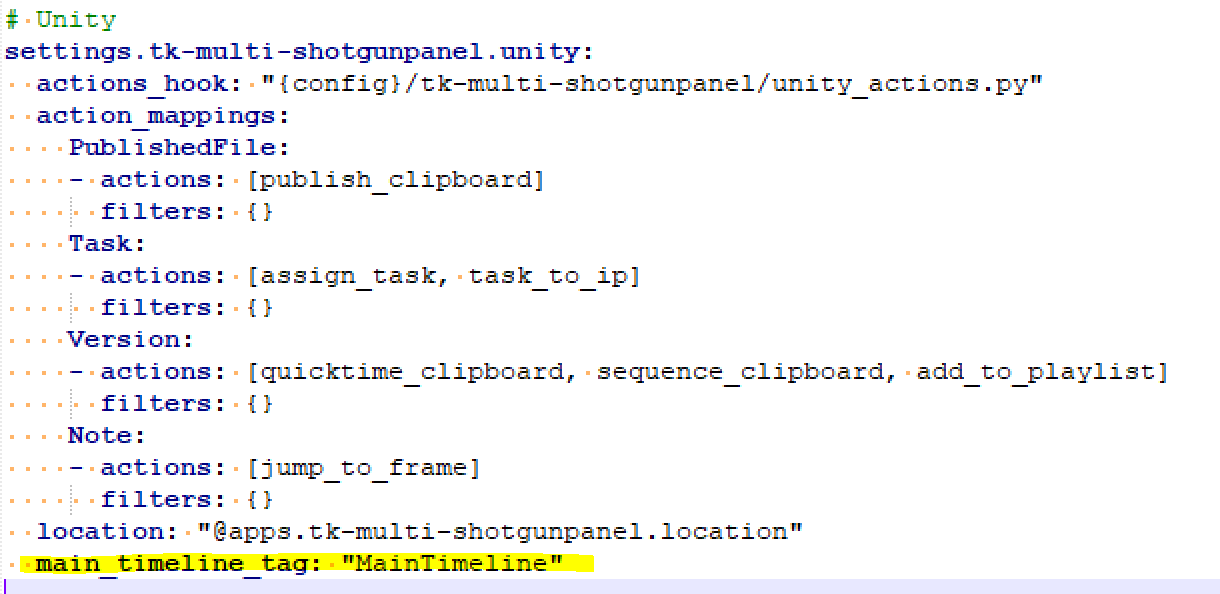
The tag name can be configured in the Shotgrid Panel settings, for the current
environment. tk-config-unity sets this value in
env/includes/settings/tk-multi-Shotgridpanel.yml:
Enabling Advanced Workflows
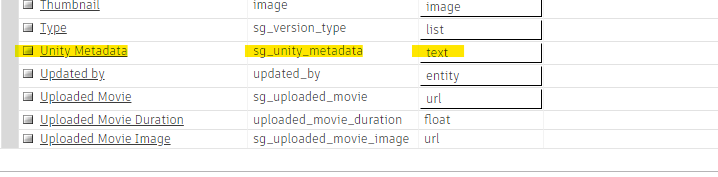
Unity uses a custom Version entity field named sg_unity_metadata in order to
save metadata that is used in advanced workflows. Your Shotgrid site administrator
needs to add this custom field:
- As an administrator, go to the Versions page
Select
Manage Version Fields...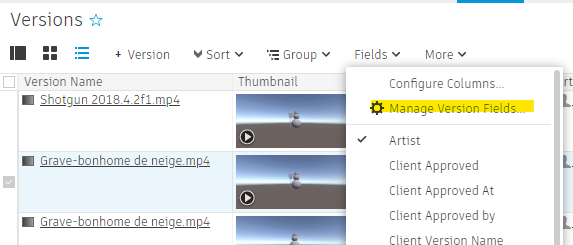
Create a
textfield, namedUnity Metadata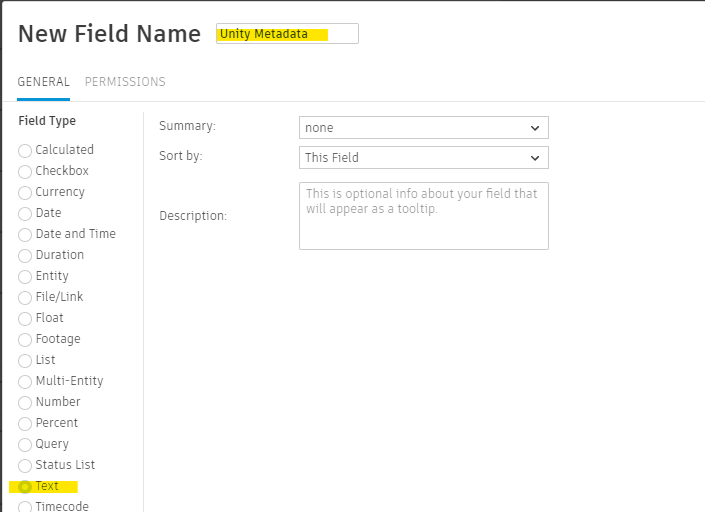
You should see the new field
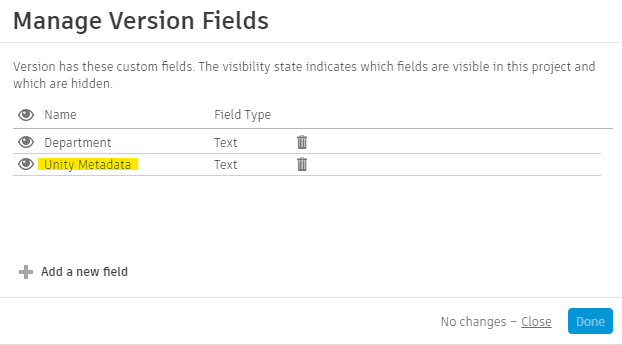
Go into the Fields page

There should be a new field on Version entities. The field name should be
Unity Metadata, the field code should besg_unity_metadata, the data type should betext