Generate C# API from actions
To refer to your actions in a type-safe manner from code, use action assets to generate a C# class from your action definitions.
When you use action assets:
- You don't need to look up actions and action maps by name.
- You can set up callbacks for all the actions in a map at once.
Note
This is an alternative workflow to project-wide actions, and provides a different way to access the actions defined in your action asset.
To enable type-safe C# API generation:
- In the Project window, select the action asset.
- In the Inspector window, enable Generate C# Class.
- Select Apply.
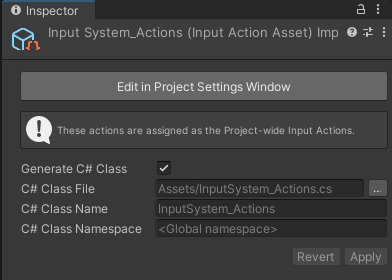
You can choose a path name, class name, and namespace for the generated script, or keep the default values. If you don't enter a class name, the Input System uses the asset's name for the class name.
The Input System then creates a C# script with an API that matches the actions in the asset, which you can use directly in code.
Receive callbacks for an action map
For each action map, the generated class contains:
- A struct named
<MapName>Actions, which you access through a property named after the map, for examplecontrols.gameplay. The struct hasEnable,Disable, andGetmethods, and a property for each action in the map. - An interface named
I<MapName>Actions, with a method namedOn<ActionName>(InputAction.CallbackContext context)for each action in the map. The Input System calls this method in each phase of the action: started, performed, and canceled. To respond to only one phase, check the context in your script, for example,if (context.performed).
To control the callbacks on your action map, use the following methods:
| Method | Description |
|---|---|
AddCallbacks |
Adds the object as a callback receiver for all the actions in the map. You can add several objects. Adding the same object twice has no effect. |
RemoveCallbacks |
Removes an object that you added. Other registered objects keep receiving callbacks. |
SetCallbacks |
Removes all registered objects, then adds the object. Pass null to remove all callbacks. |
The Input System converts action and map names to valid C# identifiers. It removes characters that aren't letters, digits, or underscores, and capitalizes the first letter in type and method names. For example, an action named jump high generates the method OnJumphigh, and an action named jumpHigh generates OnJumpHigh.
To use action maps in C# scripts, follow these steps:
- Implement the
I<MapName>Actionsinterface. - Call
AddCallbackson the map struct. - Enable the action map.
When you no longer need the action map, remove it in your script:
- Disable the action map.
- Call
RemoveCallbackson the map struct. - Dispose the generated class.
For a complete script, refer to Example: receive callbacks in a MonoBehaviour.
When you no longer need the instance of the generated class, disable each action map and call Dispose. In the Unity Editor and in development builds, the generated class logs the following assertion failure if an action map is still enabled when the garbage collector finalizes the instance:
This will cause a leak and performance issues, <ClassName>.<mapName>.Disable() has not been called.
Example: receive callbacks in a MonoBehaviour
The following example assumes that you set the class name to MyPlayerControls and that the asset has an action map named gameplay that contains two actions, use and move. The generated class therefore contains the interface MyPlayerControls.IGameplayActions. The script registers for callbacks in Awake, enables and disables the map in OnEnable and OnDisable, and removes its callbacks and disposes the class in OnDestroy:
using UnityEngine;
using UnityEngine.InputSystem;

/// <summary>
/// Example script showing how to consume a C# class generated from an
/// .inputactions asset via the "Generate C# Class" option.
/// </summary>
public class MyPlayerScript : MonoBehaviour, MyPlayerControls.IGameplayActions
{
    // MyPlayerControls is the C# class that the Input System generated.
    // It contains the data from the .inputactions asset, and looks up all the
    // maps and actions automatically.
    MyPlayerControls controls;

    void Awake()
    {
        controls = new MyPlayerControls();
        // Receive callbacks for the actions in the "gameplay" action map.
        controls.gameplay.AddCallbacks(this);
    }

    void OnEnable()
    {
        controls.gameplay.Enable();
    }

    void OnDisable()
    {
        controls.gameplay.Disable();
    }

    void OnDestroy()
    {
        controls.gameplay.RemoveCallbacks(this);
        controls.Dispose();
    }

    // Called when the "use" action is started, performed, or canceled.
    public void OnUse(InputAction.CallbackContext context)
    {
        if (context.performed)
        {
            // 'Use' code here.
        }
    }

    // Called when the "move" action is started, performed, or canceled.
    public void OnMove(InputAction.CallbackContext context)
    {
        Vector2 move = context.ReadValue<Vector2>();
        // 'Move' code here.
    }
}
Tip
To regenerate the .cs file, in the Project window, right-click (macOS: Ctrl+click) the .inputactions asset and select Reimport.