Generate C# API from actions
To refer to your actions in a type-safe manner from code, use action assets to generate a C# class from your action definitions.
When you use action assets:
- You don't need to look up actions and action maps by name.
- You can set up callbacks for all the actions in a map at once.
Note
This is an alternative workflow to project-wide actions, and provides a different way to access the actions defined in your action asset.
To enable type-safe C# API generation:
- In the Project window, select the action asset.
- In the Inspector window, enable Generate C# Class.
- Select Apply.
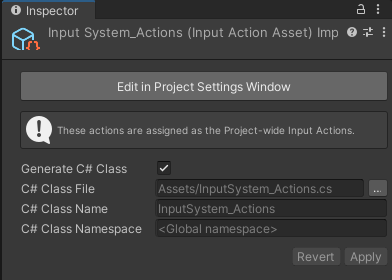
You can choose a path name, class name, and namespace for the generated script, or keep the default values. If you don't enter a class name, the Input System uses the asset's name for the class name.
The Input System then creates a C# script with an API that matches the actions in the asset, which you can use directly in code.
For each action map, the generated class also contains an interface named I<MapName>Actions, with one method for each action in the map. To receive callbacks for all the actions in a map, implement this interface and pass your object to the map's SetCallbacks method.
The following example assumes that you set the class name to MyPlayerControls and that the asset has an action map named gameplay that contains two actions, use and move. The generated class therefore contains the interface MyPlayerControls.IGameplayActions:
using UnityEngine;
using UnityEngine.InputSystem;

// IGameplayActions is an interface that the Input System generates for the
// "gameplay" action map. The generated class contains one interface for each
// action map, named I<MapName>Actions, with one method for each action in the map.

/// <summary>
/// Example script showing how to consume a C# class generated from an
/// .inputactions asset via the "Generate C# Class" option.
/// </summary>
public class MyPlayerScript : MonoBehaviour, MyPlayerControls.IGameplayActions
{
    // MyPlayerControls is the C# class that Unity generated.
    // It encapsulates the data from the .inputactions asset we created
    // and automatically looks up all the maps and actions for us.
    MyPlayerControls controls;

    /// <summary>
    /// Called by Unity when the component is enabled.
    /// </summary>
    public void OnEnable()
    {
        if (controls == null)
        {
            controls = new MyPlayerControls();
            // Tell the "gameplay" action map that we want to be
            // notified when actions get triggered.
            controls.gameplay.SetCallbacks(this);
        }
        controls.gameplay.Enable();
    }

    /// <summary>
    /// Called by Unity when the component is disabled.
    /// </summary>
    public void OnDisable()
    {
        controls.gameplay.Disable();
    }

    /// <summary>
    /// Called when the "use" action is triggered.
    /// </summary>
    /// <param name="context">Context for the triggered action.</param>
    public void OnUse(InputAction.CallbackContext context)
    {
        // 'Use' code here.
    }

    /// <summary>
    /// Called when the "move" action is triggered.
    /// </summary>
    /// <param name="context">Context for the triggered action.</param>
    public void OnMove(InputAction.CallbackContext context)
    {
        // 'Move' code here.
    }
}
Tip
To regenerate the .cs file, in the Project window, right-click (macOS: Ctrl+click) the .inputactions asset and select Reimport.