Create an on-screen stick control
To create an on-screen stick:
- Create a UI
Imageobject. - Add the
OnScreenStickcomponent to it. - Set the
controlPathto refer to aVector2Control(for example,<Gamepad>/leftStick). The type of device referenced by the control path determines the type of virtual device created by the component.
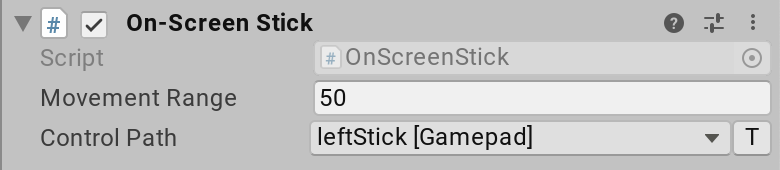
The OnScreenStick component requires the target control to be a Vector2 control. OnScreenStick starts the movement of the stick control when it receives a pointer-down (IPointerDownHandler.OnPointerDown) event, and stops it when it receives a pointer-up (IPointerUpHandler.OnPointerUp) event.
In-between, the stick moves according to the pointer being dragged (IDragHandler.OnDrag) within a box centered on the pointer-down screen point, and with an edge length defined in the component's Movement Range property. A movement range of 50, for example, means that the stick's on-screen area is 25 pixels up, down, left, and right of the pointer-down point on screen.
If you want to be notified when the user starts and/or stops touching the on-screen stick, implement IPointerDownHandler and/or IPointerUpHandler on a component and add it to the stick GameObject.
Choose how the stick moves
Use the Behaviour property to choose how the stick moves relative to its origin and the pointer position:
| Behaviour | Description |
|---|---|
| Relative Position With Static Origin | The stick's origin is fixed in the scene. The stick starts at its center, unactuated, and moves relative to the pointer's movement. |
| Exact Position With Static Origin | The stick's origin is fixed in the scene. The stick tracks the pointer's exact position, so it can start in an actuated position, for example, if the user presses away from the stick's center. |
| Exact Position With Dynamic Origin | The stick's origin is wherever the user first presses. The stick starts unactuated at that point, then tracks the pointer's position. Use Dynamic Origin Range to set the radius of the area in which the user can place the origin. |
Isolate stick controls
The OnScreenStick simulates input events from the device specified in the OnScreenControl.control property. To the Input System itself, these are normal events and can cause the paired device to change in games and applications where dynamic device switching is used, for example when the PlayerInput component is used with the PlayerInput.neverAutoSwitchControlSchemes propety set to false. As the stick is dragged around, the paired device will alternate between the device that owns the pointer (mouse, touch, pen etc) and the device from the control path, which can result in jittery movement of the on-screen stick.
To fix this, enable Use Isolated Input Actions. This mode uses a local set of input action instances to drive interaction with the stick, and not the actions defined in the UI. The downside of this mode is that pointer actions will be duplicated in both the on-screen stick component and any input action assets being used to drive the UI. Note that if a set of bindings is not specified for the Pointer Down action and Pointer Move actions, the following defaults will be used:
Pointer Down action
<Mouse>/leftButton<Pen>/tip<Touchscreen>/touch*/press<XRController>/trigger
Pointer Move action
<Mouse>/position<Pen>/position<Touchscreen>/touch*/position