Tracked input UI support
Input from tracked devices such as XR controllers and HMDs behaves like pointer-type input, but the Input System uses raycasting to translate the world-space device position and orientation sourced from trackedDevicePosition and trackedDeviceOrientation into a screen-space position.
Important
Because multiple tracked devices can feed into the same set of actions, it is important to set the action type to PassThrough. This ensures that the Input System applies no filtering on these input actions, and relays inputs correctly.
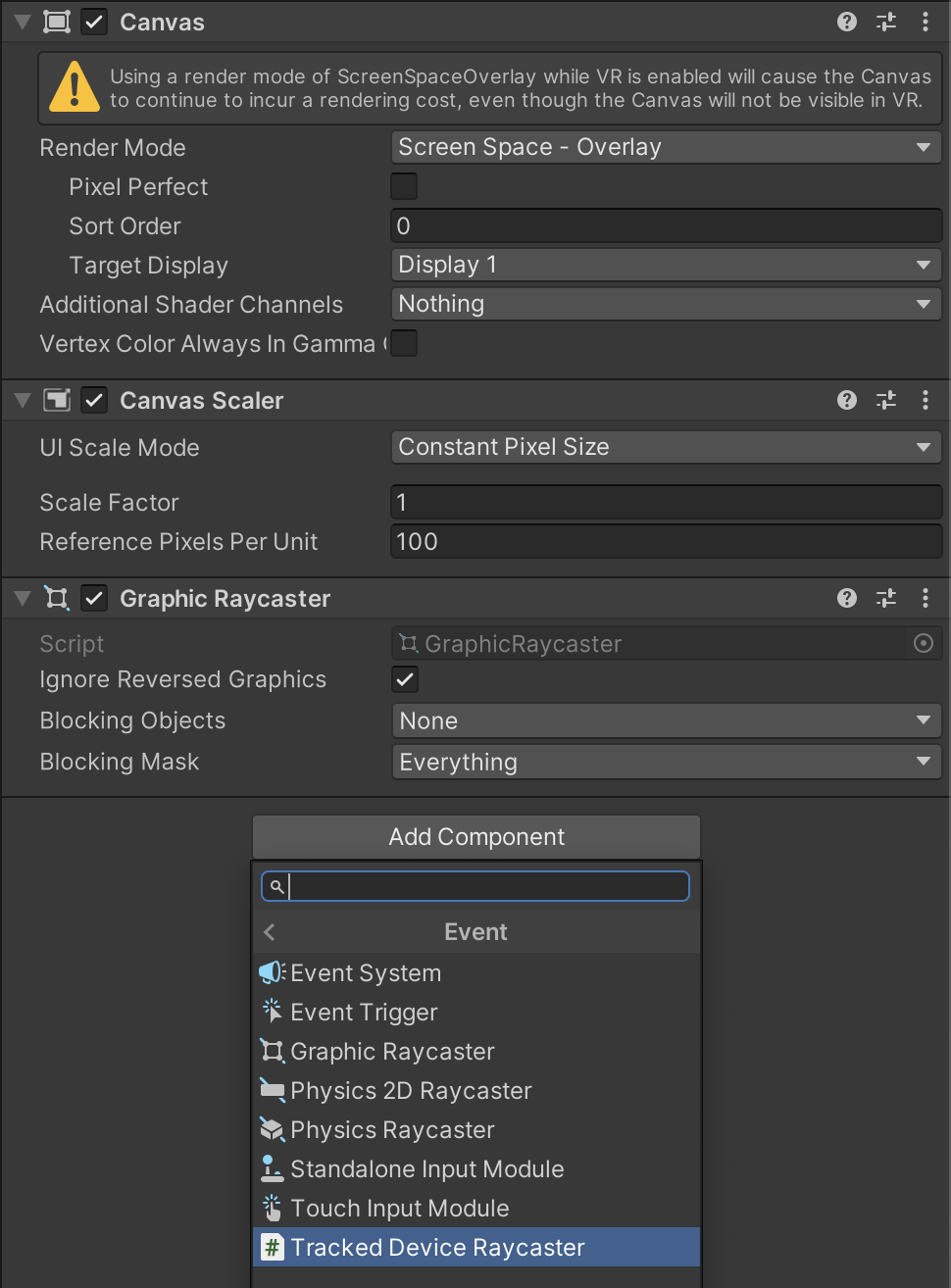
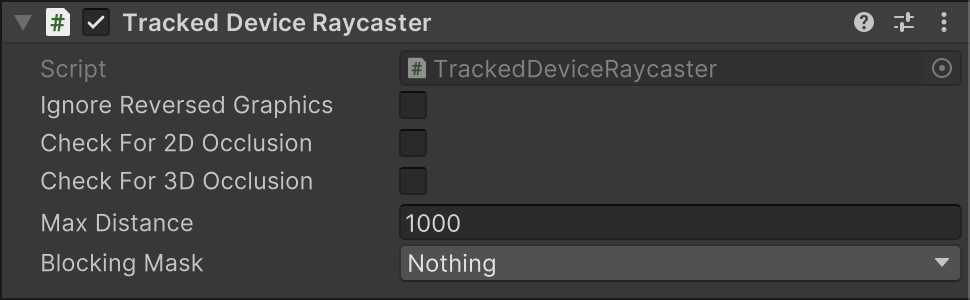
For this raycasting to work, you need to add TrackedDeviceRaycaster to the GameObject that has the UI's Canvas component. This GameObject will usually have a GraphicRaycaster component which, however, only works for 2D screen-space raycasting. You can put TrackedDeviceRaycaster alongside GraphicRaycaster and both can be enabled at the same time without advserse effect.
Clicks on tracked devices do not differ from other pointer-type input. Therefore, actions such as leftClick work for tracked devices just like they work for other pointers.