docs.unity3d.com
Search Results for

    Show / Hide Table of Contents

    Assign an existing action asset as project-wide

    To assign an existing actions asset as project-wide, do one of the following:

    1. Go to Edit > Project Settings > Input System Package
    2. Drag the asset from your Project window into the Project-wide Actions field.
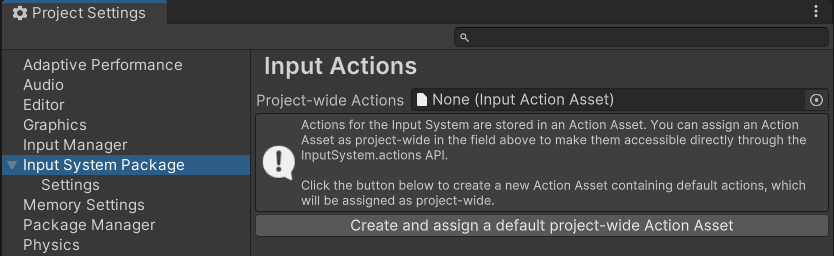
    Screenshot of the Project Settings window, with Input System Package selected. Its settings are displayed on the right of the window. The Project-wide Actions field is empty, and an information box explaining you can assign an action asset as project-wide by selecting it in this field or creating it in this window is shown. A button to automatically create and assign the default project-wide action asset is displayed under the information box
    The Input System Package Project Settings with no project-wide actions assigned displays a button to create and assign a default project-wide action asset

    or:

    1. Select the Asset in your Project window
    2. In the Inspector window, select Assign as the Project-wide Input Actions.

    Only one Actions Asset can be assigned as project-wide. If a different asset was previously assigned as project-wide, it becomes unassigned.

    In This Article
    Back to top
    Copyright © 2026 Unity Technologies — Trademarks and terms of use
    • Legal
    • Privacy Policy
    • Cookie Policy
    • Do Not Sell or Share My Personal Information
    • Your Privacy Choices (Cookie Settings)