Add processors to bindings and actions
You can add a processor to an action or binding in the Input Actions Editor.
Processors on bindings
When you create bindings for your actions, you can choose to add Processors to the bindings. These process the values from the controls they bind to, before the system applies them to the Action value. For instance, you might want to invert the Vector2 values from the controls along the Y-axis before passing these values to the Action that drives the input logic for your application. To do this, you can add an Invert Vector2 Processor to your binding.
If you're using Actions defined in the Input Actions Editor, or in an action asset, you can add any Processor to your bindings in the Input Action editor:
- Select the binding you want to add Processors to so that the Binding Properties panel shows up on the right side.
- Select the Add (+) icon on the Processors foldout to open a list of all available Processors that match your control type.
- Choose a Processor type to add a Processor instance of that type. The Processor now appears under the Processors foldout.
- (Optional) If the Processor has any parameters, you can edit them in the Processors foldout.
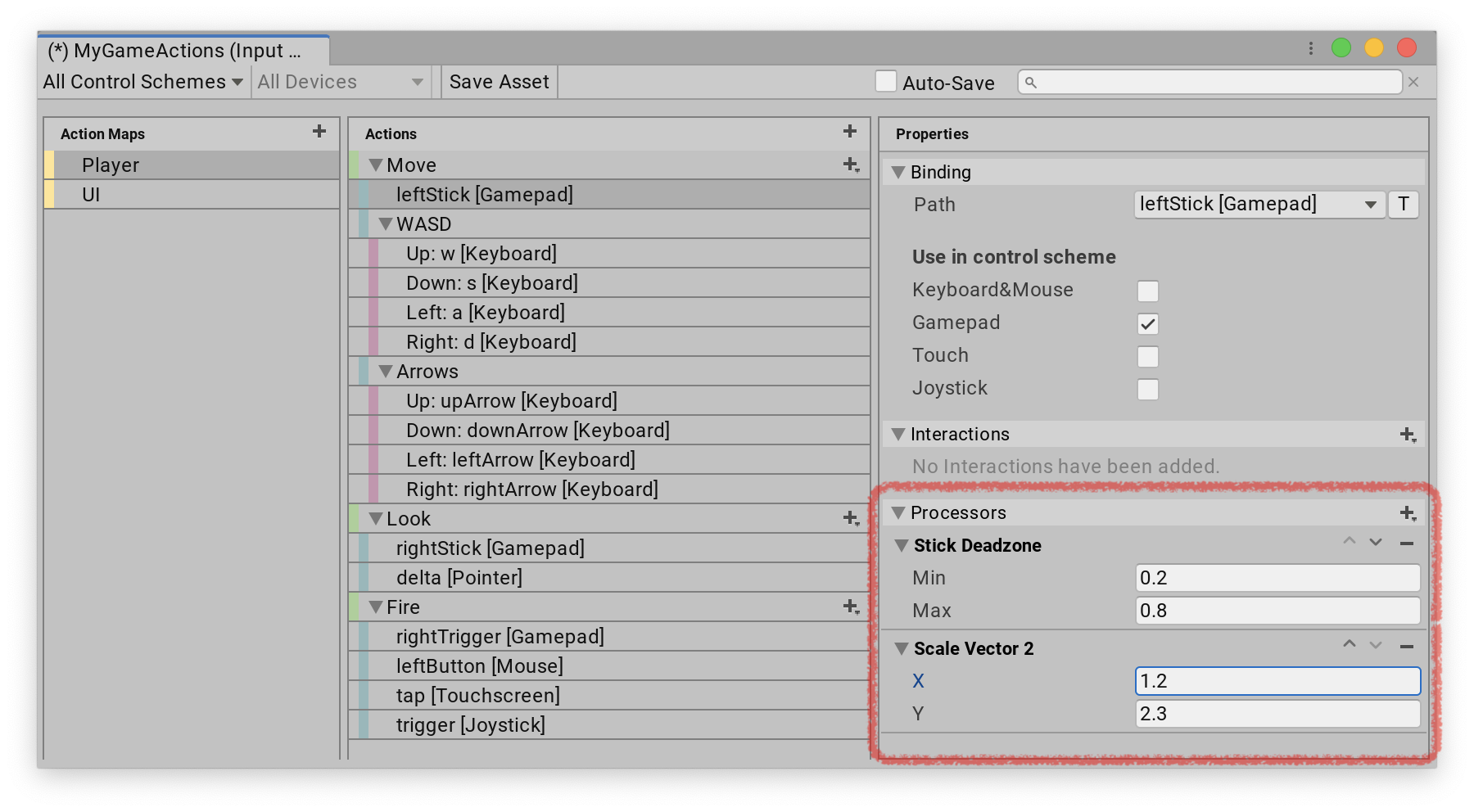
To remove a Processor, click the Remove (-) icon next to it. You can also use the up and down arrows to change the order of Processors. This affects the order in which the system processes values.
If you create your bindings in code, you can add Processors like this:
var action = new InputAction();
action.AddBinding("<Gamepad>/leftStick")
    .WithProcessor("invertVector2(invertX=false)");
Processors on Actions
Processors on Actions work in the same way as Processors on bindings, but they affect all controls bound to an Action, rather than just the controls from a specific binding. If there are Processors on both the binding and the Action, the system processes the ones from the binding first.
You can add and edit Processors on Actions in the Input Actions Editor, or in an action asset the same way as you would for bindings: select an Action to edit, then add one or more Processors in the right window pane.
If you create your Actions in code, you can add Processors like this:
var action = new InputAction(processors: "invertVector2(invertX=false)");