Add, duplicate or delete a binding
Open the Actions Editor window to add, duplicate, or delete bindings.
Add a binding
To add a new binding to an action:
- Select the Add (+) icon on the action.
- Select the appropriate binding type from the menu that appears.
Once you have added a binding, the next step is usually to configure its control path.
Delete a binding
To delete an existing binding from an action:
- Right-click the action.
- Select Delete from the context menu.
Duplicate a binding
To duplicate an existing binding on an action:
- Right-click the action.
- Select Duplicate from the context menu.
Multiple bindings
You can add multiple bindings to an action, which is generally useful for supporting multiple types of input device. For example, in the default set of actions, the "Move" action has a binding to the left gamepad stick and the WSAD keys, which means input through any of these bindings will perform the action.
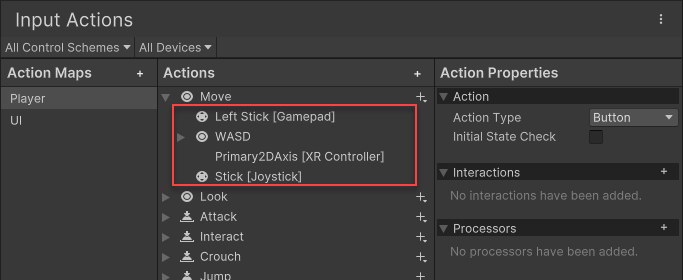
The default "Move" action in the Actions Editor window, displaying the multiple bindings associated with it.