Change the lighting (reflection map) of your shot
You can light your product with different realistic images. You can use any panoramic image that you import into Forma Render.
Select different lighting for your shot
Note
Before making changes to the lighting, you must first go to Stage and select a dome.
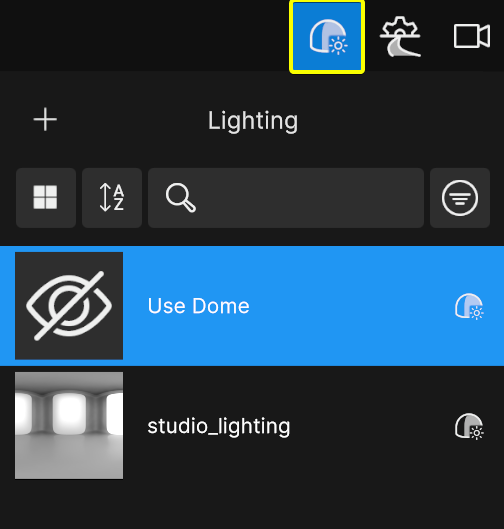
To select different lighting for your shot, follow these steps:
- Go to Lighting.
- Choose from the available panoramic images. You can also use the currently selected dome by selecting Use Dome.
Add new lighting for your shot using a panoramic image
To add new lighting using a panoramic image (HDR, EXR, JPG) you created in an external application, follow these steps:
- Select the Add (+) button.
- Navigate to the image file you want to import.
Generate a reflection map from a dome
To generate a reflection map from a dome, follow these steps:
- Right-click a dome.
- Select Generate Reflection Map from Dome.
- Go to Lighting and add this dome as a reflection map.
Generate a dome from a reflection map
To generate a dome from a reflection map, follow these steps:
- Right-click a reflection map.
- Select Generate Dome from Reflection Map.
- Go to Environment and add this reflection map as a dome.