Demo Project
Your installation of Unity Forma includes a sample project, called Aviera Demo, that illustrates how a model, data, and Variants can help you export an engaging and realistic configurator application.
Tell me about ...
Animations
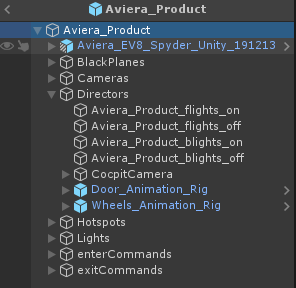
Animations in the sample project use the Unity Cinemachine package. You can find them in the Aviera Product Prefab (under Packages/com.unity.industrial.product.aviera/Aviera/Aviera_Product.prefab).
All the Timeline Directors are included in the Prefab:
Nested Animations
The Door_Animation_Rig and Wheel_Animation_Rig Directors have nested Prefabs. The GameObjects under these Prefabs are animated such as door rotation roots, and the mesh renderers from the Aviera car model are being parented on this Prefab when the timelines play. The reason behind this approach is to avoid losing the animations when reimporting the product.
Door Animation Prefab
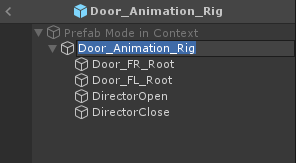
In this Prefab, the Door_FR_Root and Door_FL_Root GameObjects are animated to rotate around the y axis. These GameObjects are placed at the door hinges of the Aviera model.
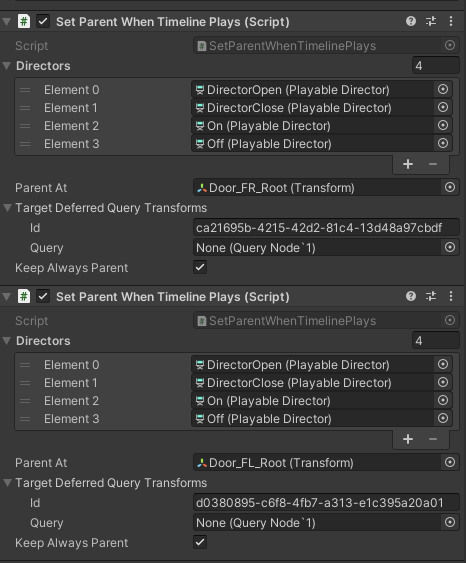
Inside the Aviera Product Prefab, under Door_Animation_Rig, there is a expandable region called Target Deferred Query Transforms. Inside this region are a Query and an Id field. The Query field is always null until the Editor enters play mode, upon which a value is fetched.
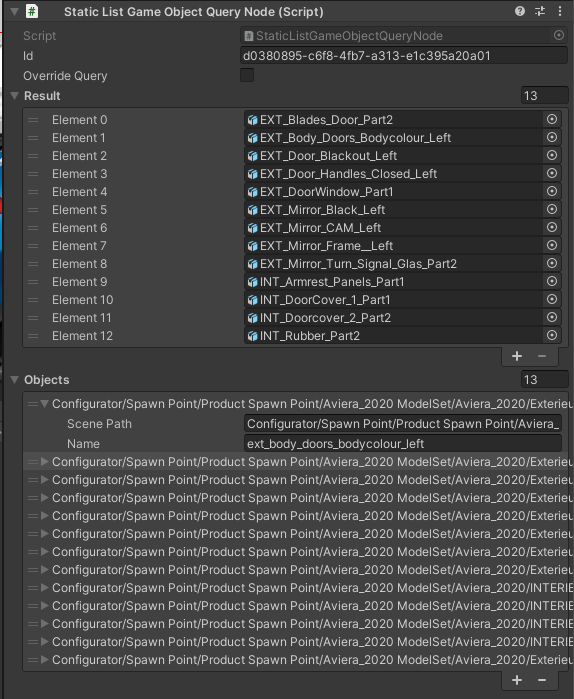
The value in the Id field is the Id of a Query GameObject found inside the Averia_2020 ModelSet prefab. It will be located under the Queries parent node. The purpose of these queries is to allow code to be reused for different versions of the same product, even when the underlying assets are not the same.
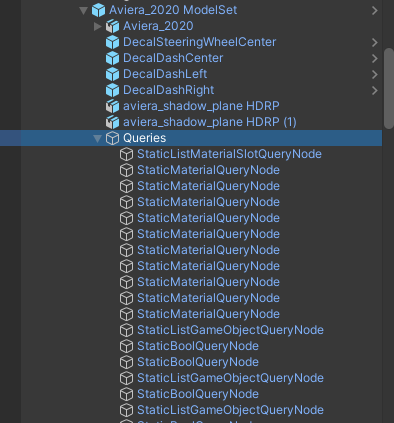
Depending on the type of Query Gameobject, the attached script will vary. In general though, the script will have an Id field, and a list of objects that are either used or affected by the animation. In this example, the Static List Game Object Query Node script holds a reference to the door mesh renderers.
Wheel Animation Prefab
The Wheels_Animation_Rig Prefab has a similar setup with pre-animated components.
Under the Director-Drive GameObject, you can find the WheelRotations GameObject, which has a WheelsController.cs script attached to it. This script calculates the rotation of the wheels based on the speed and the wheels radius. In this example Director, only the body of the Aviera model is animated.
Cameras
This demo uses Unity Cinemachine Cameras such as orbit, static or sequences, locally on the Product Prefab and also globally in the Scene.
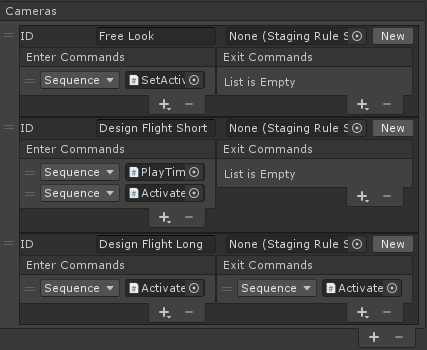
When a Product is loaded, these local and global cameras are merged and are available without distinction in the Runtime UI.
Global Cameras
These cameras are in the Configurator Scene.
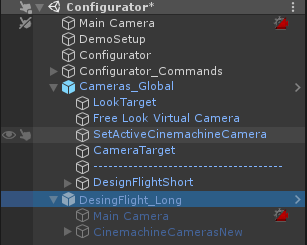
Their setup is under the Configurator_Commands object:
Local Cameras
These cameras are under the Aviera Product Prefab:

Features and Variant Table
The Aviera Product Prefab results from the import of a VRED product. This includes the Variants, automatically retrieved from the VRED product dataset. You can see them under the Product Setup section in Unity Neon mode.
The demo also includes a few additional Variants manually set up to demonstrate the Advanced Setup features.
Note: You can toggle the display of the Advanced Setup section through the Configurator menu.
Runtime UI
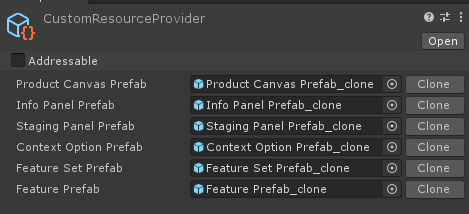
The demo project uses the Unity Neon built-in Runtime UI features but with a custom resource provider.
You can find the example setting Asset under /ConfiguratorDemo/Prefabs/RuntimeUI/CustomResourceProvider, which contains all custom UI Prefabs.
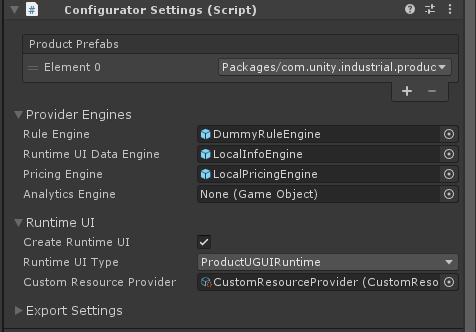
The resource Asset is assigned on the Configurator settings located on Configurator GameObject:
Scenes
All the HDRI environment Scenes are located in the /Scenes folder.
The setup for the Scenes is under the Configurator Scene in the Configurator GameObject:
All these Scenes are available in the Runtime UI.